
How Nest works
The two kinds of folder every file lives in, the views laid over them, and the path one file takes from upload to Trash.
Every file in Nest sits in one folder, and every folder is one of two kinds: yours, or a team's. Everything else in the menu is a different way of looking at those same files. Knowing which of the two you're standing in explains most of what you can and can't do.
Two kinds of folder
- My Folders
- Yours alone. You can do anything to what is in them, and nobody else sees them until you share something.
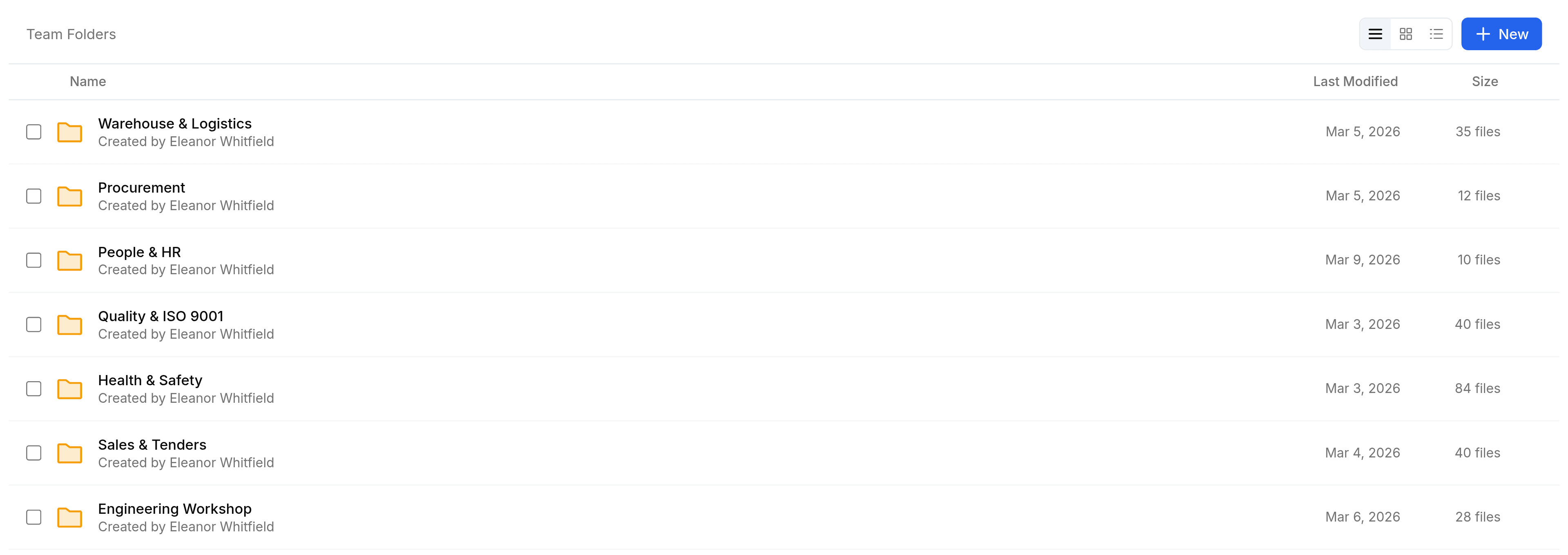
- Team Folders
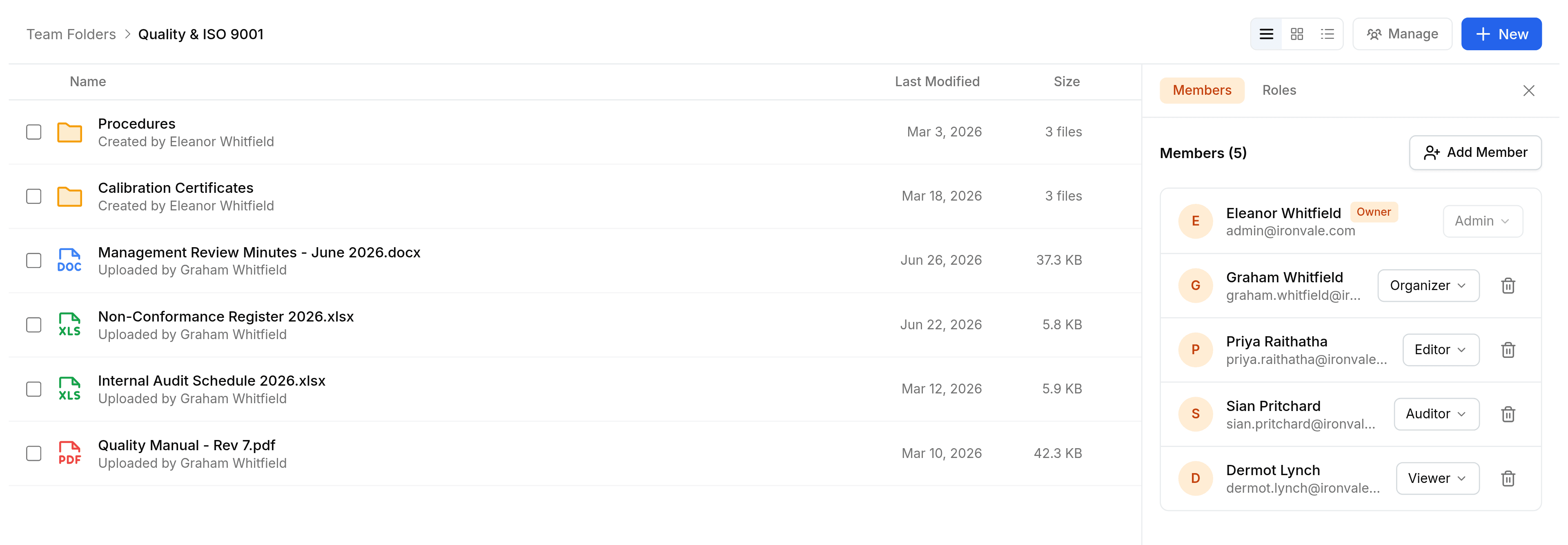
- Owned by a team. Each member holds a role in the folder, and the role decides what they can do there, down to whether they can download.
Each team folder carries its own list of members, and each member holds a role in that folder alone.
The views laid over them
Recent Files, Favorites, Labels, Shared with Me and Search hold no files of their own. Each is a list drawn from the folders above, so starring a file, labelling it or opening it never moves it or makes a copy.
| If you want | Look at | Because |
|---|---|---|
| What you were working on | Recent Files | The files you opened last, newest first |
| The few files you open every day | Favorites | Only what you starred, wherever it sits |
| Every file about one subject | Labels | A label crosses folders, which a folder cannot |
| What colleagues gave you | Shared with Me | Every file and folder shared with you, and on what terms |
| One file you can describe but not find | Search | A name, narrowed by type and by date |
What one file passes through
- UploadedInto the folder you have open, or dropped onto it.
- OrganisedRenamed, moved into place, starred and labelled.
- SharedWith named colleagues, or through a public link for somebody outside.
- OpenedDownloaded or followed, and remembered in Recent Files.
- TrashedDeleted, but kept in Trash for a set number of days.
- Restored or gonePut back where it was, or deleted permanently.
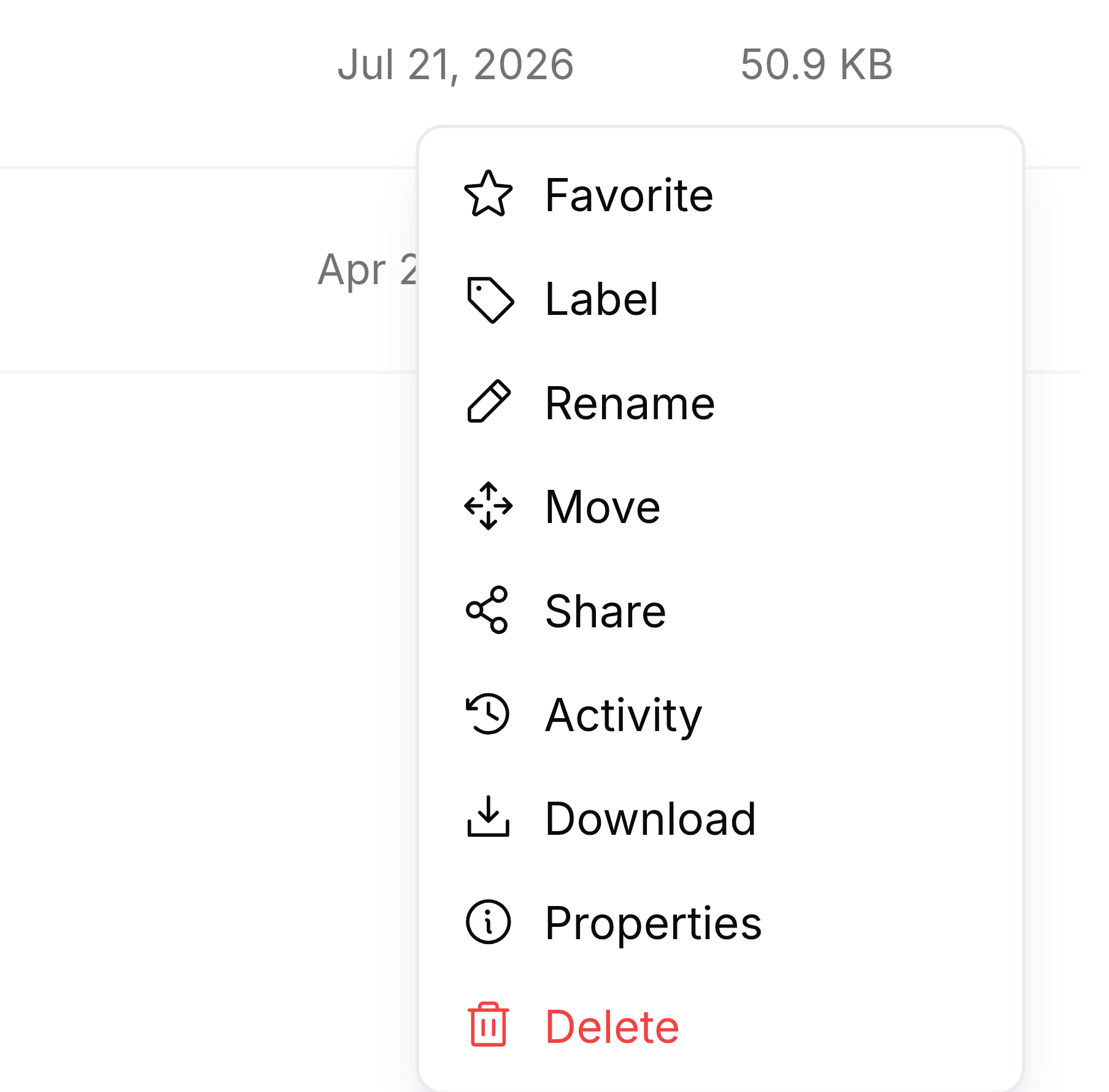
Every one of those steps is on the file's own menu, at the end of its row.
Sharing has terms
Sharing a file or folder with a colleague gives them one of three permissions: Can view, Can edit or Can download. A file can also carry public links for people with no SorviAI account, each with its own optional password, expiry and download switch, and each counting its own views and downloads. Removing a share or a link takes access away again at once.
Nothing vanishes at once
Delete in Nest moves an item to Trash rather than destroying it, and Trash keeps it for the number of days your administrator sets, 30 unless somebody changed it. Until then it can be restored to where it was.
Each file and folder also keeps its own activity: who uploaded it, renamed it, moved it, labelled it, shared it, trashed it and restored it. When a file has changed and nobody remembers why, Activity is the place to look.