
Add and remove members
Add colleagues to a team folder with a role, change a member's role, or remove them, from the folder's Manage panel.
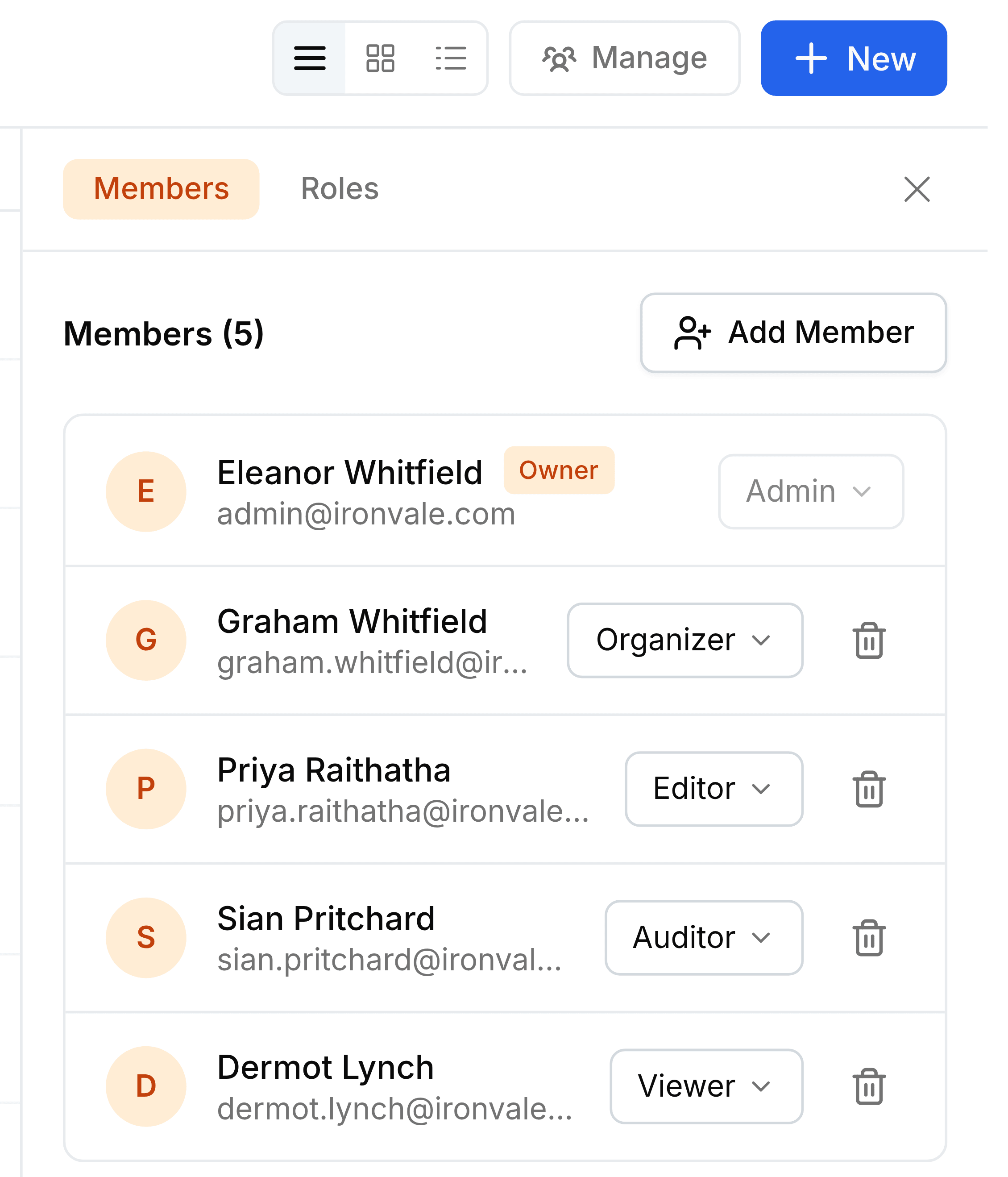
Everything about who's in a team folder happens in its Manage panel. Open the team folder, or any folder inside it, and select Manage beside the New button.
Add a member
In the Manage panel, select Add Member.
Select Select a user, search for the colleague by name or email address, and choose them.
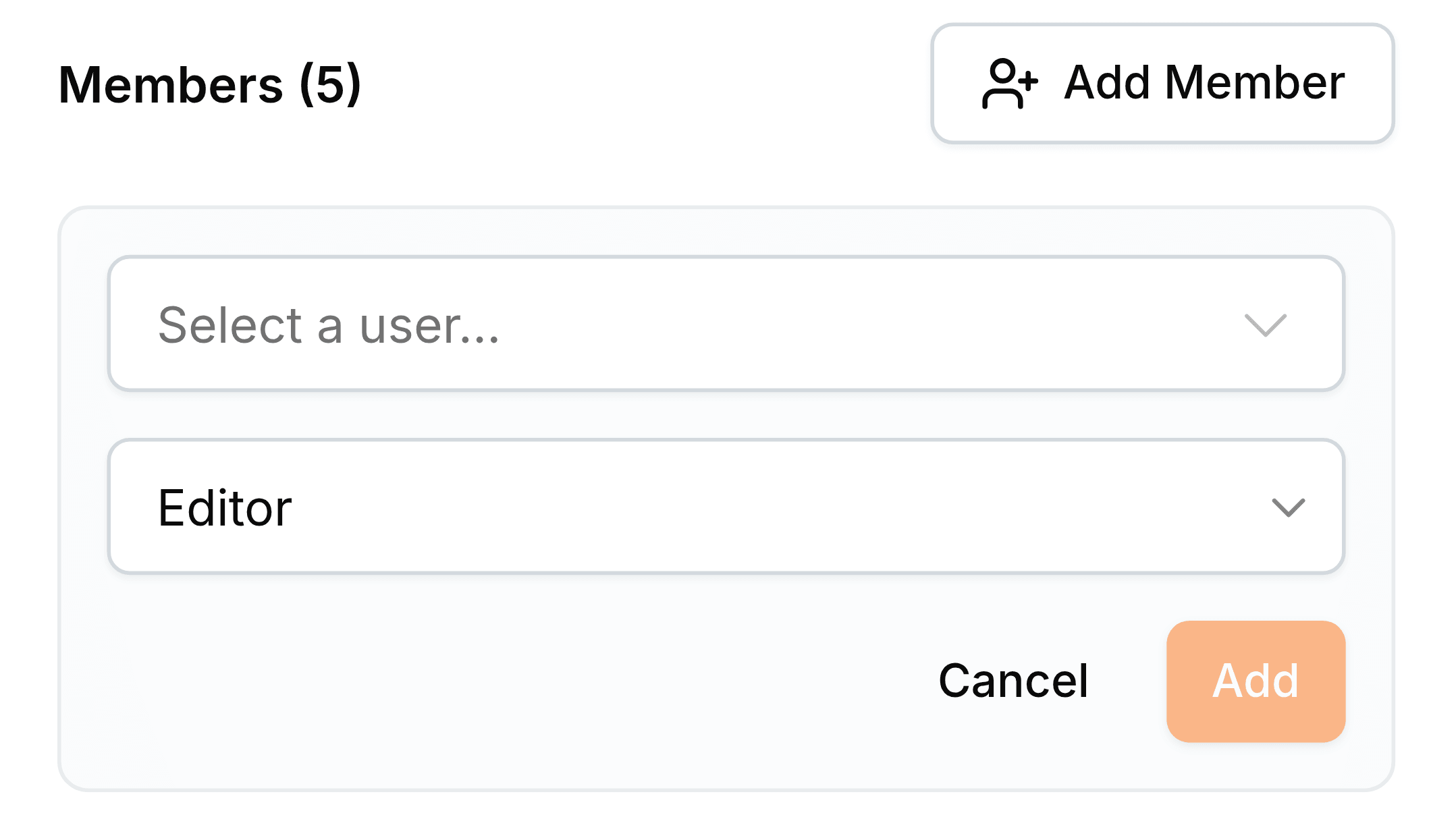
Leave the role as it is, or choose another. The form starts on the role your administrator set as the default for new members.
Select Add. They can open the team folder straight away.
Change a member's role
Select the role beside the member's name. The list shows the four default roles and any custom roles this folder has.
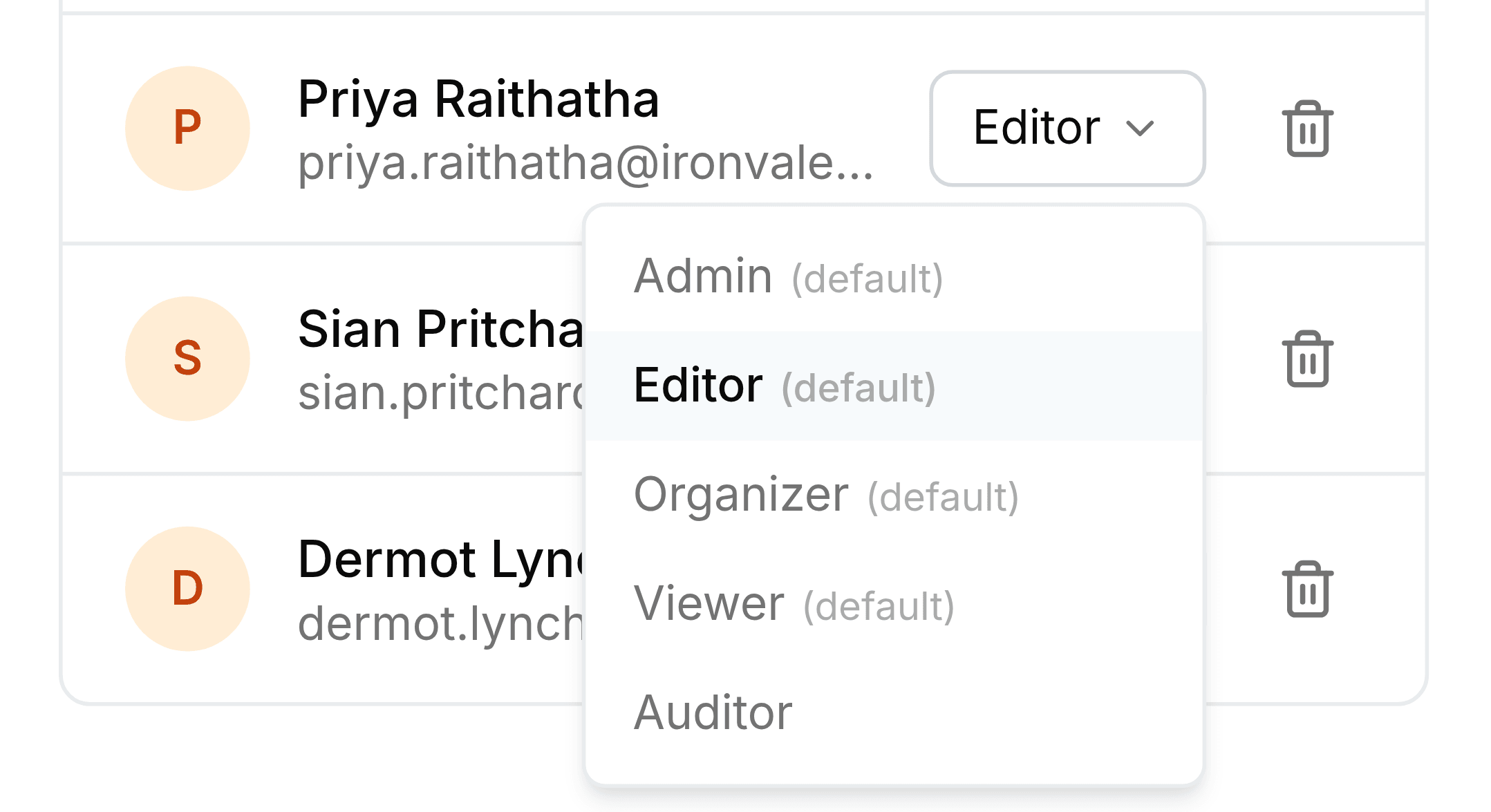
Select the new role. It applies at once; there's nothing else to save.
Remove a member
Select the bin at the end of the member's row.
Select Remove.
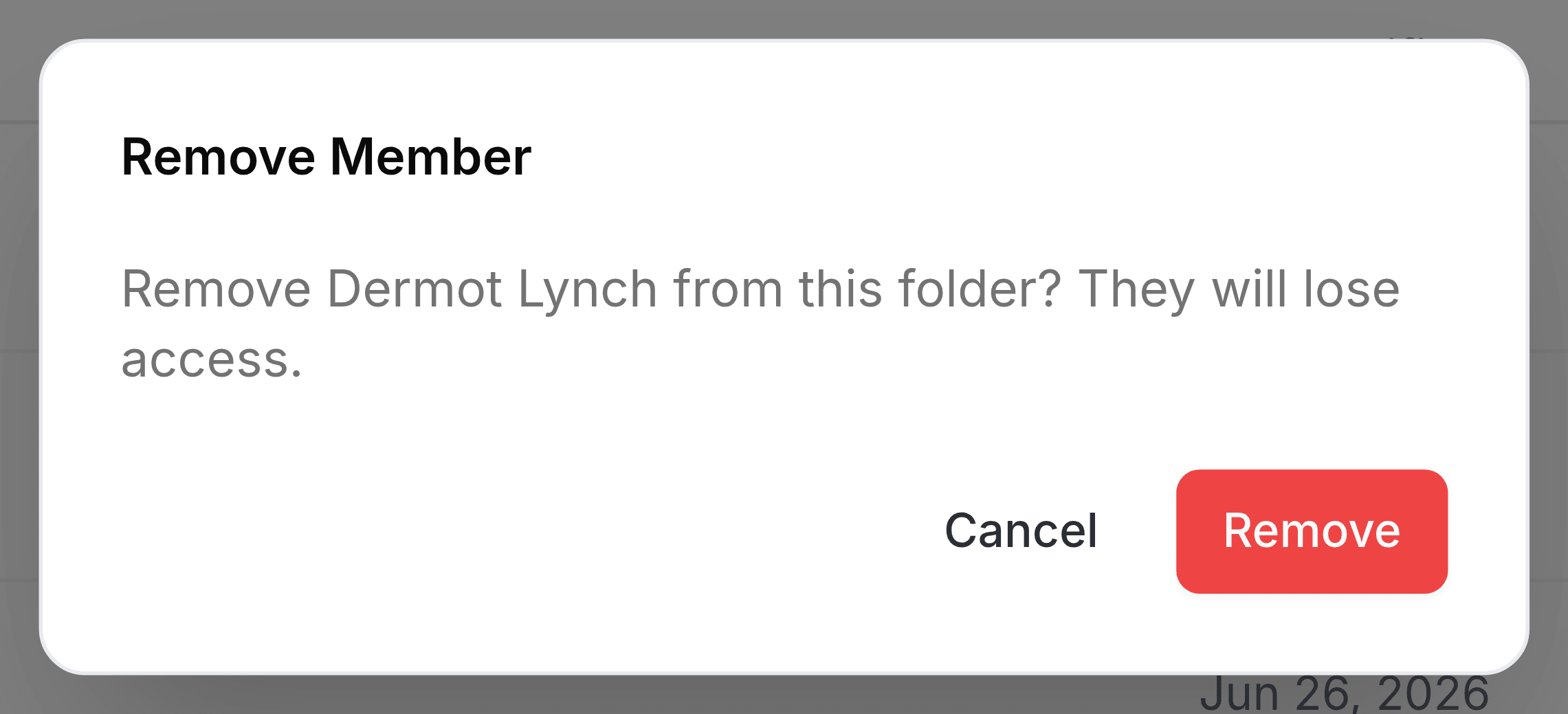
Their access ends immediately, across the team folder and every folder inside it. Anything they uploaded stays where it is.