
Star or label a recent file
Add a file from Recent Files to Favorites, or put your own labels on it, from the row's menu.
Recent Files forgets. A file drops off once you've opened fifty newer ones, so anything you'll want next month is worth marking while it's still in front of you. A star puts the file in Favorites; a label groups it with related files, whatever folder each one is in.
Star a file
Point at the file's row and select the three dots at its right-hand end.
Select Favorite. The file now appears in Favorites as well, and it stays there after it has left Recent Files.
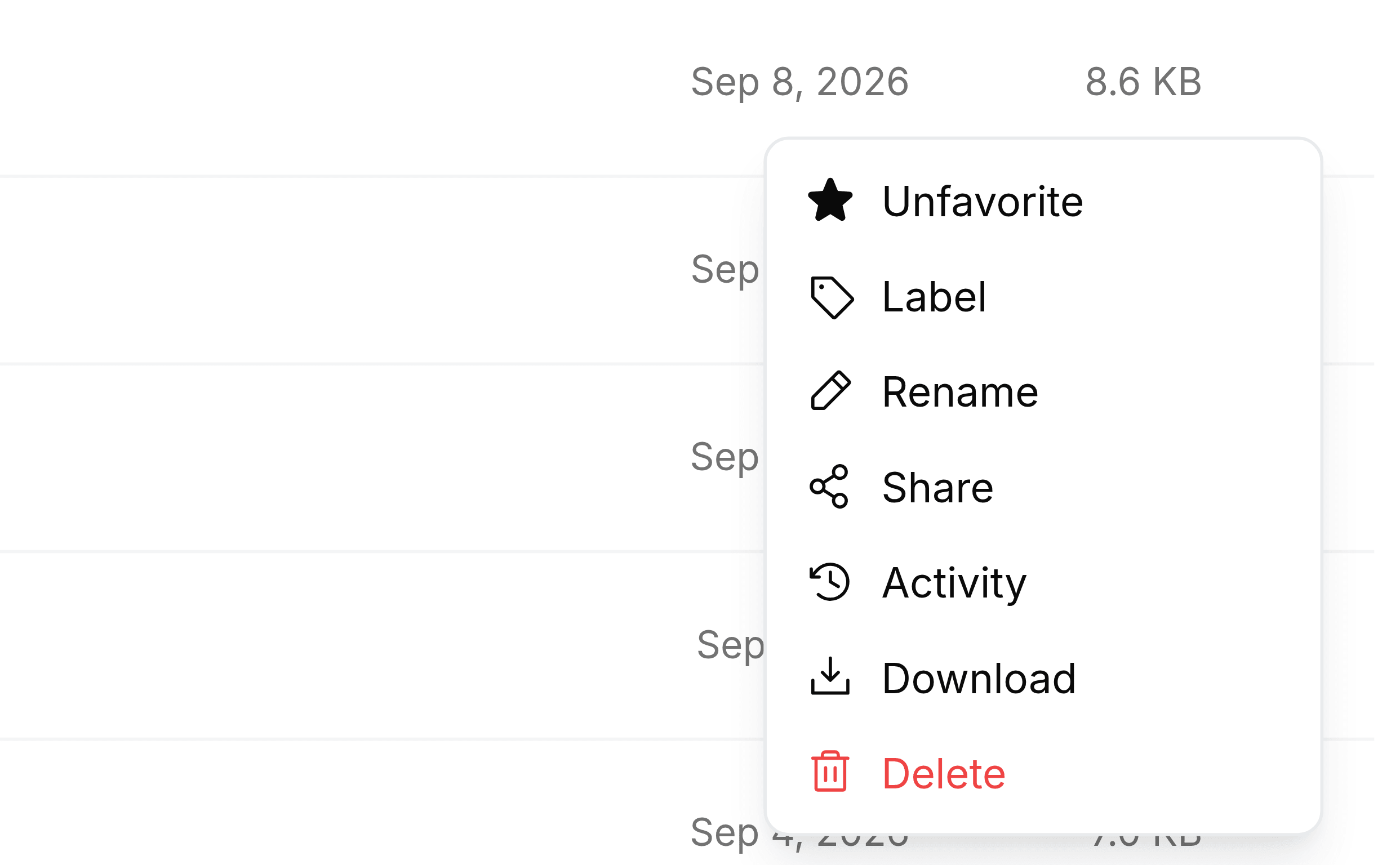
To take the star off, open the same menu and select Unfavorite. The file stays in its folder either way.
Label a file
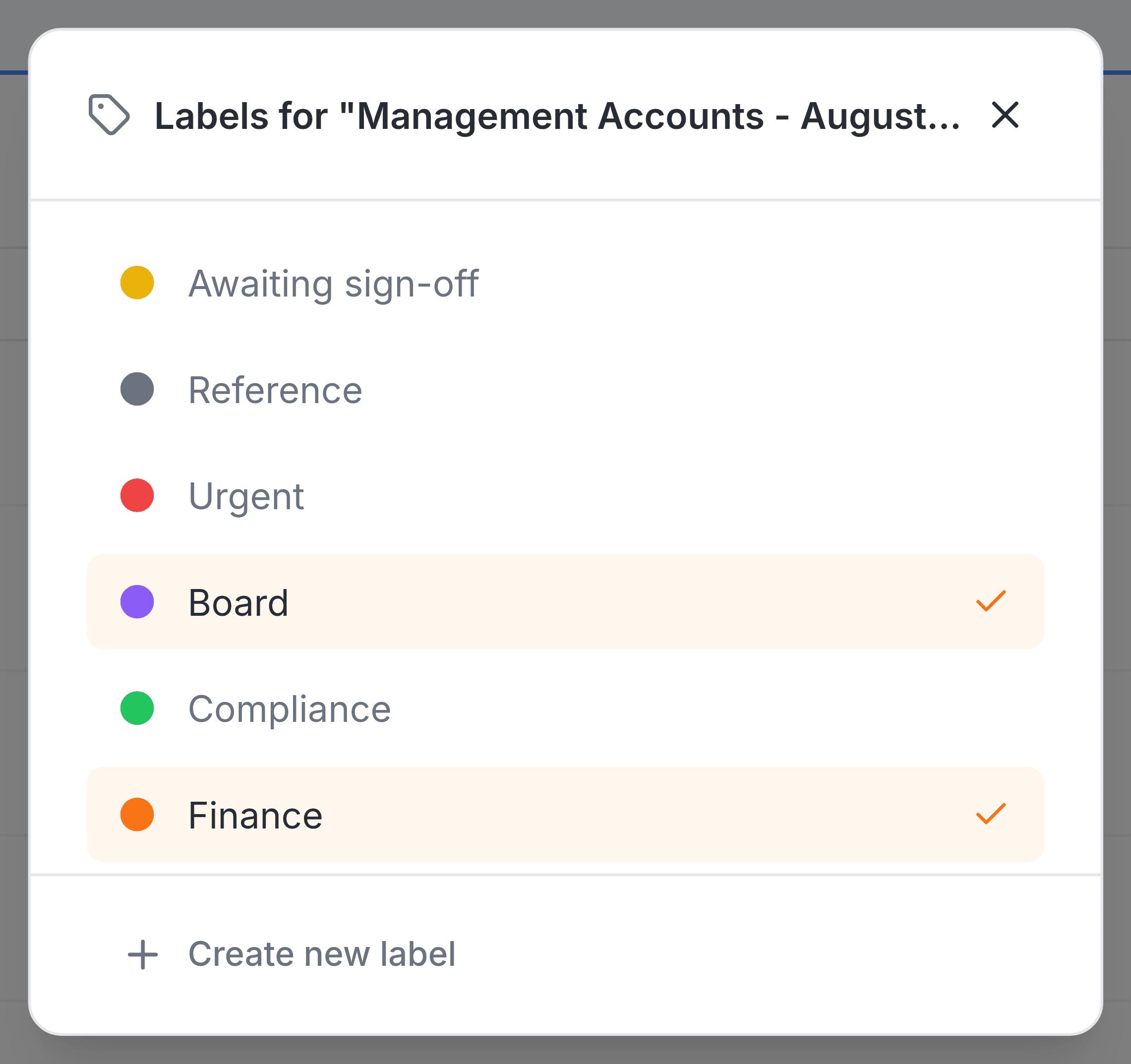
Open the file's menu and select Label. A panel opens listing your labels, with a tick beside each one the file already carries.
Select a label to add it, or select a ticked one to take it off.
Select Save. The button appears only once something has changed, so a panel with no Save is one where nothing has been altered yet.
The label you need may not exist yet. Select Create new label at the foot of the panel, enter a name, choose a colour, and select Create.