
Move files and folders
Move a file or folder into another folder, yours or a team's, from its row menu or by dragging it onto a folder.
There are two ways to move something. The menu lets you pick any destination, however far away; dragging is quicker when the destination is a folder in the list you're already looking at.
From the menu
Point at the row, select the three dots at its right-hand end, and select Move.
Select the destination folder. Select the arrow beside a folder to see the folders inside it.
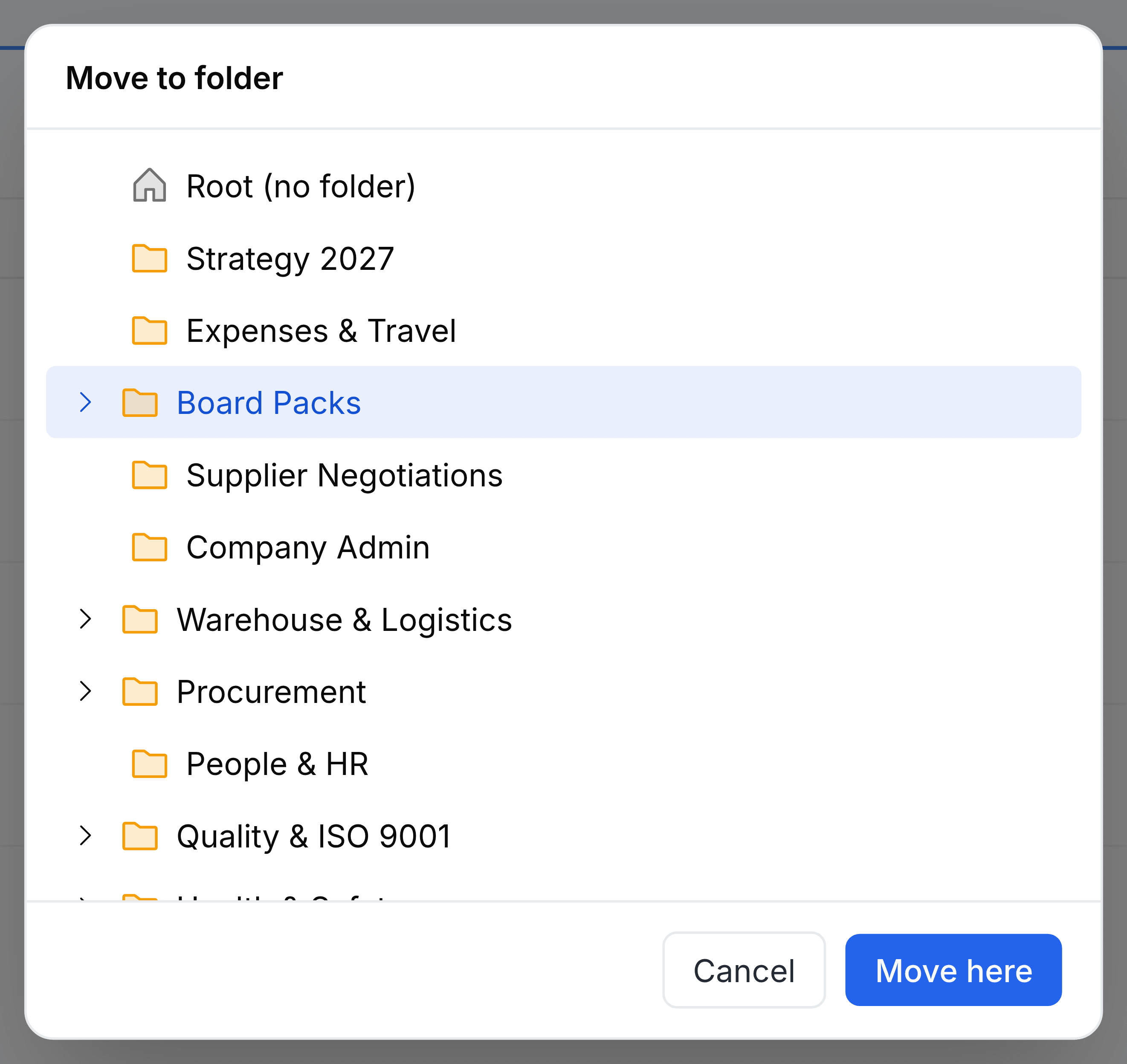
Select Move here.
The panel opens with the current folder highlighted, and a folder you're moving never appears in it, so it can't be moved inside itself.
By dragging
Drag the file or folder's row onto a folder row in the same list. The target folder lights up as you pass over it; let go, and the item moves inside.
Where an item can go
- Your own folders
- Any of them, at any depth. Nothing changes but the location.
- A team folder, for a file
- Team folders are listed below your own. A file moved into one is handed to that team: its members can open it, and your role there decides what else can be done to it.
- A team folder, for a folder
- A folder moved into a team folder stays yours. Its members see it in the list, but it opens only for you. To give a team a folder, create the folder inside the team folder and move the files into it.
- Root (no folder)
- The very top level, outside every folder. Best avoided: an item there shows at the top of both My Folders and Team Folders for you.