
What Recent Files shows
Recent Files lists the files you opened most recently, from every folder you can reach, so you can carry on where you stopped.
Recent Files is Nest's short memory: the files you've been working with lately, newest at the top, whichever folder each one lives in. Open it when you know you had a file in front of you yesterday and would rather not retrace the folders to find it again.
Things you can do from the list
Every row carries its own menu, so most of the day's small jobs never need the folder the file sits in.
- Open or downloadGet a copy of the file, or follow a saved link.
- StarKeep a file in Favorites after it drops off this list.
- LabelTag the file so it turns up alongside related work.
- ShareGive a colleague access, or make a link for someone outside.
- RenameCorrect a file's name without going to its folder.
- DeleteSend a file you no longer need to Trash.
- ActivitySee who uploaded, shared or changed the file, and when.
- Change the viewRows with details, a grid of cards, or dense lines.
How a file gets here
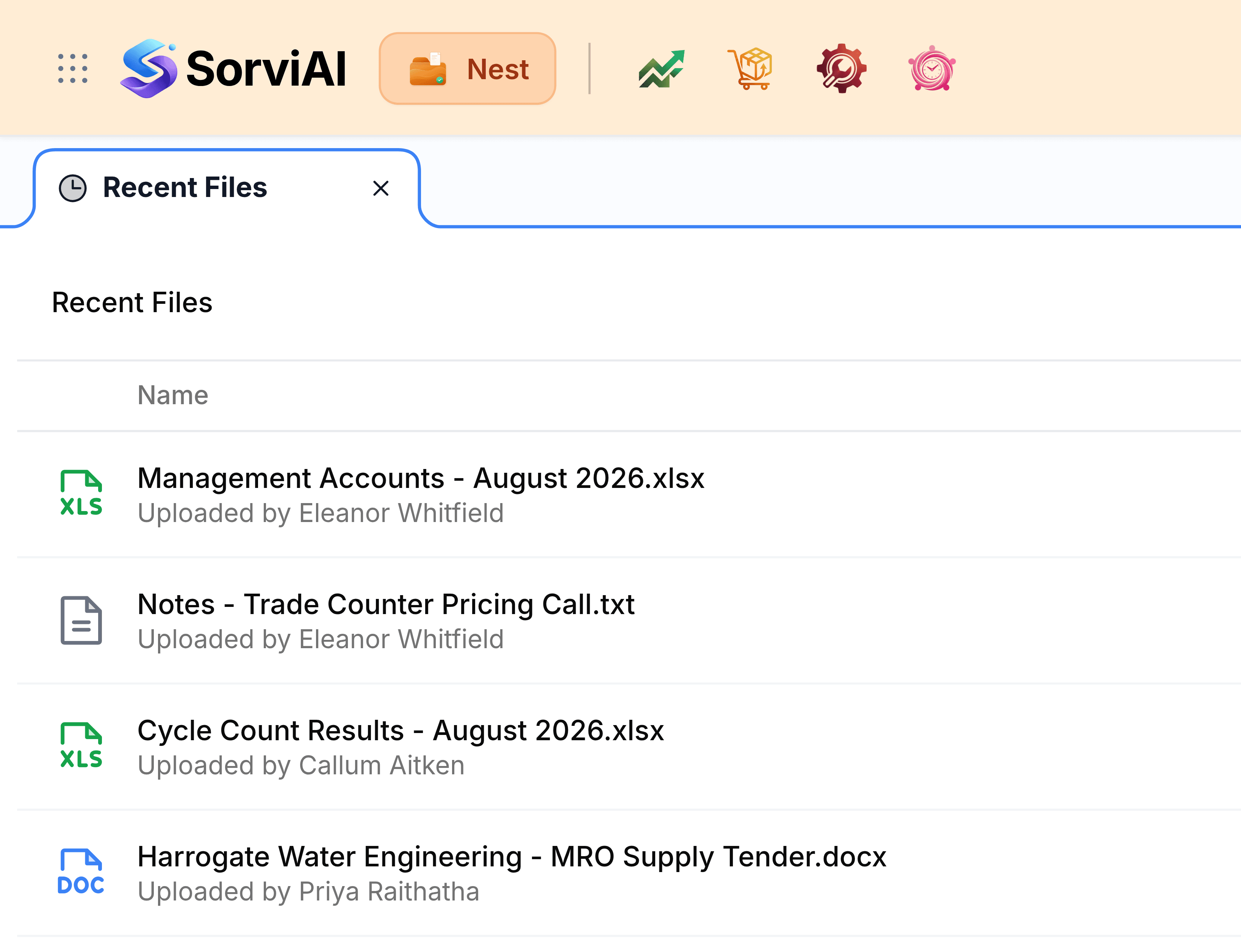
Nothing is added to Recent Files by hand. A file lands at the top the moment you upload it, open it or download it, and it slides down as other files take its place. The list is yours alone: a colleague who opens the same folder sees their own files, in their own order.
Some files you would expect to see never arrive, and some leave sooner than you'd think. Why a file is missing covers each case and what to do instead.
Two pages to read first
- Read the Recent Files listWhat each column means and why the files sit in that order.
- Open or download a recent fileGet a copy of a file without going back to its folder.
Habits that keep it useful
- Star what you return toThe list holds your latest fifty files. Favorites holds a starred file for as long as you want it.
- Label as you goA label added while a file is in front of you saves a search through the folders later.
- Check before you changeA glance at a file's activity shows whether somebody else has just renamed or shared it.
- Pick a view onceYour chosen view is remembered in this browser, here and in every folder.