
A folder or upload is refused
What each refusal message in My Folders means, from uploads that are too large to folders that can't be created or moved, and what to do.
When Nest can't do what you asked, it says so in a message at the corner of the screen, or in the upload panel for an upload. Each heading below is a message you might see, with the reason and the fix.
File exceeds maximum size
Why: your administrator has set a largest file Nest will take, and this one is bigger. The limit is on the Storage page of Nest's settings.
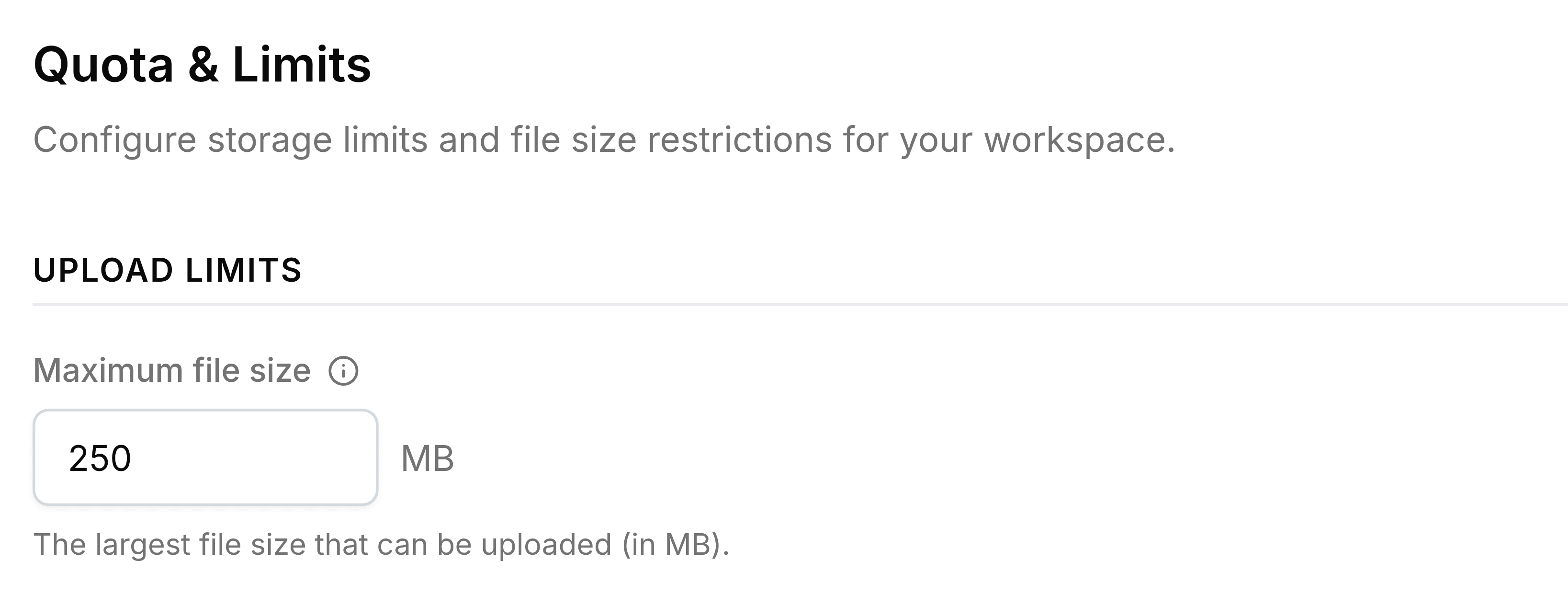
What to do: make the file smaller, for example by compressing it or splitting it, or ask your administrator whether the limit can go up.
File type is not allowed
Why: your organisation accepts only a list of file types, and this isn't on it. The message names the type it refused.
What to do: save the file in an accepted format, such as PDF, or ask your administrator to add its type.
Storage quota exceeded
Why: your organisation's Nest storage is full, so no new files can be added by anyone until space is freed.
What to do: empty files you no longer need out of Trash, which still counts towards the total, and tell your administrator.
Could not create the folder
Why: almost always, a folder with the same name already exists in the same place. Capitals don't count as a difference.
What to do: choose another name, or open the folder that's already there.
Permission denied
Why: you tried to move something into a team folder where your role doesn't include adding files, or to change something in a team folder your role doesn't allow.
What to do: ask whoever manages that team folder for a role that allows it, or move the item somewhere of your own.