
What Shared with Me shows
Shared with Me lists the files and folders colleagues have shared with you, grouped by who shared them, with the permission each one came with.
Shared with Me is where other people's work arrives. When a colleague shares one of their files or folders with you by name, it turns up here under their name, so you never need to know which of their folders it came from.
What you'll find here
- Download a shared fileSave a copy of anything a colleague has sent you.
- See who shared whatItems gathered under each colleague's name, with the permission they chose.
- Share your own workGive a colleague access to a file or folder of yours.
- Stop sharingTake someone off the list, and their access ends at once.
- Make a public linkLet somebody outside the organisation open one file.
- Keep links in checkViews, downloads, expiry dates and passwords at a glance.
Sharing works both ways
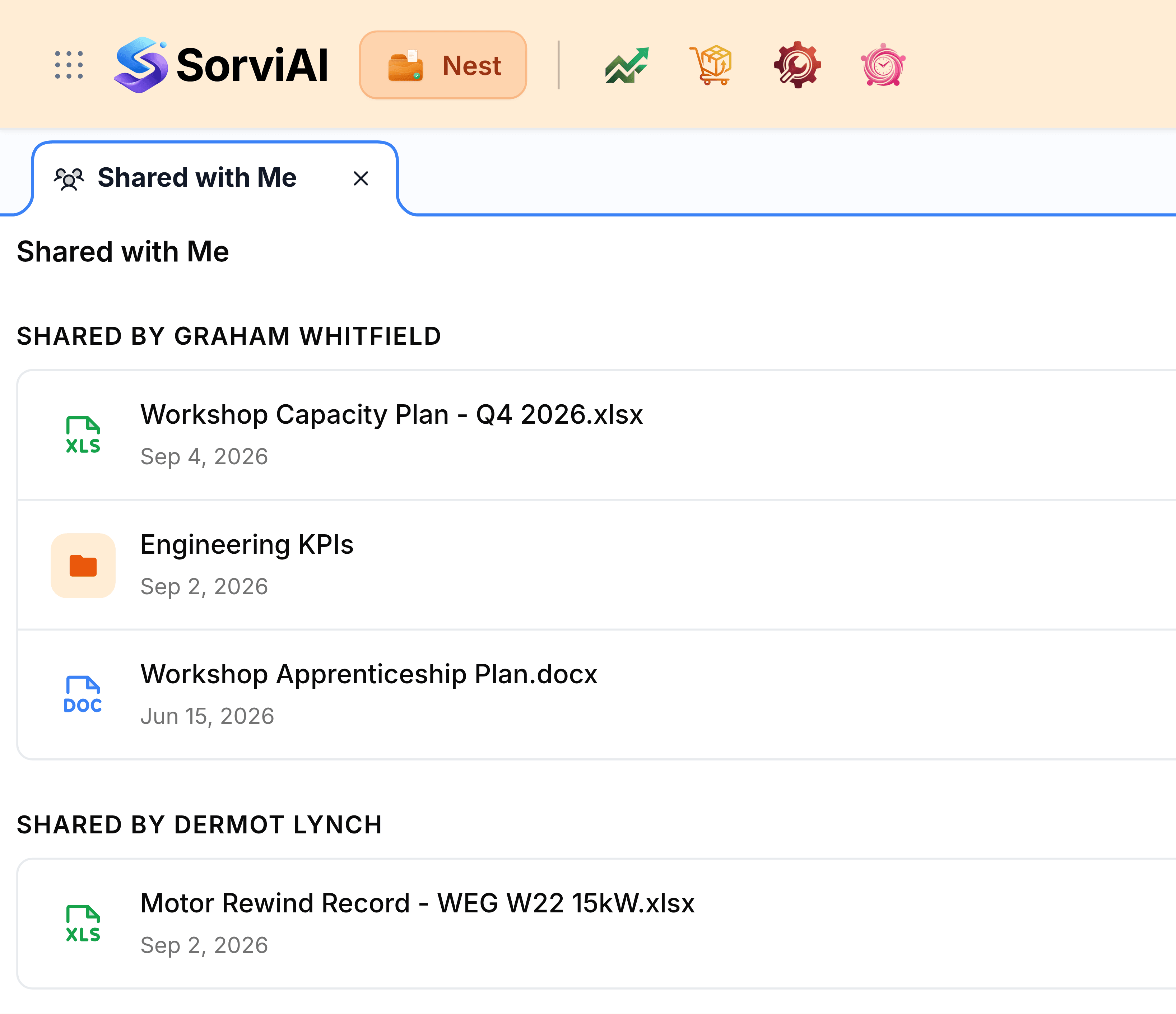
This screen is the receiving end. The giving end has no screen of its own: you share from the item itself, through the Share entry on its menu in your folders or in Recent Files. What you share appears in your colleague's Shared with Me exactly the way their shares appear in yours.
Nothing here is a copy. A shared file stays in its owner's folder, so the version you download is always the one they have now.
Share a file or folder covers the giving end.
Where to begin
- Read Shared with MeHow the list is grouped, and what each row tells you.
- Open a shared itemDownload a shared file, and what a shared folder shows.
Sharing well
- Share the file, not the folderA shared folder opens only for someone who can already reach it. Files open for anyone you share them with.
- Give outside links an end dateA link that expires on its own can't be forgotten about.
- Password anything confidentialThe address alone is then not enough to open the file.
- Review who has accessA glance at a file's sharing list shows who can still reach it.