
Create a public link
Make a link that lets somebody outside SorviAI open one file, with an optional password, an expiry date and a switch for downloads.
A customer, a supplier or an auditor has no SorviAI account, so sharing by name can't reach them. A public link can: it's an address that opens one file, on the terms you set when you make it. Links are for files only.
Open the file's menu, select Share, and then select the Public Link tab.
Select Create Link. A short form opens above any links the file already has.
Enter a label that says who the link is for, then fill in the rest only if you need it: a password, and the number of days before the link stops working.
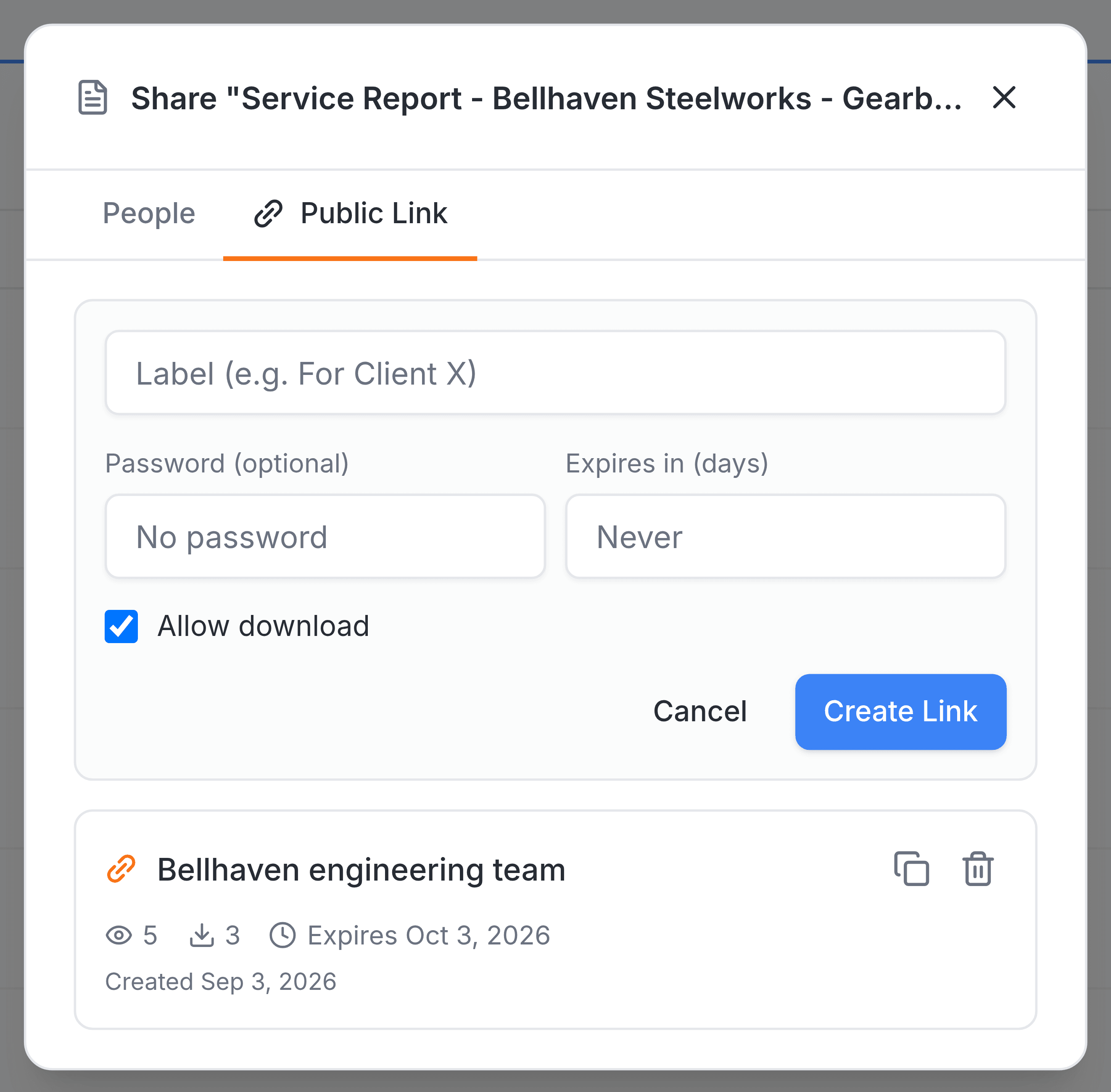
Clear Allow download if the person should be able to open the file but not save a copy.
Select Create Link, then select the copy icon on the new card and send the address to the person who needs it.
What each setting does
- Label
- For you, not for them: it's how you tell one link from another on the same file.
- Password
- Anyone opening the link is asked for it, and a wrong one is refused. Send it separately from the link.
- Expires in
- A number of days from today. Leave it blank and the link never expires.
- Allow download
- On unless you clear it. With it cleared, the link still opens but the download is refused.