
Rename or delete a recent file
Give a file a new name, or send it to Trash, straight from Recent Files.
Both jobs start from the three dots at the right-hand end of the file's row. Neither one needs you to find the folder first, and the file stays in that folder whatever you do here.
Rename a file
Open the file's menu and select Rename.
Edit the name in the box. Keep the ending, such as
.xlsx, so the file still opens in the right program once it's downloaded.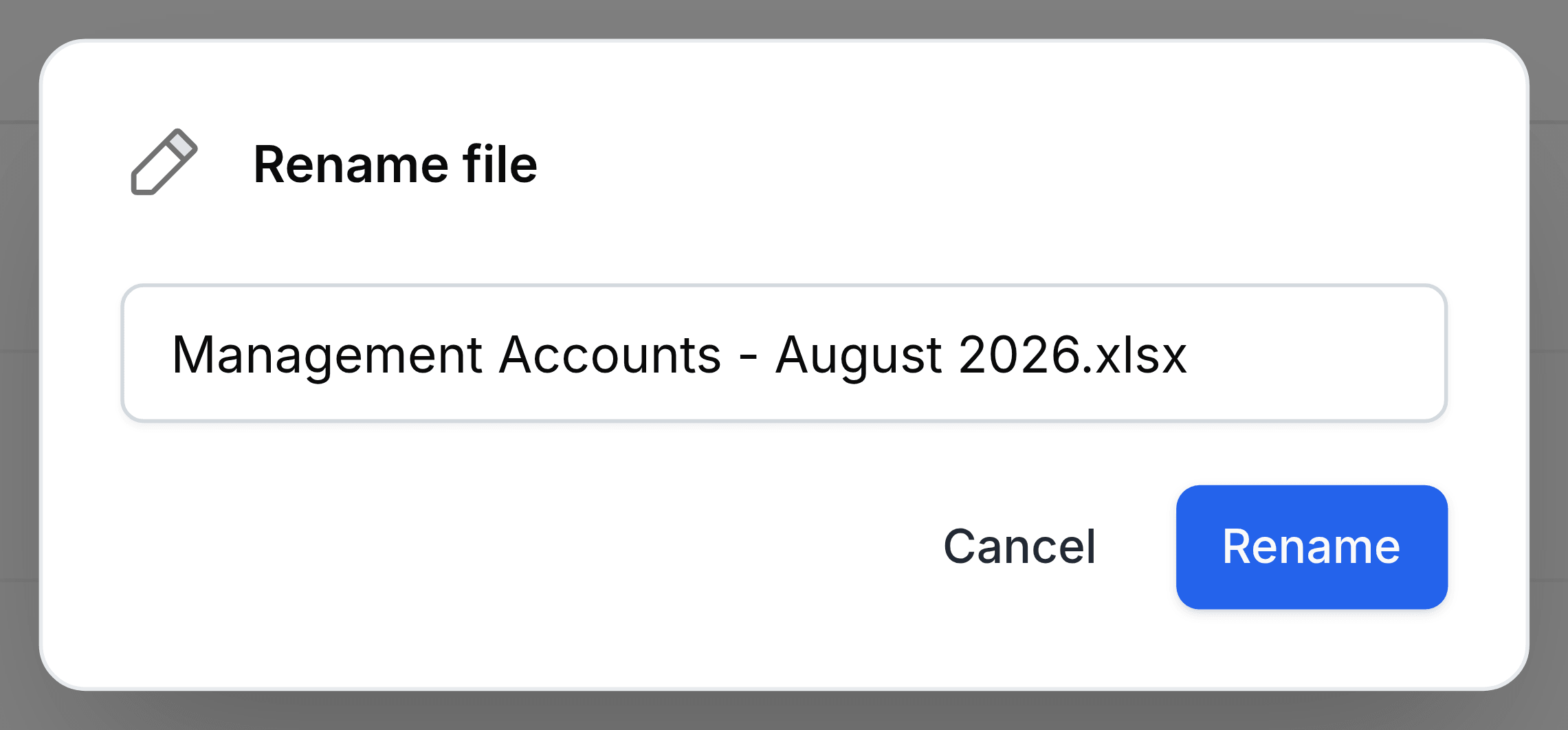
Select Rename.
The new name shows everywhere the file appears: its folder, colleagues' Shared with Me, and search. Its Last Modified date moves to today, but its place in Recent Files does not change, because renaming is not opening.
Delete a file
Open the file's menu and select Delete.
Select Move to Trash.
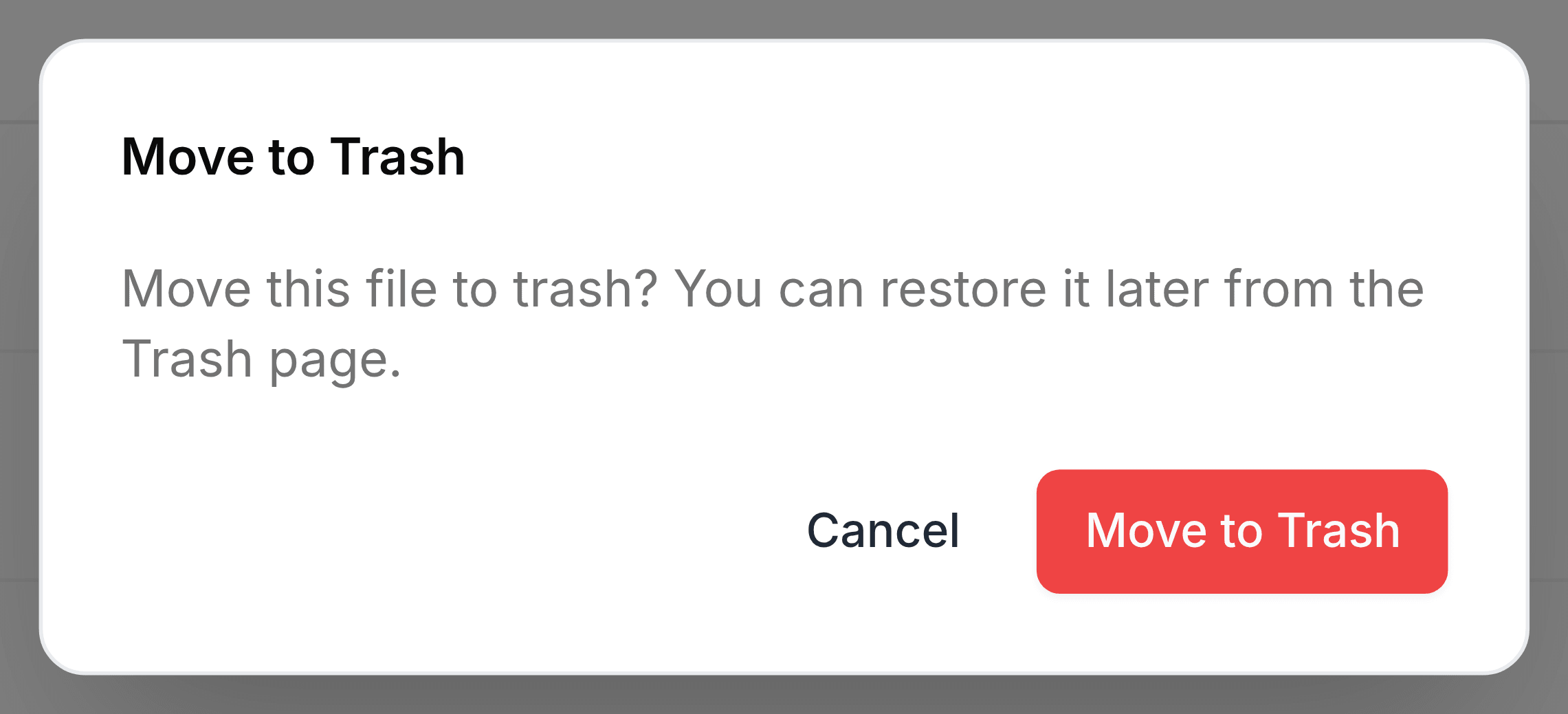
The file leaves Recent Files and its folder together and waits in Trash. Restore it from there and it returns to its folder, and to its old place in this list.