
What search finds
Nest's search looks through the names of every file and folder you can reach, forgives near misses, and opens the folder that holds what you find.
When you know roughly what a file is called but not where it lives, search is the quickest way to it. Enter part of a name in the bar at the top of the screen, and Nest looks through every folder you have access to at once.
Where search takes you
- Search from the headerStart typing anywhere in Nest and matches appear as you go.
- Open a resultGo straight to the folder that holds it.
- Read a resultWhere it lives, who added it, when, and how close a match it is.
- Filter by typeOnly PDFs, only images, only spreadsheets and more.
- Filter by dateOnly what was added today, this week or this month.
- When nothing turns upThe usual reasons, and what to try next.
Names, not contents
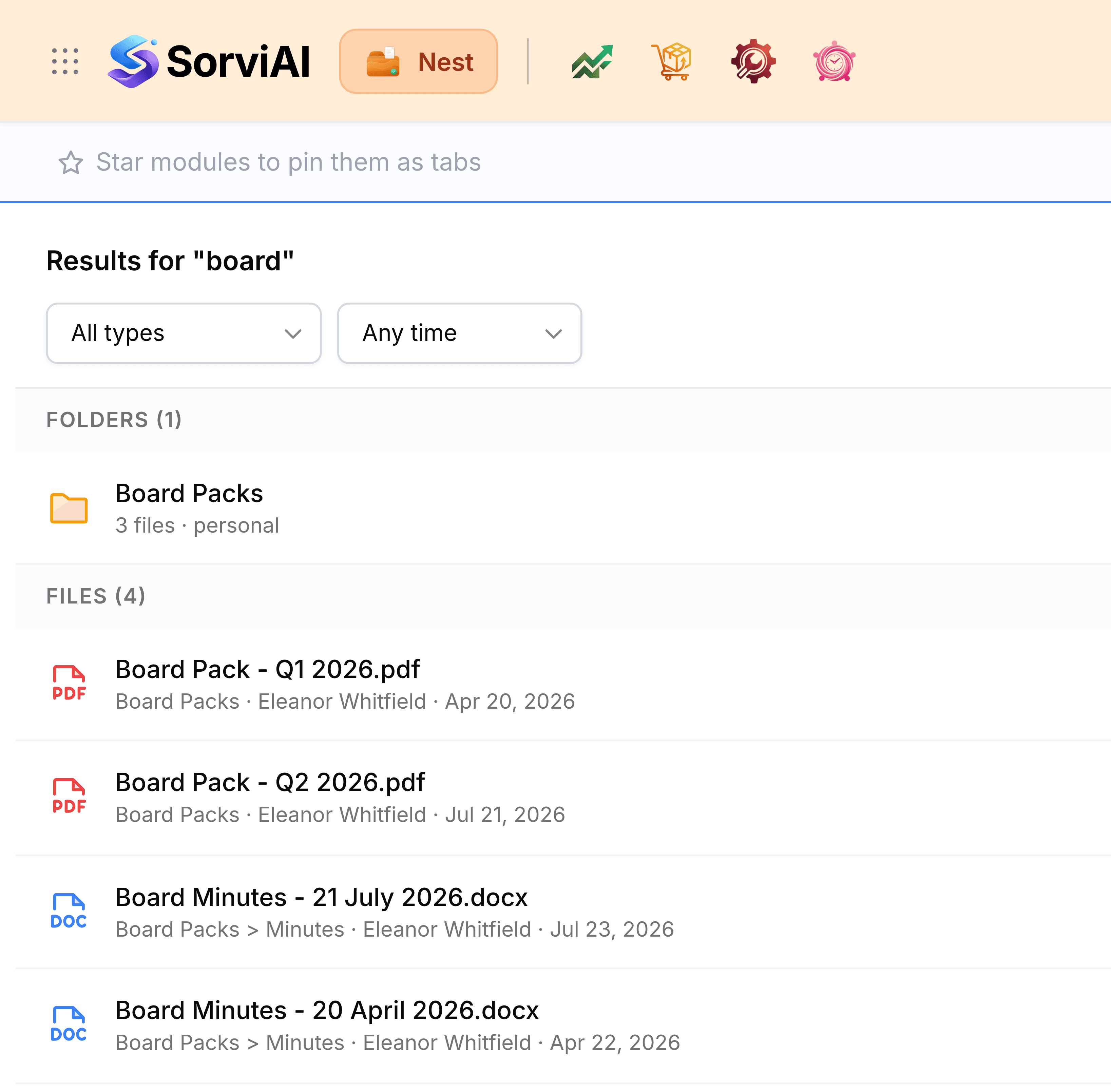
Search matches the name of a file or folder, not the words written inside it. A board paper saved as Q2 Pack turns up for a search on pack, but not for a search on a sentence in its third paragraph. Names are worth choosing with that in mind.
It's forgiving about how close you get. Part of a word is enough, and so is a slightly different form of it: a search on price also turns up a file with pricing in its name. The closest matches come first.
Read search results explains everything a result tells you.
Try it first
- Search NestType part of a name in the search bar and pick from what matches.
- Filter search resultsNarrow the results by file type or by when a file was added.
Searching smarter
- Search the distinctive wordNorthgate finds one tender; tender finds all of them.
- Name files so they can be foundA customer, a date and a document type in the name make a file easy to search for.
- Filter rather than scrollA type or a date cuts a long list to the few that matter.
- Keep the addressThe search and its filters are in the page's address, so it can be bookmarked or sent to a colleague.