
Star a file or folder
Add a file or folder to Favorites from its row menu in My Folders, Team Folders, Recent Files or a label's list.
Nothing is starred on the Favorites screen itself. You star an item where you find it, from the menu at the end of its row, and it appears in Favorites straight away.
Star a folder or a file in a folder
Go to My Folders or Team Folders, and open the folder that holds the item, if it isn't at the top level.
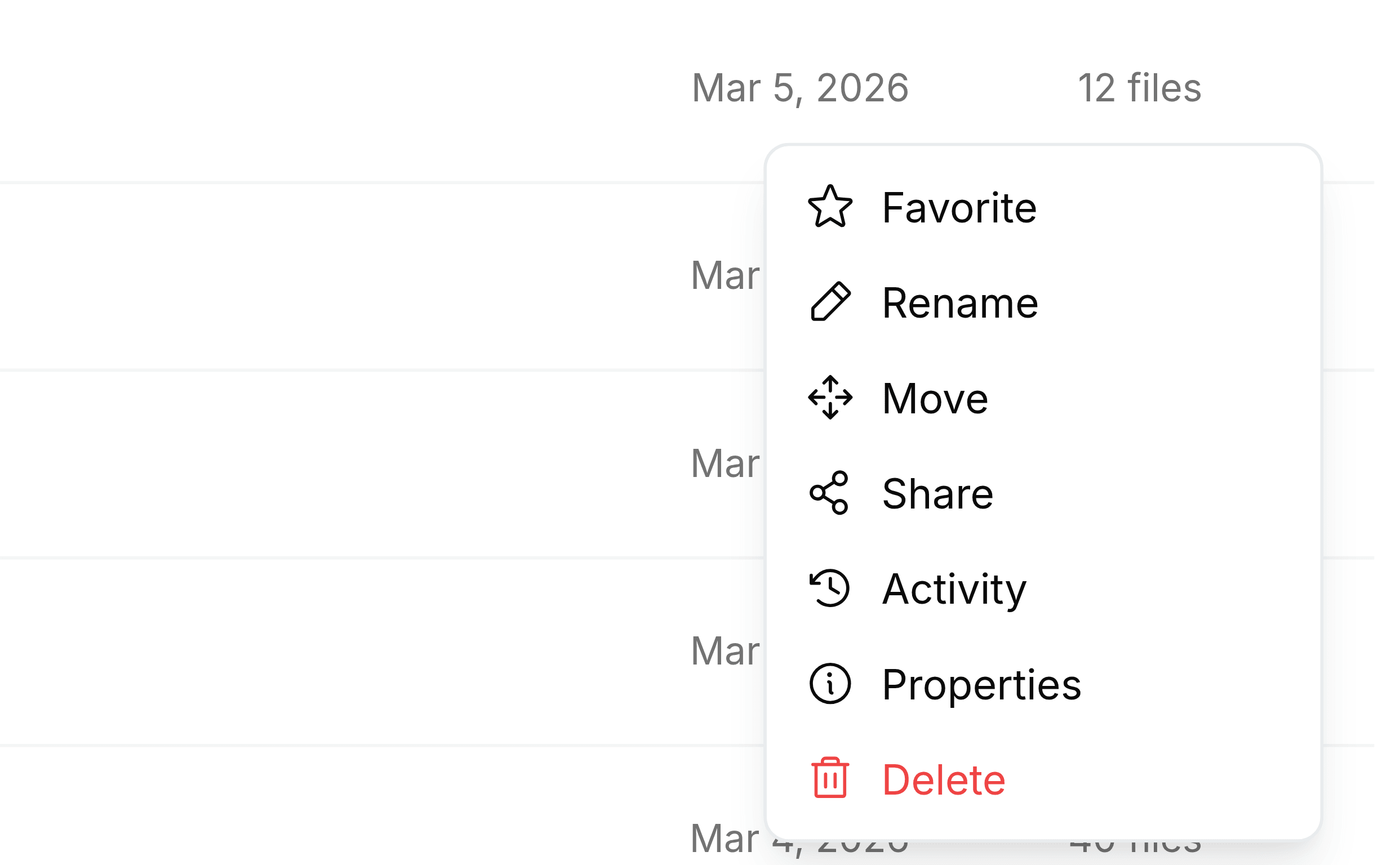
Point at the item's row and select the three dots at its right-hand end. Right-clicking the row opens the same menu.
Select Favorite.
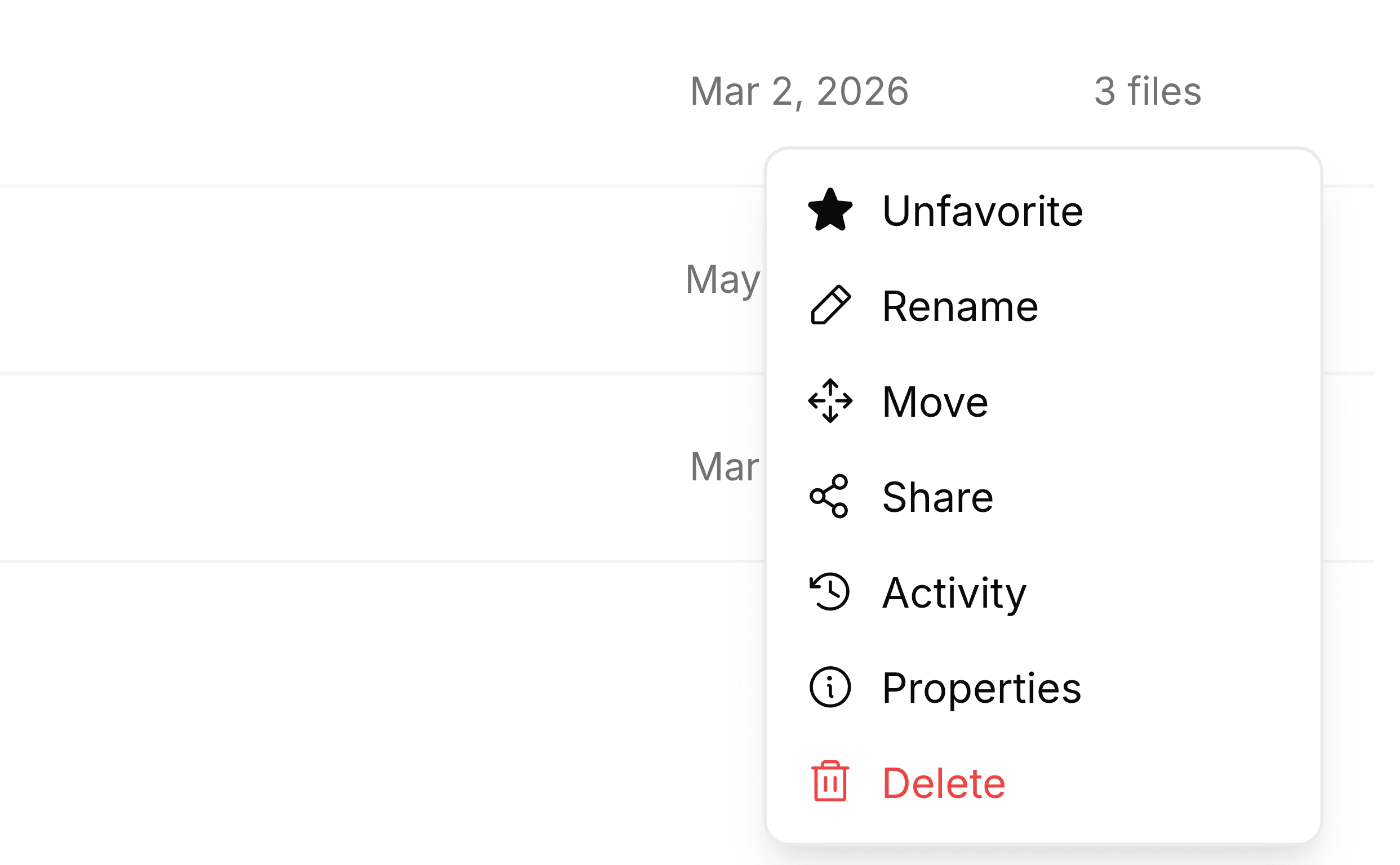
The menu now reads Unfavorite for that item, with the star filled in. That is the only sign in the folder that it's starred; the row itself looks the same as before.
Star a file from another list
Files carry the same Favorite entry on their menus in Recent Files and on a label's list of files, so a file you've just used can be starred without finding its folder. Star or label a recent file walks through it.