
What Nest settings covers
Nest's four settings pages, what each one controls for the whole organisation, and who is allowed to change them.
Nest's settings decide the rules every folder works within: how large an upload may be, which kinds of file are accepted, who can start a team folder, and how long deleted work is kept. They apply to everyone in the organisation at once.

The four settings pages
- StorageThe largest file Nest accepts, and which file types it accepts at all.
- Team FoldersWho may create team folders, and the role new members start with.
- TrashHow many days deleted items wait before they're removed for good.
- GeneralThe order files are listed in when a folder opens.
Settings for everyone, changes for admins
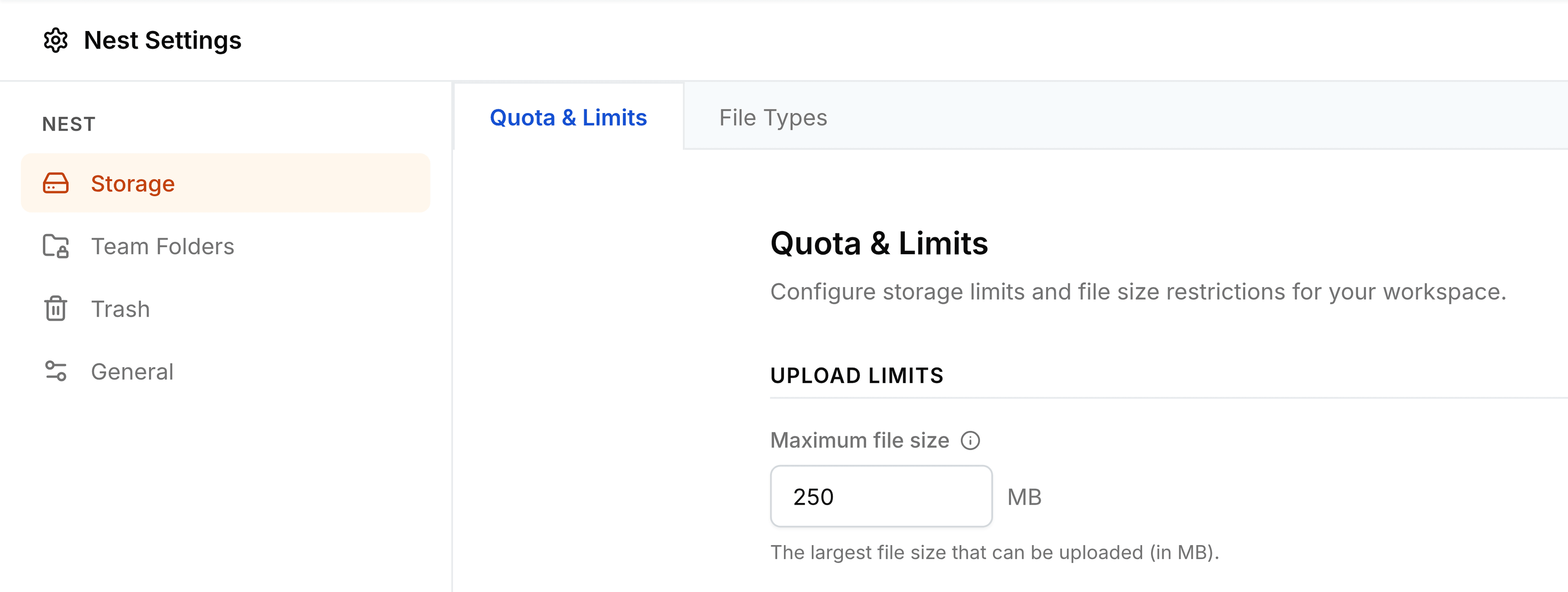
Open the settings from the cog at the top right of any Nest screen. The pages are down the left; select one, make a change, and select Save at the foot of the page. The cross at the top right closes the settings and takes you back to where you were.
Anyone can open these pages and read them, which is useful for knowing why an upload was refused. Only someone who administers Nest, or the whole organisation, can save a change.
A setting doesn't save covers what happens when someone else tries.
Open these first
- Storage settingsThe size limit for uploads, and the file types Nest accepts.
- Team folder settingsWho can start team folders, and the role new members get.
Settings worth deciding early
- Agree the file typesAn empty list accepts everything. A list accepts only what's on it, so decide it before people start uploading.
- Choose who starts team foldersAdmins only keeps them tidy; everybody keeps teams moving.
- Set a sensible default roleViewer is the cautious choice for new members; Editor saves a step for most teams.
- Give Trash enough timeLong enough that a deletion is noticed before it becomes permanent.