
A label looks wrong
Why a label's count and its list disagree, why a folder can't be labelled, why a name is refused, and what to do about each.
Most surprises with labels come from two facts: a label is yours alone, and it can only go on a file. Each heading below is something you might run into, with the reason and the fix.
The count says 5 files but the list shows 4
Why: the number on the Labels screen counts every file with the label, including any that are in Trash. The label's own list shows only files that are in use.
What to do: look in Trash for the missing file. Restore it and the two numbers match again; delete it permanently and they match too.
I can't find Label on a folder's menu
Why: labels are for files. A folder's menu offers Favorite, Rename, Move, Share, Activity, Properties and Delete, and no Label.
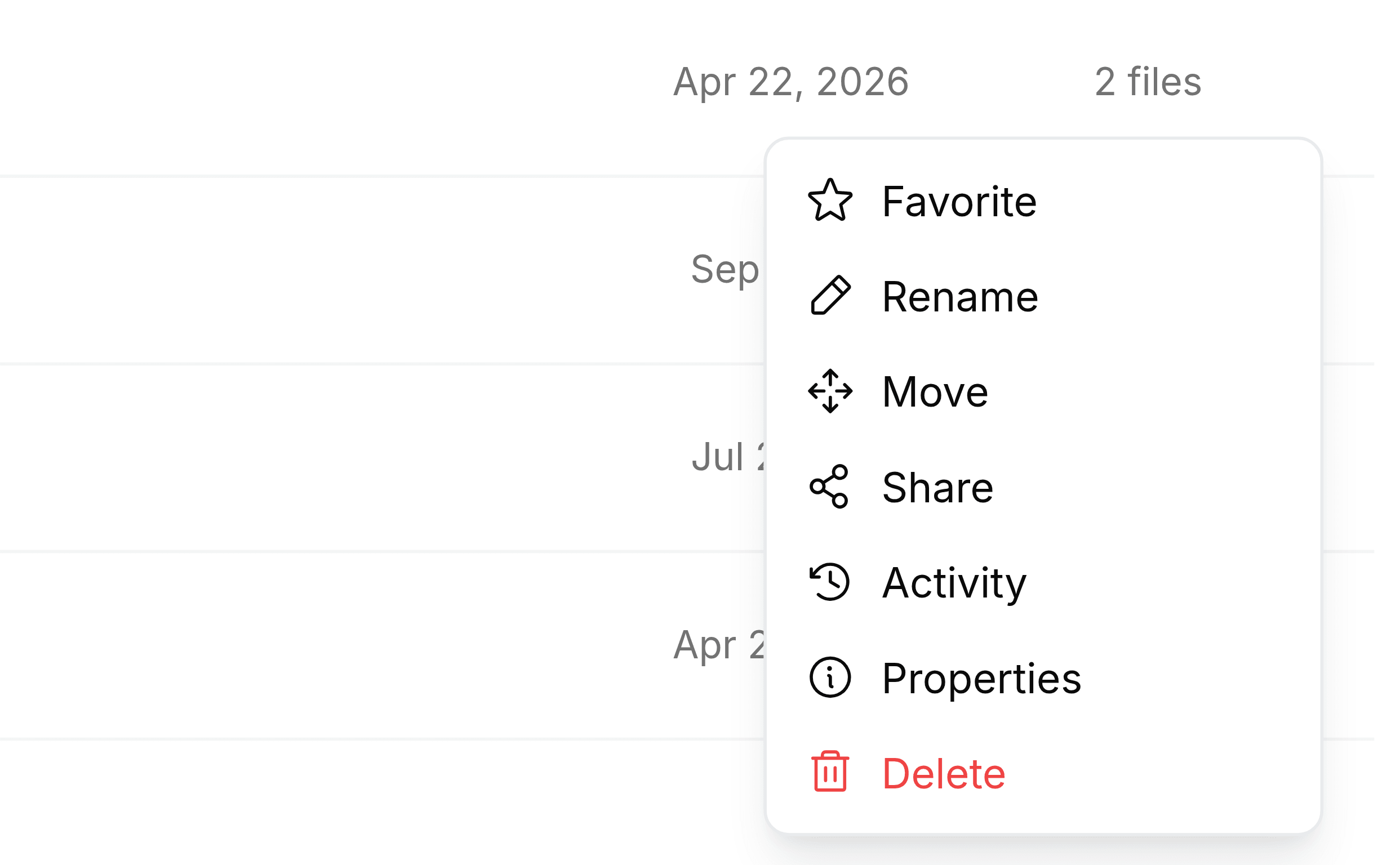
What to do: label the files inside the folder instead, or star the folder if what you want is to reach it quickly.
A name I entered is refused
Why: you already have a label with that name. Capitals don't count as a difference, so urgent clashes with Urgent.
What to do: use the existing label, or choose a name that is different in more than its capitals.
A colleague's labels don't show up for me
Why: labels are personal. You see your own set on the Labels screen, in the label panel and as dots in search results, and nobody else's.
What to do: agree a shared way of naming things if the team needs one, and have each person make the labels they use. For files everybody must find together, a team folder is the shared tool.
The page says No labels yet
Why: you haven't made a label, or you've deleted every one.
What to do: select New Label at the top right, or create one from the label panel while you're tagging a file.