
What My Folders are
My Folders is your own space in Nest: folders and files that nobody else sees unless you share them.
My Folders is the part of Nest that belongs to you alone. Build the folders you need, fill them with files and links, and arrange them however suits your work, without anyone else seeing a thing until you choose to share it.
Jobs you'll do here
- Create a folderAt the top level, or inside another folder.
- Upload filesFrom the New button, or dropped straight onto the list.
- Add a linkKeep a web address beside the files it relates to.
- Open or downloadGet a copy of a file, or go to a saved page.
- RenameChange a file or folder's name in place.
- MoveFrom the menu, or by dragging onto a folder.
- Handle several at onceTick a few, then move or delete them together.
- Check the detailsProperties for what an item is, Activity for what happened to it.
Your space, and where it ends
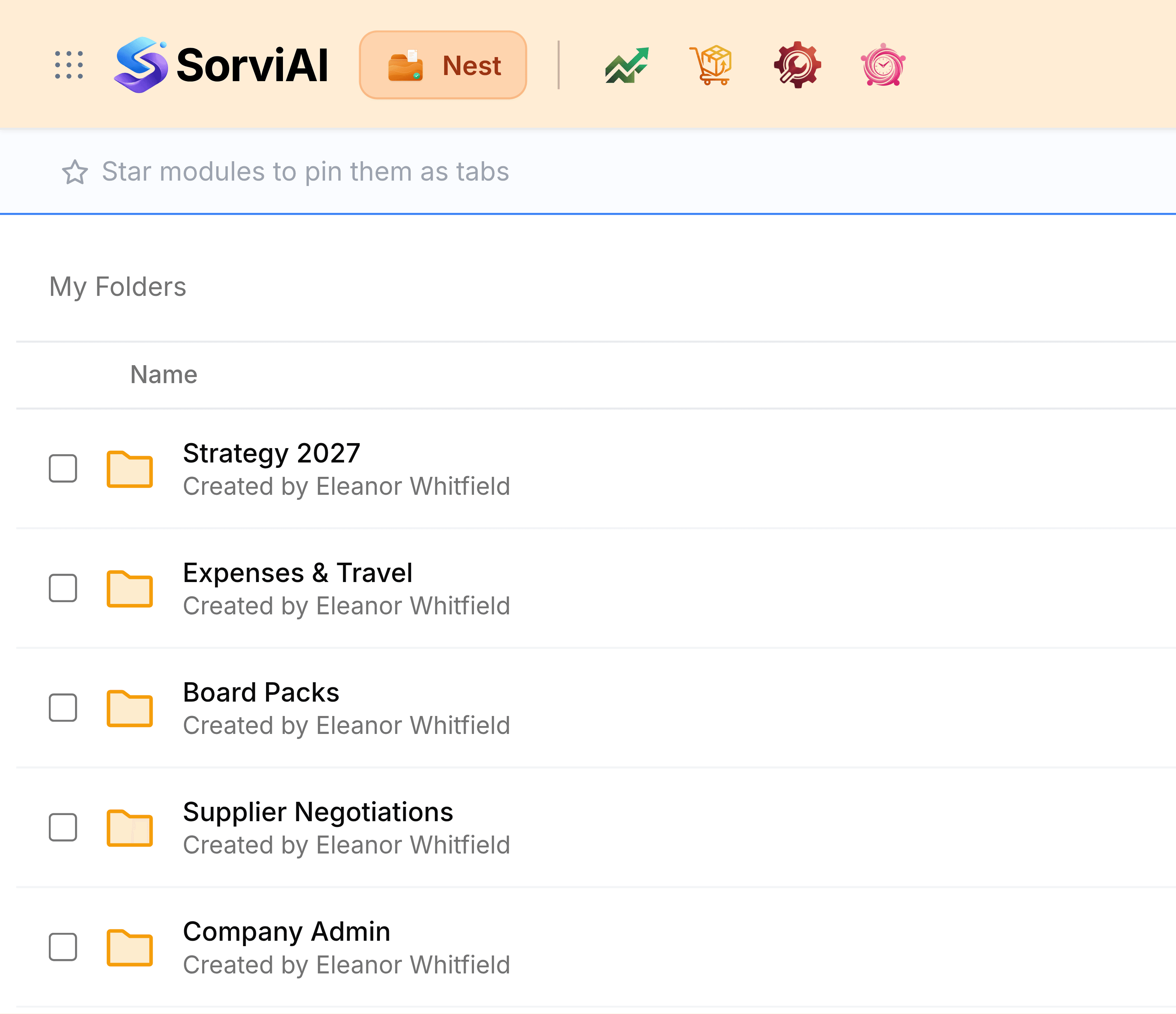
Everything in My Folders is private to you, down to the last subfolder. Three things take an item beyond it, and each is a choice you make: sharing it with a colleague, making a public link to it, or moving it into a team folder. The last one changes the file's home, so a file moved into a team folder is seen by that team's members, not only by you.
Move files and folders explains where an item can go, and what changes when it gets there.
First steps
- Create a folderStart a folder at the top of My Folders or inside another one.
- Upload filesAdd one file or many from the New button, or drop them on the list.
Keeping it tidy
- Make the folder firstFiles uploaded at the very top level sit outside every folder and are harder to find later.
- Name folders for the workBoard Packs and Supplier Negotiations say what's inside before you open them.
- Hand shared work to a team folderWhen a whole team needs a folder, it belongs in Team Folders rather than yours.
- Clear out several at onceTick the old drafts and send them to Trash in one go.