
What Favorites are
Favorites keeps the files and folders you starred in one short list, so the ones you reach for every day are a single select away.
Favorites is a shelf you stock yourself. Star a file or a folder anywhere in Nest and it joins this list, where it stays until you take the star away, however long ago you last opened it.
What the list lets you do
- Star from a folderMark any file or folder from its row menu in My Folders or Team Folders.
- Star from Recent FilesKeep a file you just used before it slides off that list.
- Open a starred folderGo straight inside it without walking down from the top.
- Download a starred fileSave a copy with the button at the end of its row.
- Take a star offOne select, with nothing moved or deleted.
- Read a rowWhat the icon, the date and the two buttons each tell you.
Favorites or Recent Files?
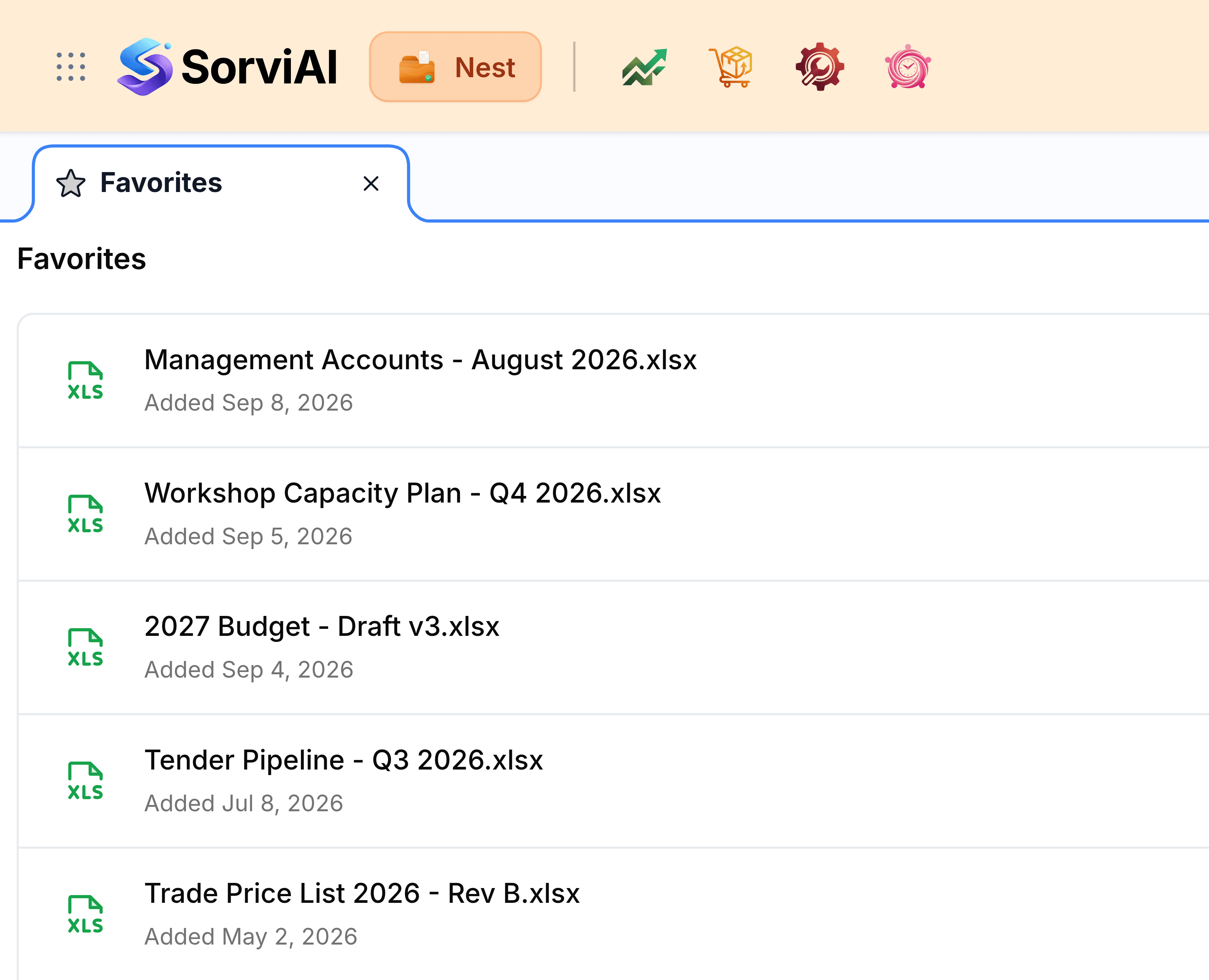
The two lists look alike and work in opposite ways. Recent Files fills itself from what you open and forgets the oldest as new files arrive. Favorites holds only what you chose, folders as well as files, and forgets nothing until you tell it to. A file you'll need again next quarter belongs here.
How Recent Files differs explains the other half of the pair.
Start with these
- Star a file or folderAdd anything to Favorites from its row menu, wherever you find it.
- Open a favouriteGo into a starred folder or download a starred file in one step.
Ways to get more from it
- Star folders, not only filesOne star on a folder reaches everything inside it, including files added after you starred it.
- Keep the list shortTen rows read at a glance. Take the star off work that has finished.
- Catch shared files on the way pastShared with Me has no star. Open the file once and star it from Recent Files.
- Manage a team folder from its homeA team folder opened from here has no Manage button. Go through Team Folders to change its members.