
Navigating Repairs
The tab bar, the All Modules menu, the search bar and the two layouts Repairs can wear.
Repairs opens on its Overview, with a tab bar across the top and one button that reaches everything else. Learn those two and every module afterwards works the same way.
Highlights
- All Modules is the full menu, and the button sits at the right of the tab bar.
- Star a module to pin it as a tab you can return to in one click.
- Ctrl+K, or Cmd+K, puts the cursor in the search bar from anywhere.
- Two layouts, Modern and Classic, switched under your avatar.
- Every list remembers how you left it: the view you chose and the widths you dragged.
The screen Repairs opens on
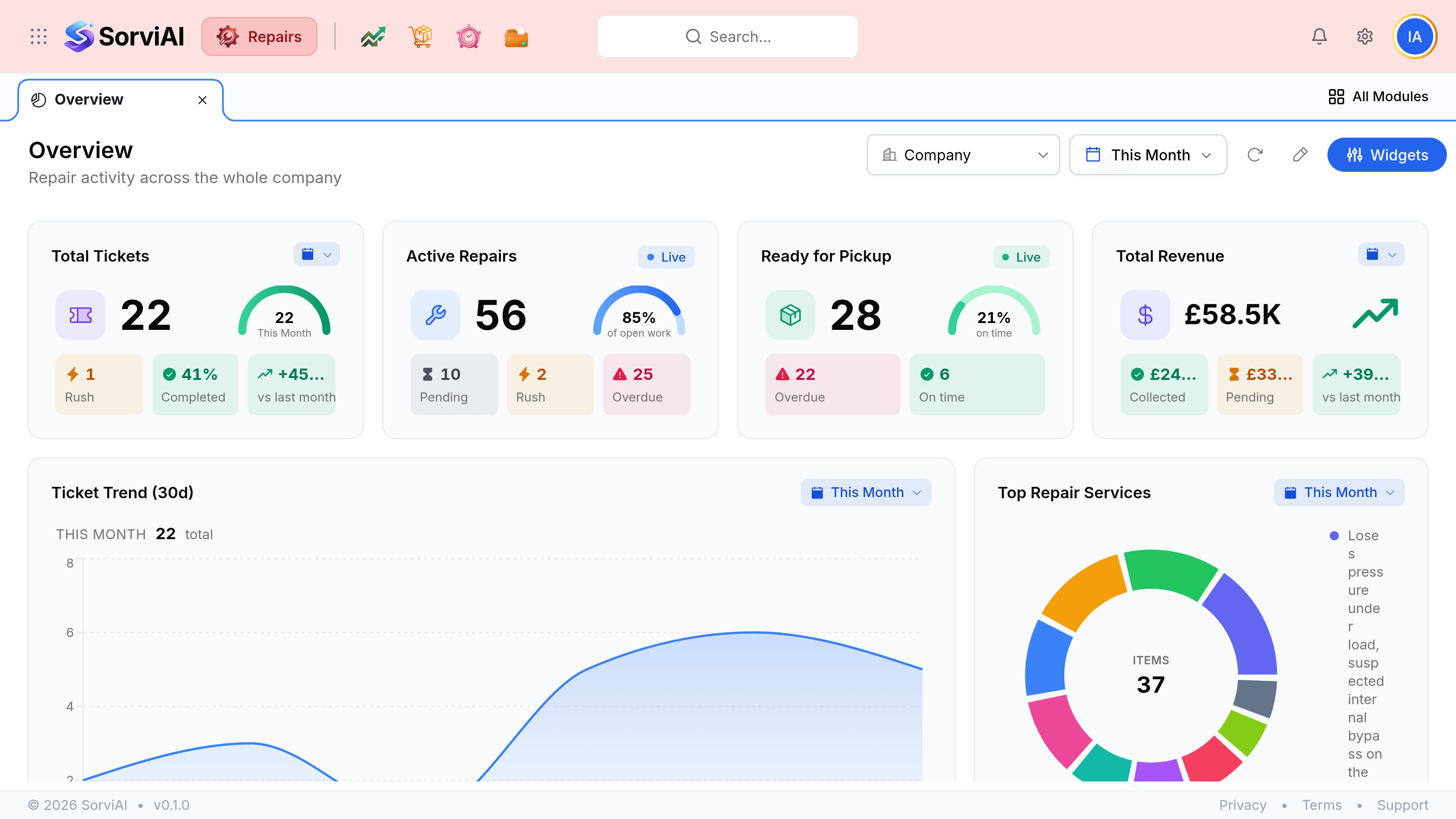
All Modules
All Modules opens the full Repairs menu, grouped exactly as the product is organised, with a search box for finding a screen by name.
| Group | Screens |
|---|---|
| Other Modules | Documents, Reports |
| Tickets | Dashboard, Tickets |
| Sales | Invoices, Quotes, Payments Received, Credit Notes |
| Purchases | Purchase Orders |
| Resources | Customers, Items |
| Inventory | Packages, Shipments |
The search bar
The search bar sits in the header on every screen. Its placeholder tells you where you are, and it searches across Repairs rather than only the list you are looking at.
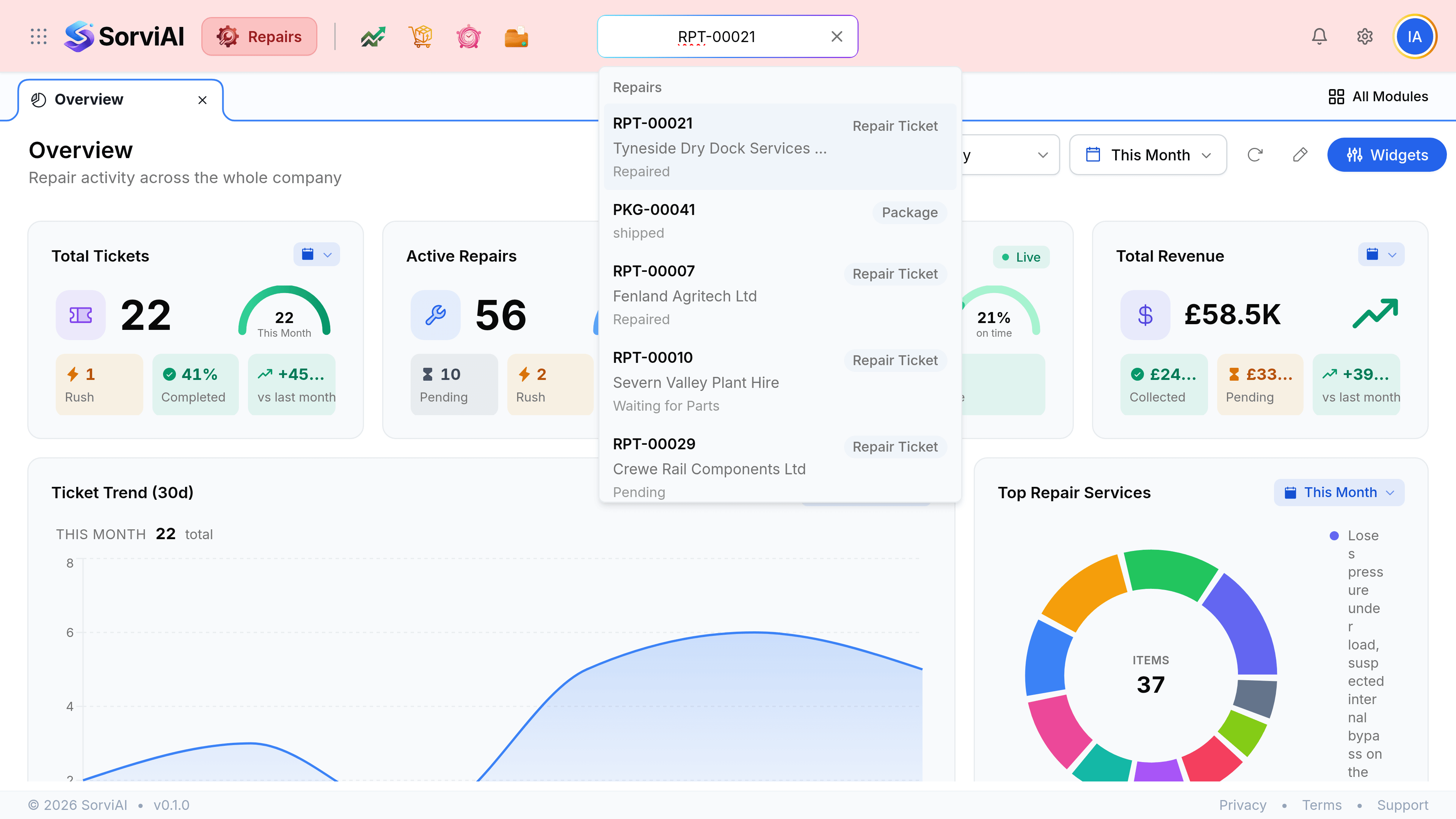
Press Ctrl+K, or Cmd+K
Focus lands in the search bar from wherever you were. Escape gives it back.
Enter a ticket number, a customer name or a serial number
Part of any of them will do. A serial number is the one that finds a machine you have seen before.
Select a result
It opens the record itself, not a filtered list containing it.
Two layouts
Repairs ships two navigation shapes and remembers which you chose. Both reach the same screens.
Modern
the default
- YesA tab bar across the top
- YesAll Modules for the full menu
- YesStarred modules become tabs
- NoEvery module listed on screen at once
Classic
- YesA left sidebar listing every module
- YesGroups expand in place
- YesDrag a module to reorder it
- NoTabs across the top
Both live under your avatar at the top right, beside the light and dark theme switch.
List screens
Every module opens on a list, and every list works the same way: filter it, sort it by selecting a column, search within it, and open a row.
- The view you chose
- List or grid, remembered per module. Tickets can stay in list while Items sits in grid.
- The widths you dragged
- Drag a column edge and that width is kept for that list, on that browser.
- Where you were
- Come back from a record and the list is as you left it rather than reset to the first page.