
Order parts for a ticket
Raising an order for the components a repair cannot be finished without, and deciding where they should be delivered.
Ordering parts is what a ticket sitting at Waiting for Parts is waiting for. The order records what you need, who you are buying it from, when they have promised it, and where it should turn up.
Highlights
- Only the vendor is required, though an order with no date on it cannot be chased.
- Deliver To has two answers: your own warehouse, or the customer directly.
- The delivery address fills itself in once you pick a warehouse.
- Put the ticket number in the reference field, which is what links the two.
- Save as Draft parks it; Save and Send puts it in front of the supplier.
Fill in the order
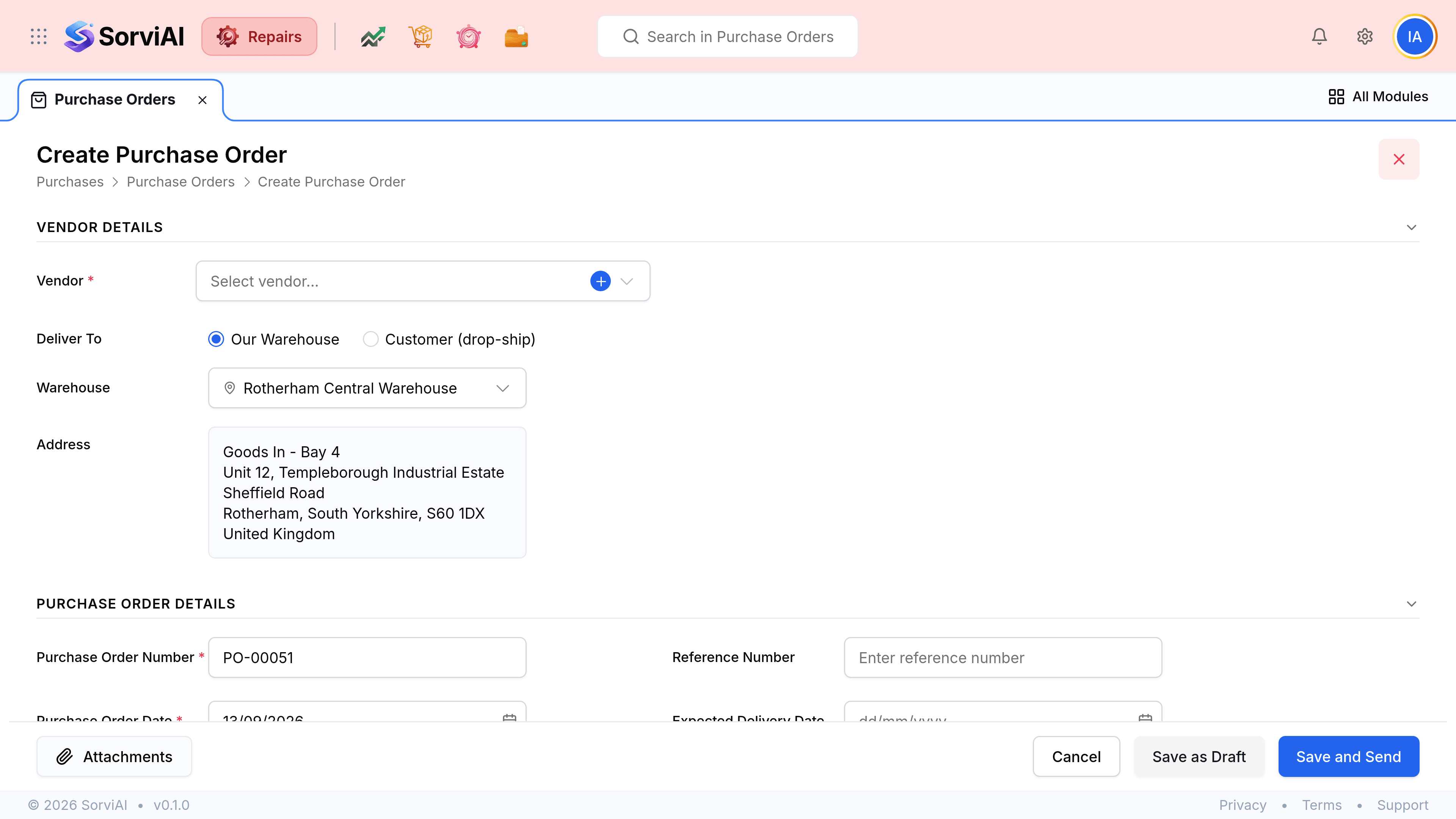
Go to Purchase Orders and select the Purchase Order button
The order number is already filled in when the form opens.
Choose the supplier
Search your existing vendors, or add a new one with the plus beside the picker.
Decide where the parts are going
Leave Deliver To on Our Warehouse for anything a technician will fit, and pick the site holding the equipment. Choose Customer (drop-ship) only when the supplier is sending direct.
Enter the ticket number in the reference field
This is what puts the order on the Repairs list and ties it to the job.
Set the expected delivery date
Enter what the supplier promised, not what you hope for. It is the date the chasing works from.
Add the parts you need
Search the item catalogue in the Item Details table, and set quantities and rates.
Select Save and Send
The order goes to the supplier and moves to issued. Save as Draft keeps it with you.
The two delivery choices
- Our Warehousethe usual answer
- The parts come to you, a technician fits them, and the equipment goes back repaired. The address block fills in from the warehouse you pick, down to the goods-in bay.
- Customer (drop-ship)the exception
- The supplier sends direct to the customer. Right for a part the customer is fitting themselves, and wrong for anything your workshop has to touch.