
Record a shipment
Sending a packed repair, with the carrier, the cost and the tracking number the customer is going to ask for.
A shipment is raised against packages, so the equipment has to be boxed and recorded before you can send it. Once it is, this form is where the carrier, the cost and the tracking number are captured.
Highlights
- Pack first. The packages field cannot be filled until there is a package.
- Customer, order, packages, number, date and carrier are all required.
- Tracking is optional and should not be. It is the field the customer wants.
- A notification can go out on save, and it is turned on by default.
- The already-delivered checkbox is for recording something after the fact.
Fill in the form
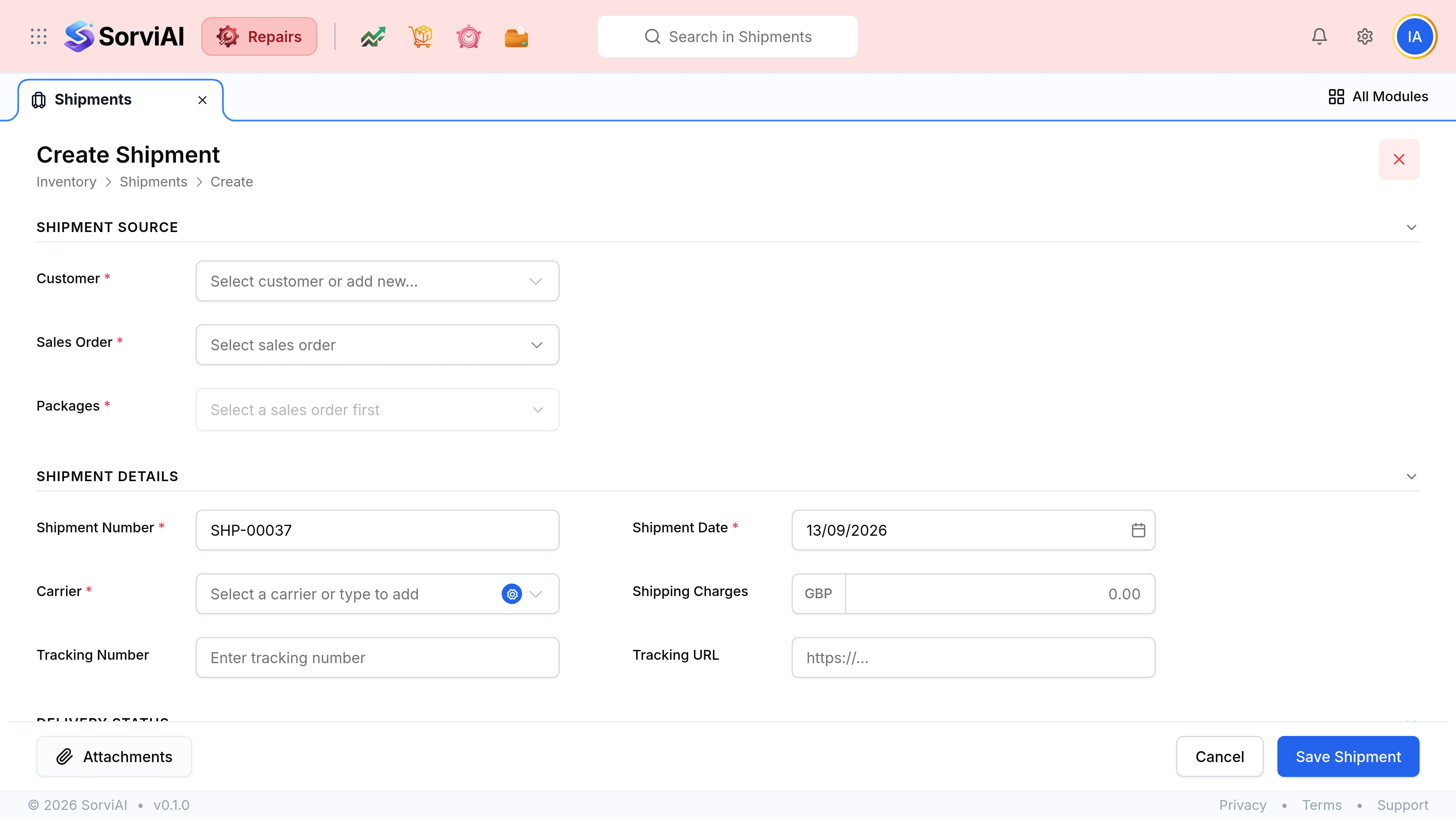
Go to Shipments and select the Shipment button
Choose the customer and the source document
The packages field stays greyed out until the source above it is chosen, which is what tells it which packages to offer.
Select the packages going in this shipment
One collection can take several boxes. Choose all of them, so the record matches what the driver takes away.
Set the ship date and the carrier
The carrier is a required field and includes the service level, so overnight and two day are separate choices rather than a note somebody remembers.
Enter the tracking number and the shipping charge
Both are technically optional. The tracking number is the single most useful thing on the record, and the charge is what makes an expensive return visible later.
Decide whether to notify the customer
Send status notification is ticked by default and tells them the equipment is on its way.
Add a note naming the repair
A line such as Return delivery for repair ticket RPT-00063 is what lets somebody reading this shipment in six months know which job it closed.
Select Save Shipment