
Create a quote from a ticket
Raising an estimate from the work already recorded on one repair ticket, or on several at once.
A quote is built from a ticket rather than typed from nothing. The ticket already knows the customer, the equipment, the faults and the parts, so raising an estimate is a matter of checking what it proposes rather than entering it a second time.
Highlights
- Start from the ticket, not from the Quotes list.
- Nothing is saved until you press Save. The form is a proposal you can edit.
- Several tickets can share one quote, raised from the list in a single step.
- The reference number is filled in for you and is what links the two records.
- The Quote button on this list exists for the rare estimate that has no ticket behind it.
- Two save buttons: file it as a draft, or save and send in one step.
From a single ticket
Open the ticket you want to quote for
Go to Tickets and select the job.
Select Create, then Create Estimate
The Create menu sits in the ticket header.
Check what has been proposed
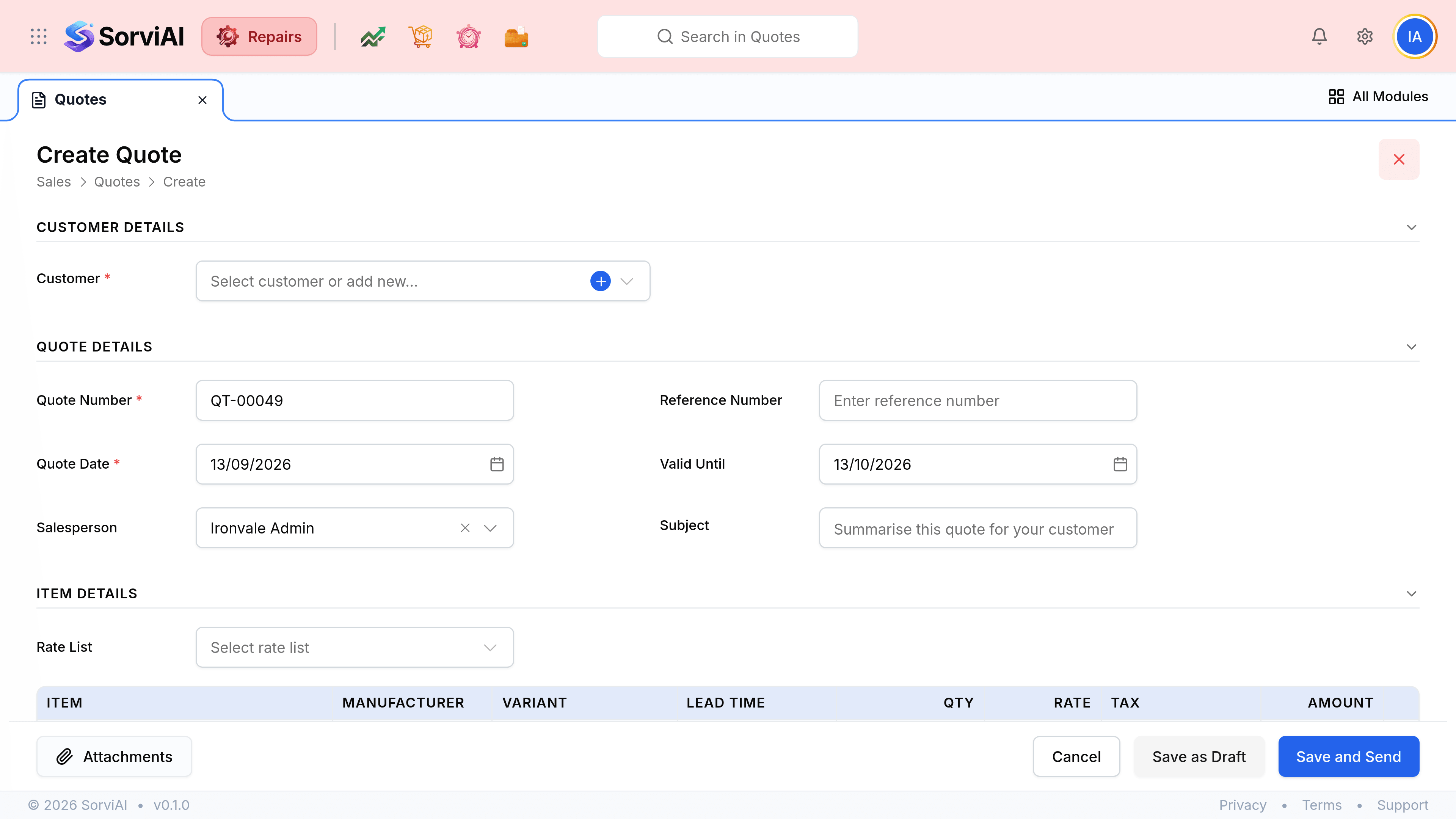
The quote form opens carrying the ticket's services and parts. Amend rates, remove a line you are absorbing, or add something the ticket does not know about.
Set the valid-until date and the subject
Both are what the customer reads first, and both are easier to set now than to explain later.
Save it as a draft, or save and send it
Save as Draft files the estimate without telling anybody. Save and Send emails it in the same step. Either way it is linked back to the ticket.
From several tickets at once
A customer with four machines on your bench would rather have one estimate than four.
Go to Tickets and select the jobs
Use the checkbox at the left of each row. They should all belong to the same customer.
Select Bulk Actions, then Create Quote
The rows from every selected ticket are merged into one estimate.
Check the merged document and save it
Look especially at the line ordering and at anything duplicated across tickets.