
Track and deliver
Following a return until the customer has their equipment back, and closing the loop on the repair.
A shipment stays open until somebody says it arrived. Marking it delivered is a small act that closes the loop: it is what turns a repair from finished-in-the-workshop into finished-for-the-customer.
Highlights
- Update Status is the control, and it sits in the shipment header.
- Mark as Delivered is the one-step version of what you will need most days.
- Quick Actions offers the same thing, so you rarely need the menu at all.
- A delivered shipment records the date, which is what a warranty period runs from.
- The ticket does not close itself. Move that separately.
Move a shipment on
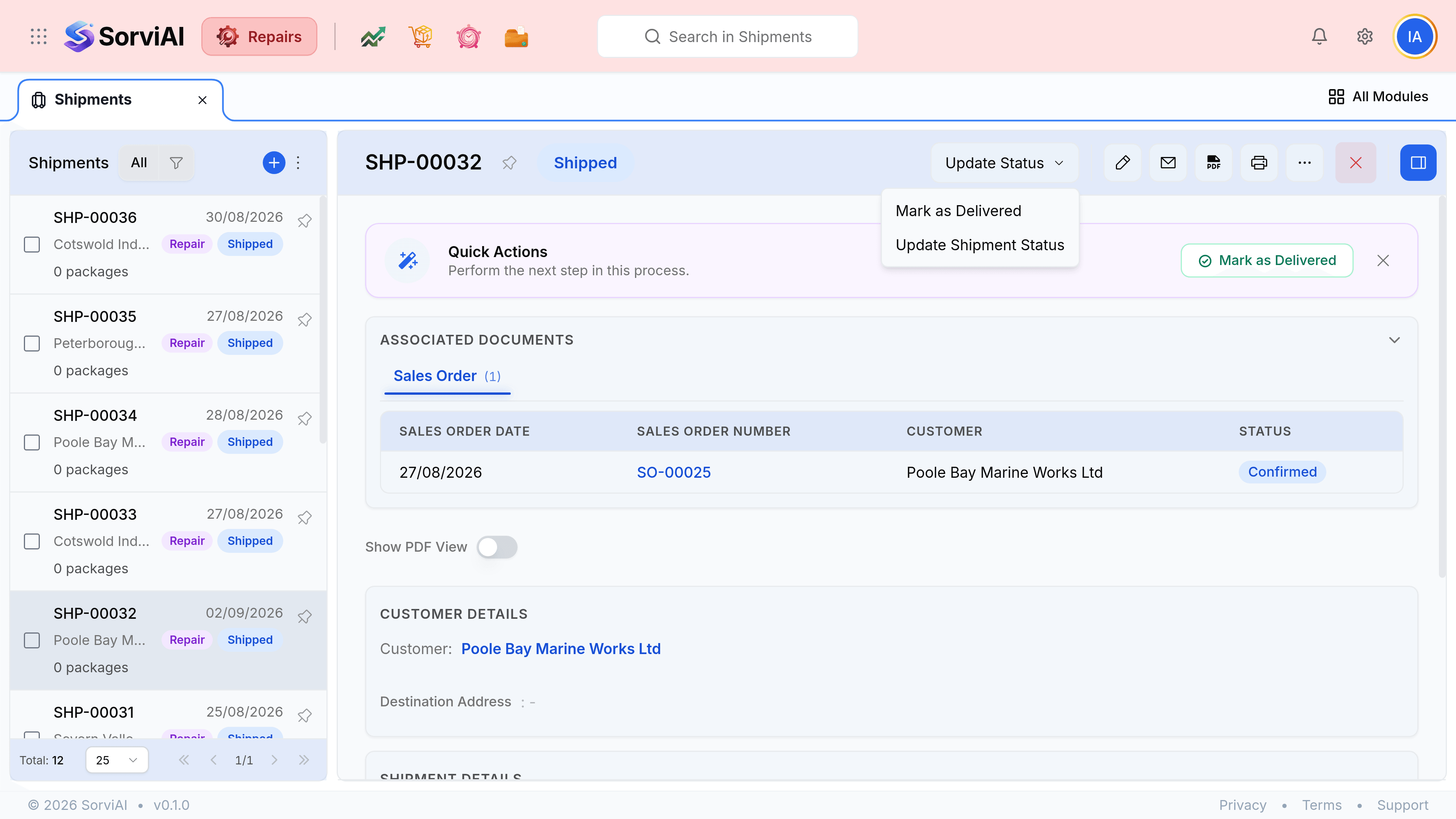
Open the shipment
Go to Shipments and select it, or reach it from the package it carries.
Select Mark as Delivered
It is in the Quick Actions banner and in the Update Status menu. Both do the same thing.
Or choose Update Shipment Status for anything else
Use it to move a shipment into transit, or to correct a status set too early.
| Status | What it means | What to do |
|---|---|---|
| Pending | Booked, not collected | Chase the collection if the ship date has passed |
| In Transit | With the carrier | Nothing, unless it has been longer than the service promised |
| In Transit past its delivery date | The carrier is late | Track it with their number, then tell the customer before they ring you |
| Delivered | The customer has it | Close the ticket |