
Organisation
Two tabs, not four: your profile and logo, and the numbering behind every ticket, work report and document Repairs issues.
Organisation is the screen every document reads from. Your logo and address print on the PDF, and your number series decide what a ticket is called.
Go to SettingsOrganisation. Two tabs: Profile and Number Series.
Profile
The Profile tab is grouped into five sections.
| Field | What it does |
|---|---|
| Organisation InformationRequired | Your logo, Organisation Name, Industry and Organisation ID. The name and logo are what a customer sees at the top of every work report and invoice; the Organisation ID is a read-only reference SorviAI gives you. |
| Address | Address Line 1 and 2, Country, State / Province, City, and Zip / Postal Code. Country also decides what the tax screens call your tax. |
| Contact | Email, Phone, Fax Number and Website, printed in the document footer. |
| Regional Preferences | Timezone, Base Currency and Fiscal Year Start. |
| Accent Color | The colour SorviAI uses through the interface, from a swatch or a Custom Color. |
Number Series
One row per document type, each with a prefix, a starting number and a restart rule.
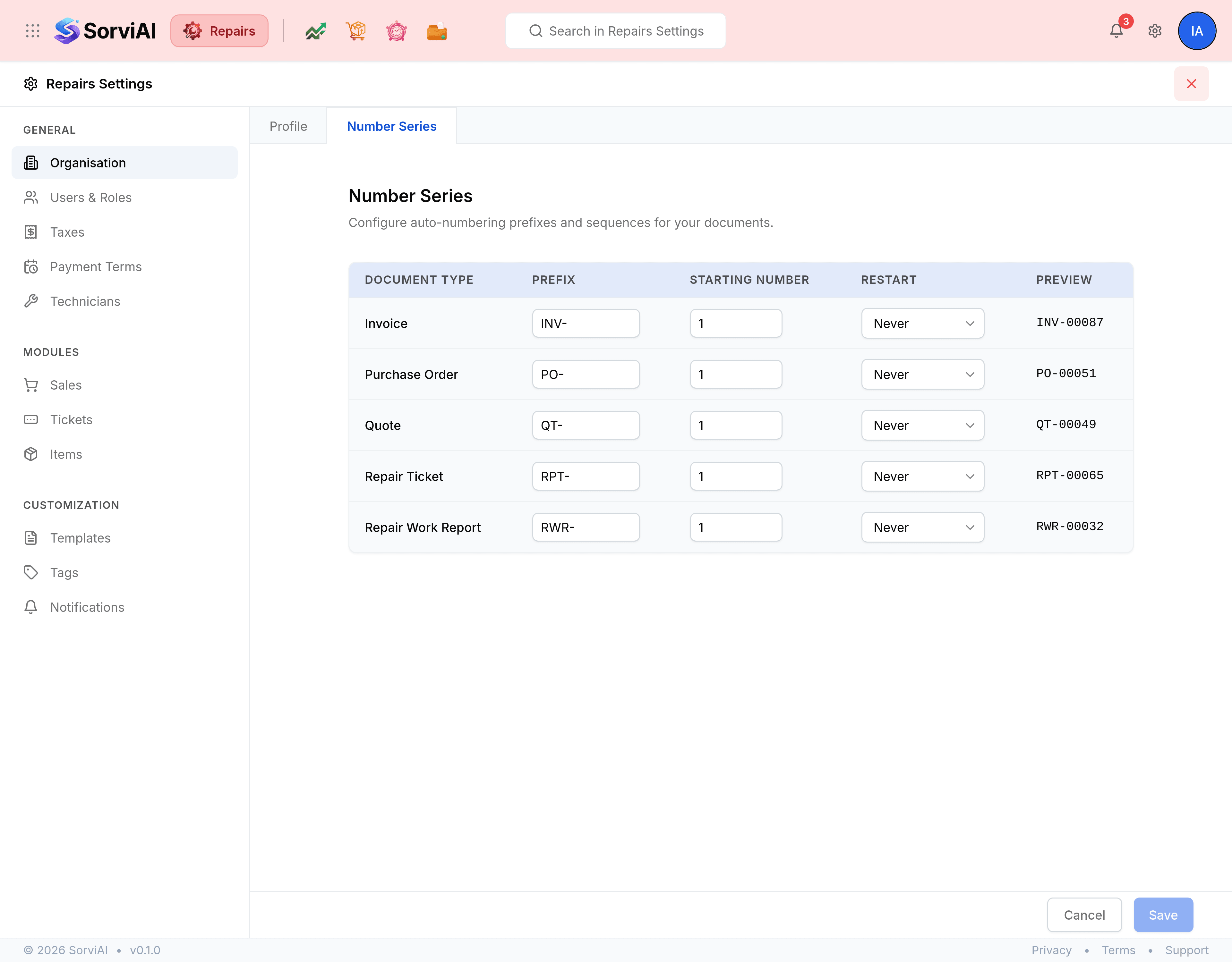
| Field | What it does |
|---|---|
| Document Type | The document the sequence numbers. Repairs shows the five it issues: repair tickets, work reports, quotes, invoices and purchase orders. |
| Prefix | The text in front of the number, such as TKT-. |
| Starting Number | Where the sequence begins. Changing it moves the next number; numbers already issued are untouched. |
| Restart | Never, or Yearly. Yearly takes the sequence back to the starting number at the turn of the year. |
| Preview | The next number the sequence will issue, recalculated as you type. |
Go to Settings, Organisation, Number Series.
Edit the prefix, starting number or restart rule on the row you want.
Rows are editable in place; there is no separate edit mode.
Check the Preview column, then select Save.
Only the rows you changed are sent.