
Access Repairs
Signing in to your organisation, opening Repairs from the App Center, and what decides whether you can see a ticket.
Repairs is one app inside your organisation's SorviAI workspace. Getting into it is two steps: sign in to the workspace, then open the app. What you can do once you are there is decided by your administrator.
Highlights
- Your organisation has an address of its own, and you sign in there.
- One sign-in covers every app you have been granted.
- The App Center is where you choose Repairs, and it lands you there.
- Access to Repairs is granted per person, app by app.
- Repairs ships two roles today, and the difference between them is large.
Signing in
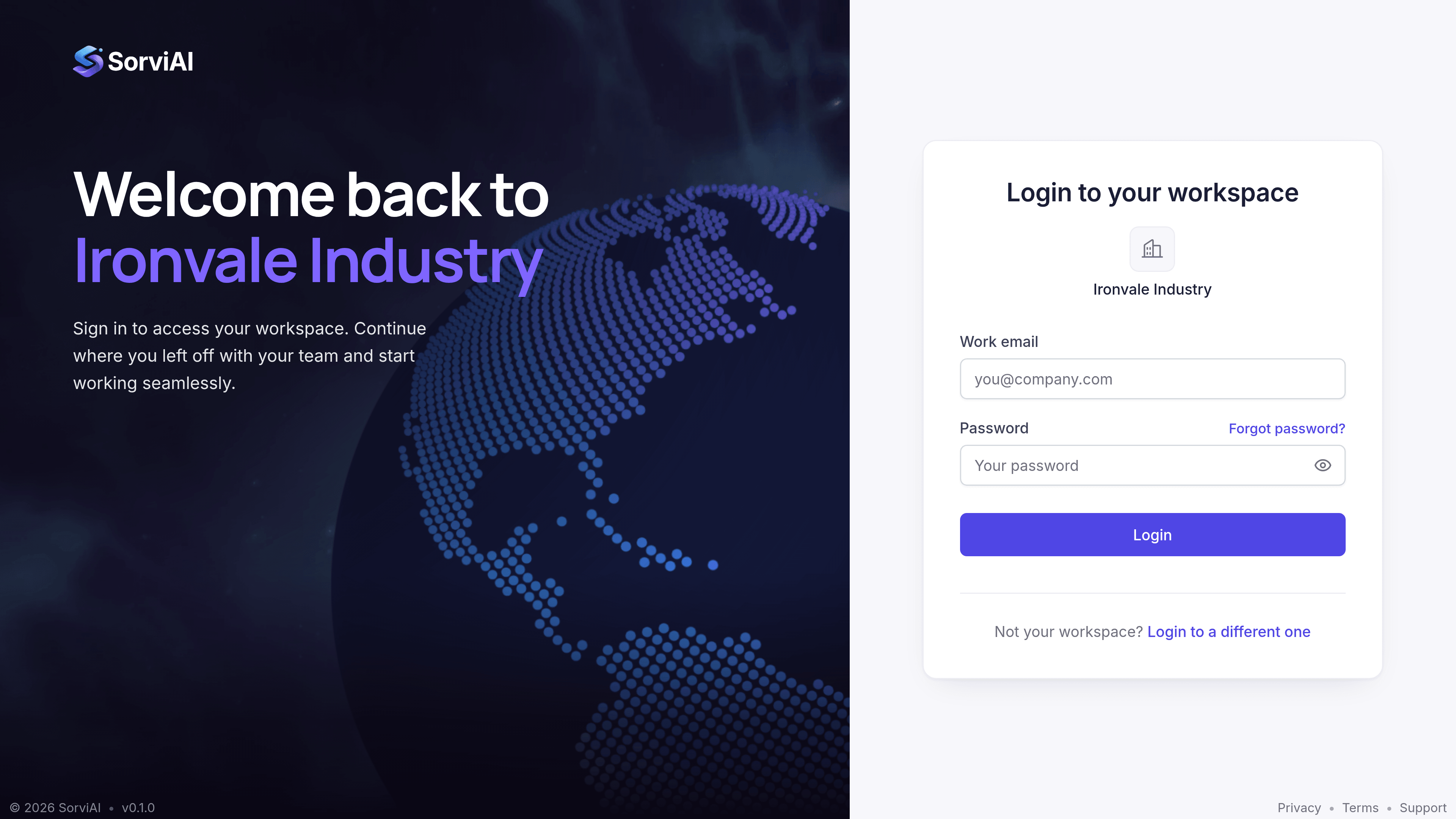
Open your organisation's address
Your workspace name followed by the SorviAI domain. The card names the organisation, and Login to a different one is there if it is not yours.
Sign in with your work email address
Use the address your invitation was sent to. Forgot password emails you a reset link.
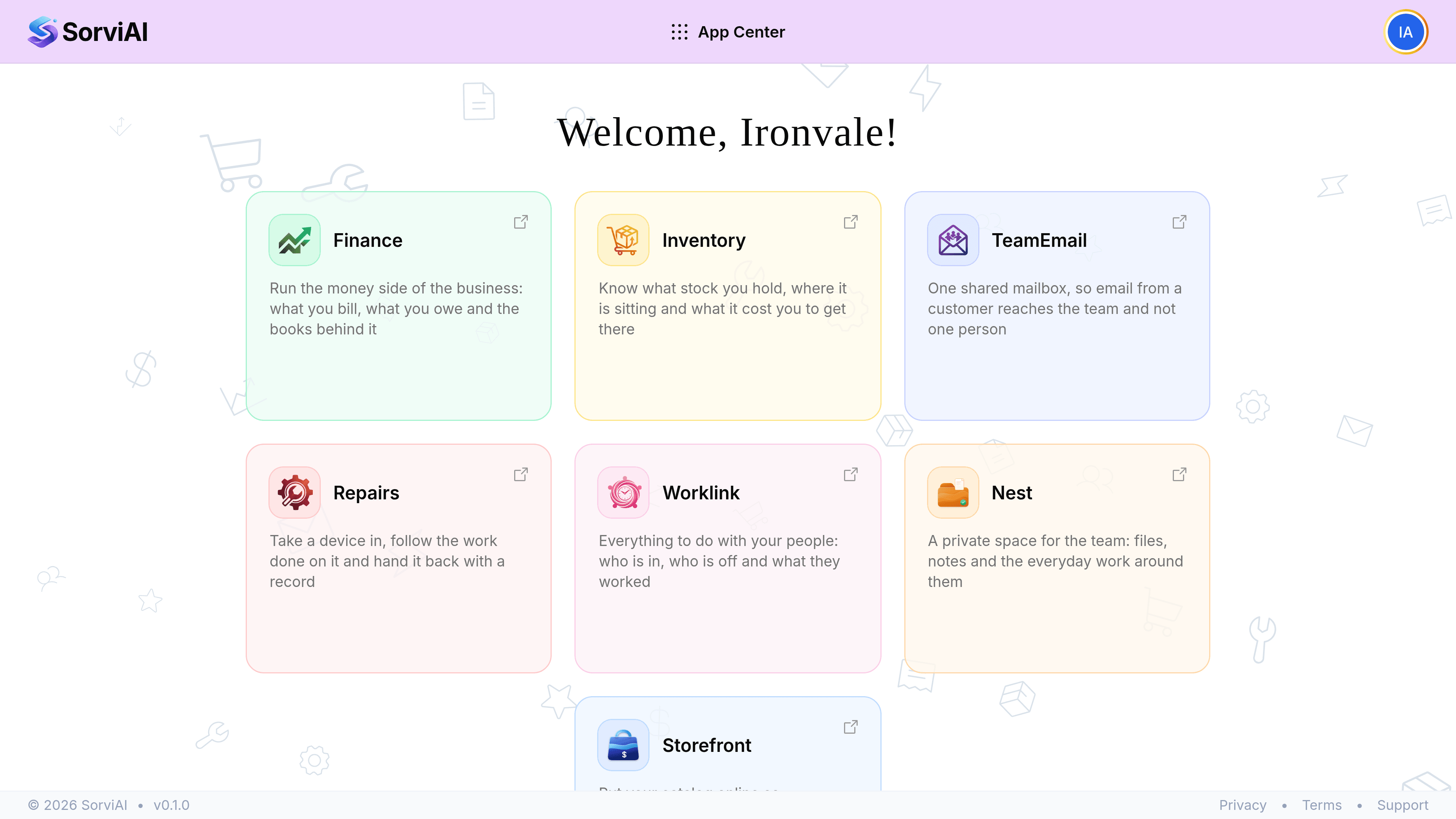
Open Repairs from the App Center
Signing in lands you here. Only the apps your organisation has, and that you have been granted, are shown.
Who you are signed in as
The avatar at the top right carries your account, your organisation and the two display settings, and it is the quickest way to check what you are actually signed in as.
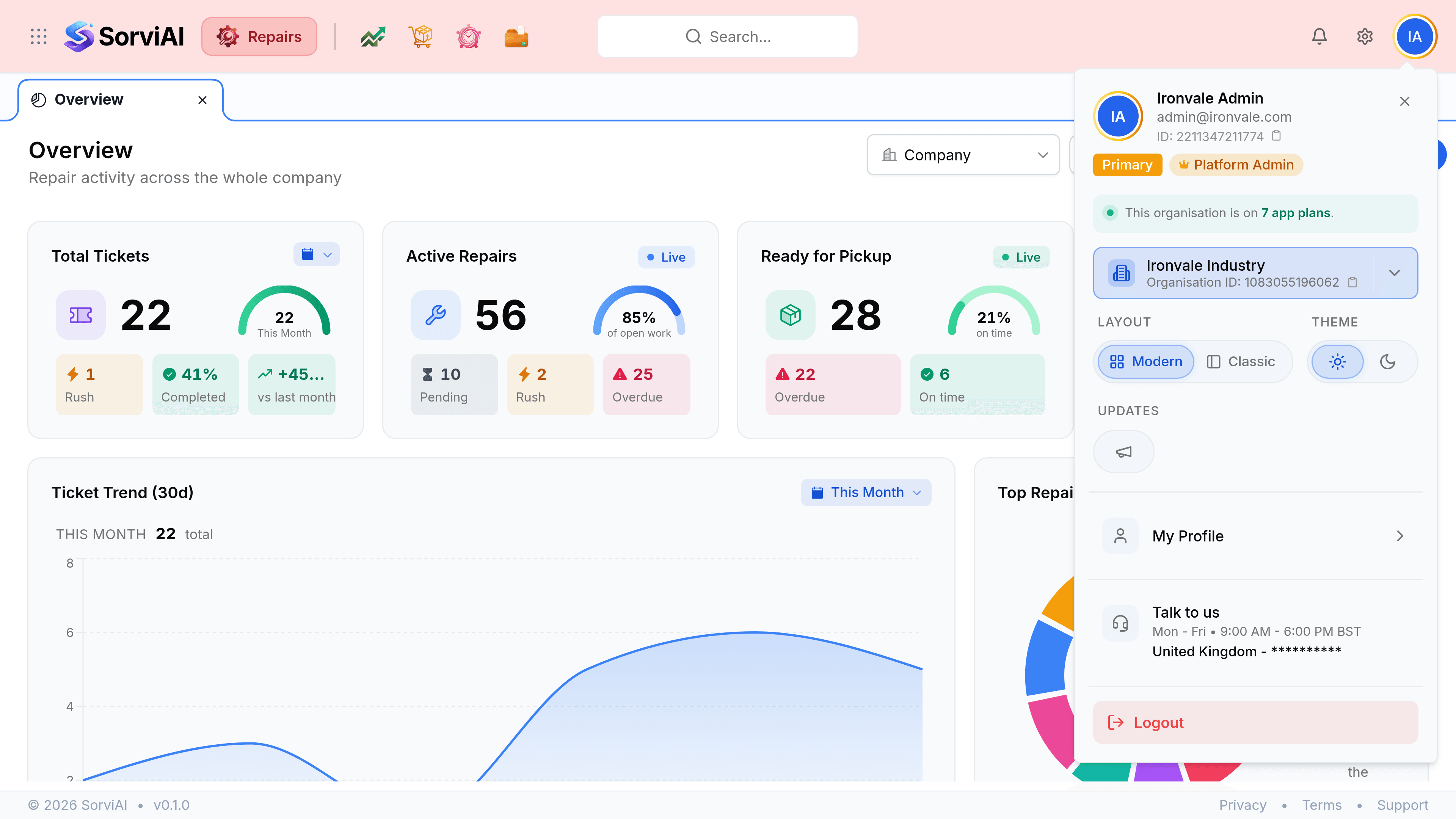
- Platform administrator
- Manages the whole organisation and every app in it, including the admin console. The badge shows in this menu.
- Repairs administrator
- Manages Repairs and everything in it, without reaching another app's settings.
- Everybody else
- Has been granted the Repairs app and works within what their role allows.
What decides whether you can open a ticket
Two separate things have to be true. You need the Repairs app granted to your account, and you need a role that allows the work.
| What you see | Where the problem usually is |
|---|---|
| Repairs is not on your App Center | Your account exists but has not been granted the app |
| Repairs opens but the ticket list will not load | Your role does not carry the ticket permissions |
| The address is not found | The workspace name is misspelled. Check your invitation |
| The password is rejected | Use Forgot password to have a reset link emailed to you |