
Customise your overview
Adding and removing widgets, rearranging the board, and getting back to the layout you started with.
The board is yours. Add the widgets you watch, drop the ones you never read, and drag the rest into an order that matches how you actually work. Nothing you do here affects anybody else's screen.
Highlights
- Widgets turns widgets on and off; the pencil moves and resizes them.
- Nothing is saved until you save it, and Cancel puts everything back.
- Auto-arrange tidies a board you have made a mess of.
- Reset to Default returns the layout Repairs shipped with.
- The board is per person and per browser, not per organisation.
Turn widgets on and off
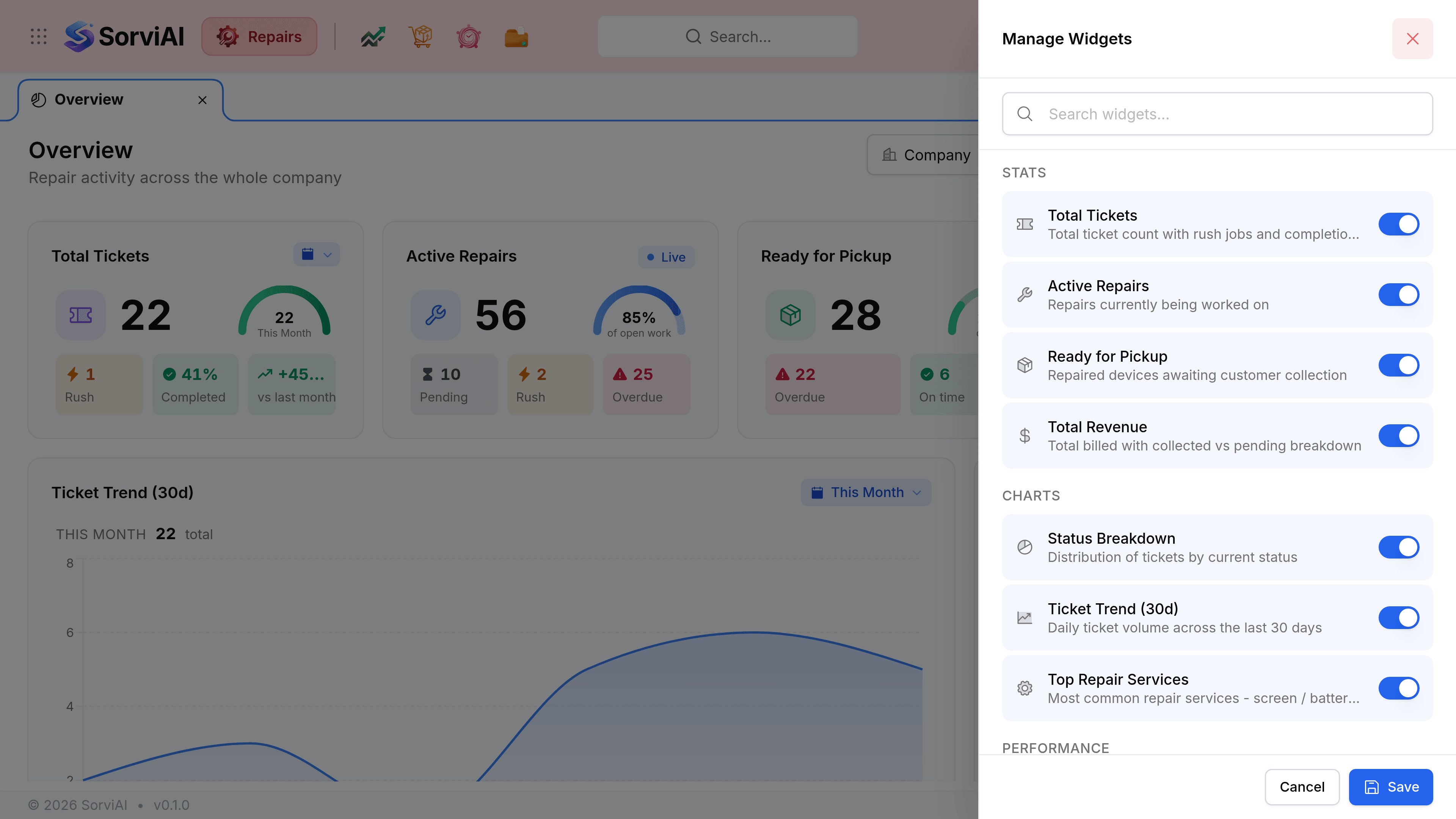
Select Widgets
The panel opens over the board with every available widget listed.
Turn off anything you do not read
A workshop that never chases collections has little use for Ready for Pickup. Turning a widget off does not delete anything: it stops taking up room.
Select Save
Cancel leaves the board exactly as it was.
Rearrange the board
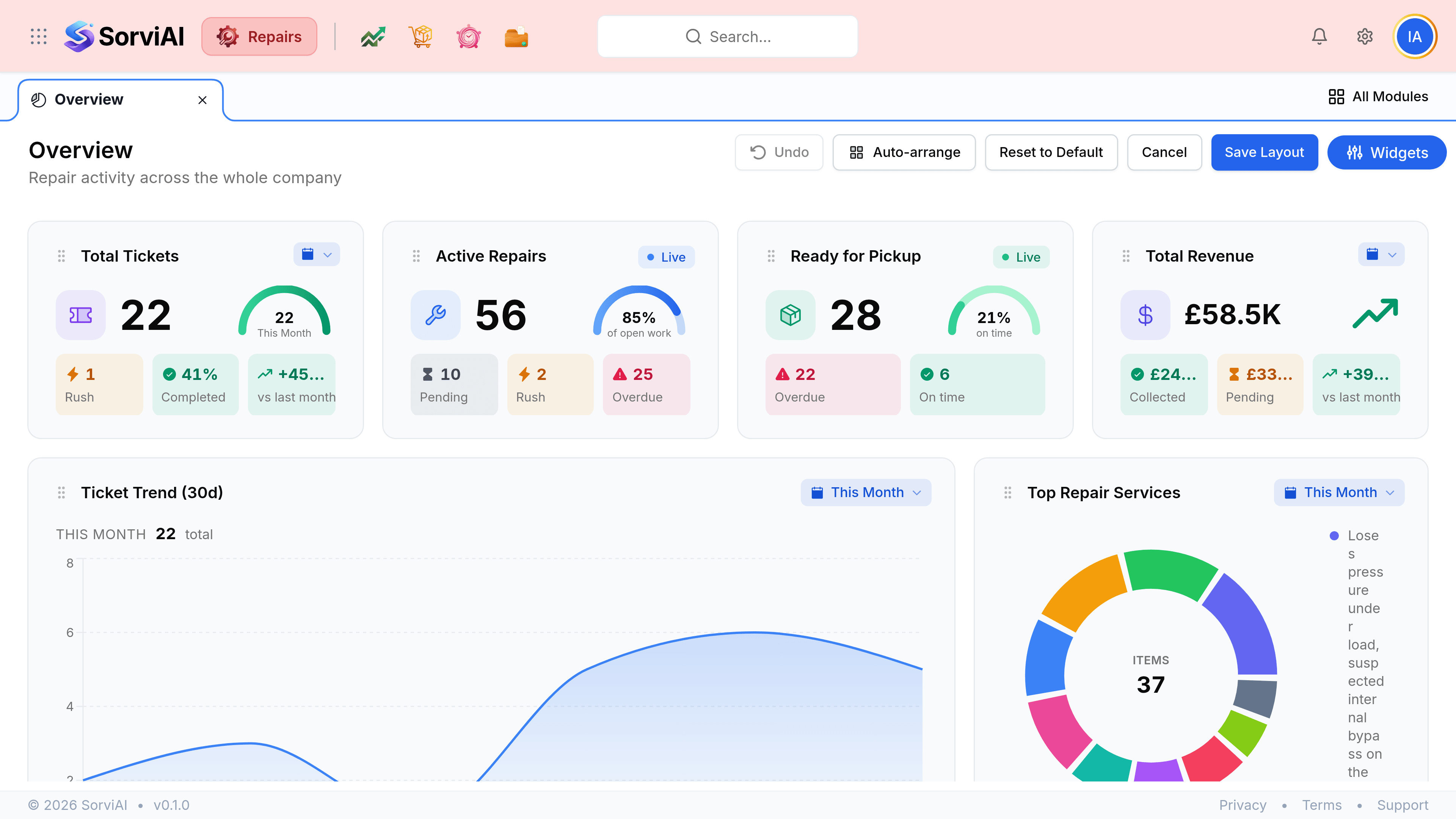
Select the pencil beside the period picker
The header changes, and a drag handle appears at the top left of every widget.
Drag a widget by its handle
The rest of the board moves out of the way as you go.
Resize from a widget's corner
Each widget has a size range, so it will refuse to become unreadably small.
Select Save Layout
Undo steps back one change at a time, and Cancel abandons the lot.
- Undo
- Steps back through the changes you have made since editing began.
- Auto-arrange
- Repacks the widgets to close the gaps left by dragging. The quickest fix for a board with holes in it.
- Reset to Default
- Restores the layout Repairs ships with, widgets and positions alike.
- Cancel
- Leaves editing without keeping anything.
- Save Layout
- Keeps the arrangement. Nothing before this point is permanent.