
Sales
The five documents Repairs bills with, the tab each one owns, and why these are the workspace's settings rather than a second copy.
Repairs bills with five documents, and this screen configures all of them: one tab each. Sales orders, recurring invoices, advance invoices and returns are not among them, because Repairs does not raise those.
Go to SettingsSales. Five tabs: Customers, Quotes, Invoices, Customer Payments and Credit Notes.
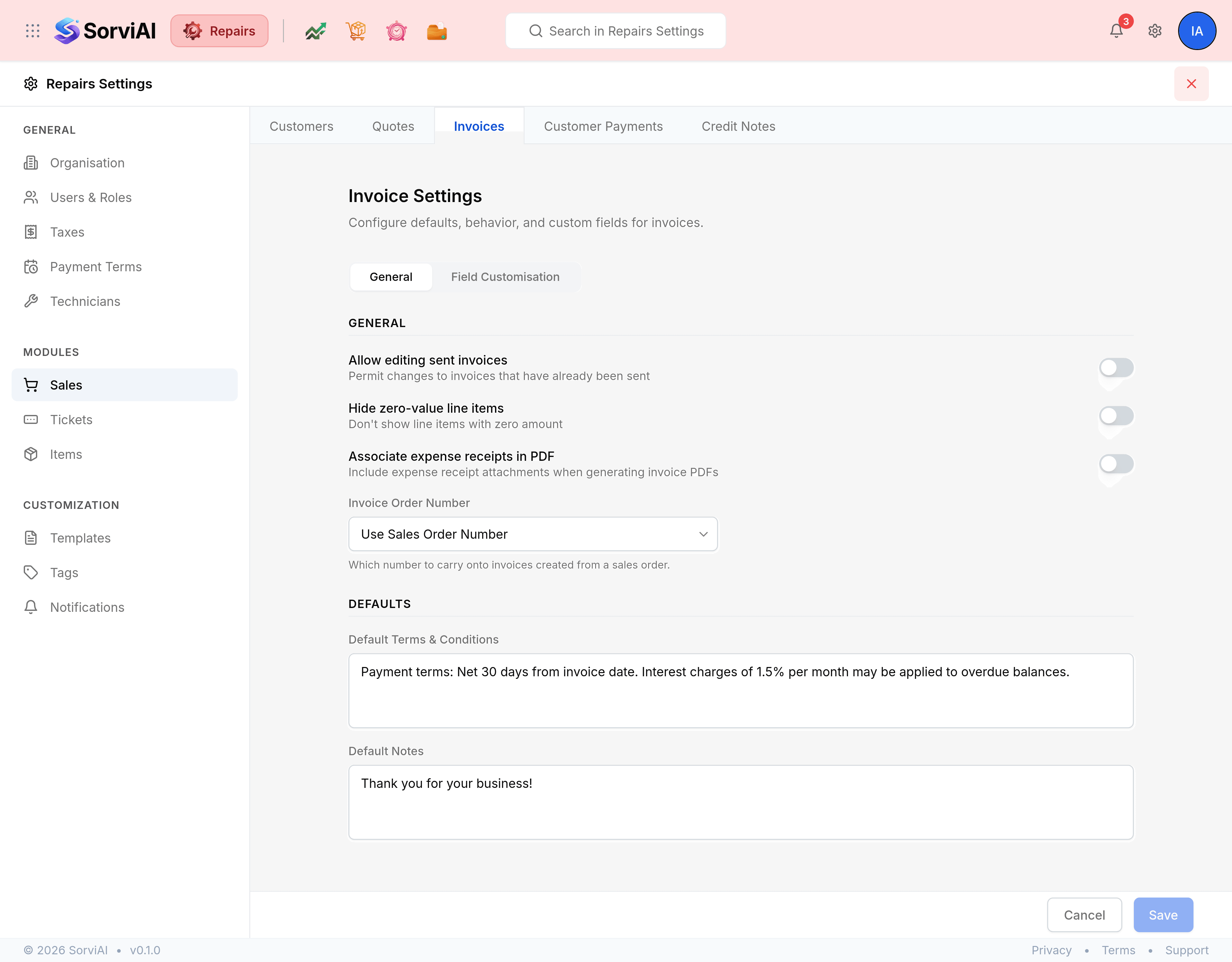
What a tab holds
- General
- Switches and default text for that document type, such as whether a sent invoice may be edited, or the terms printed at its foot.
- Field Customisation
- Custom fields added to that document's form.
The tab worth being careful with
Invoices carries the one setting that changes what a sent document means.
| Field | What it does |
|---|---|
| Allow editing sent invoices | Lets a sent invoice be changed rather than voided and reissued. Leaving it off is what keeps a sent document trustworthy. |
| Hide zero-value line items | Drops nil lines from the PDF, which is useful where a repair lists an inclusive part at zero. |
| Associate expense receipts in PDF | Attaches rebilled expense receipts to the invoice PDF. |
| Invoice Order Number | Where the order number printed on an invoice comes from. |
| Default Terms & Conditions | Text printed at the foot of every new invoice. |
| Default Notes | Text carried onto every new invoice. |