
Taxes
The rates a repair line can be charged at, and the registration details that print on what you issue.
Repairs bills with tax like anything else, so the rates and your registration live here. Filing a return does not: that belongs to the app that files it.
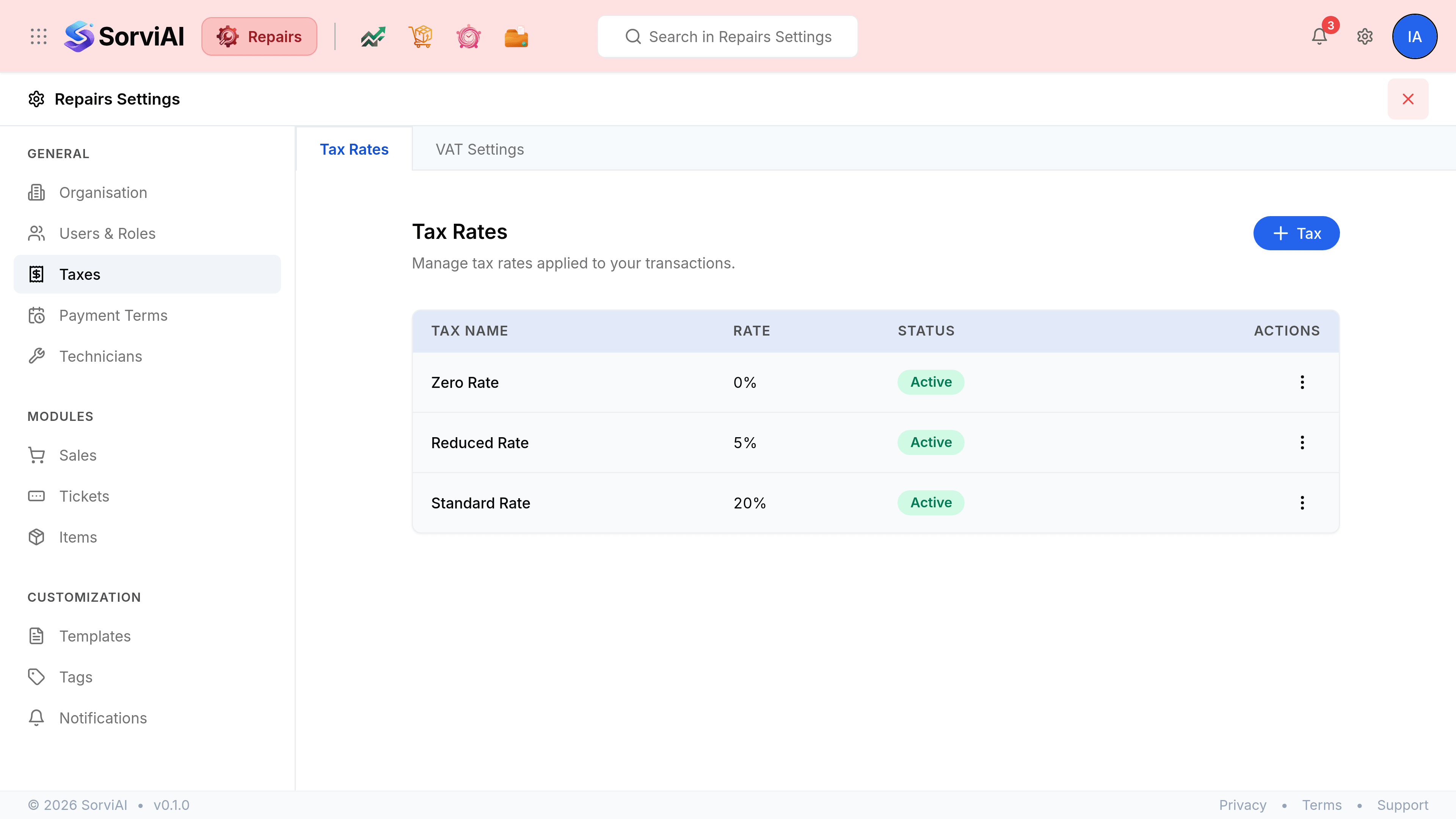
Go to SettingsTaxes. Two tabs: Tax Rates and your tax's own settings tab.
Tax Rates
The rates a document line can be charged at, each with a name, a percentage and a status. Making a rate Inactive keeps it off new documents while leaving it on the documents that already use it, which is what you want when a rate changes rather than disappears.
The tax settings tab
Your registration, in one section.
| Field | What it does |
|---|---|
| VAT Registered | Whether the organisation is registered. Turning it off clears the number and date rather than hiding them. |
| VAT Registration Number Label | What prints against the number on a document. Editable in both states, so a non-UK equivalent such as TRN reads correctly. |
| VAT Registration Number (VRN)Required | Your registration number, printed on every tax document you issue. Required once you are registered. |
| VAT Registration DateRequired | The date registration took effect. Required once you are registered. |