
Payment Terms
The due-date rules every quote and invoice offers, the four kinds of rule, and why only Net Days can be added more than once.
A payment term is a rule for working out a due date from a document date. Terms are shared across the documents Repairs raises and the contacts they go to, which is why they live in General rather than under one module.
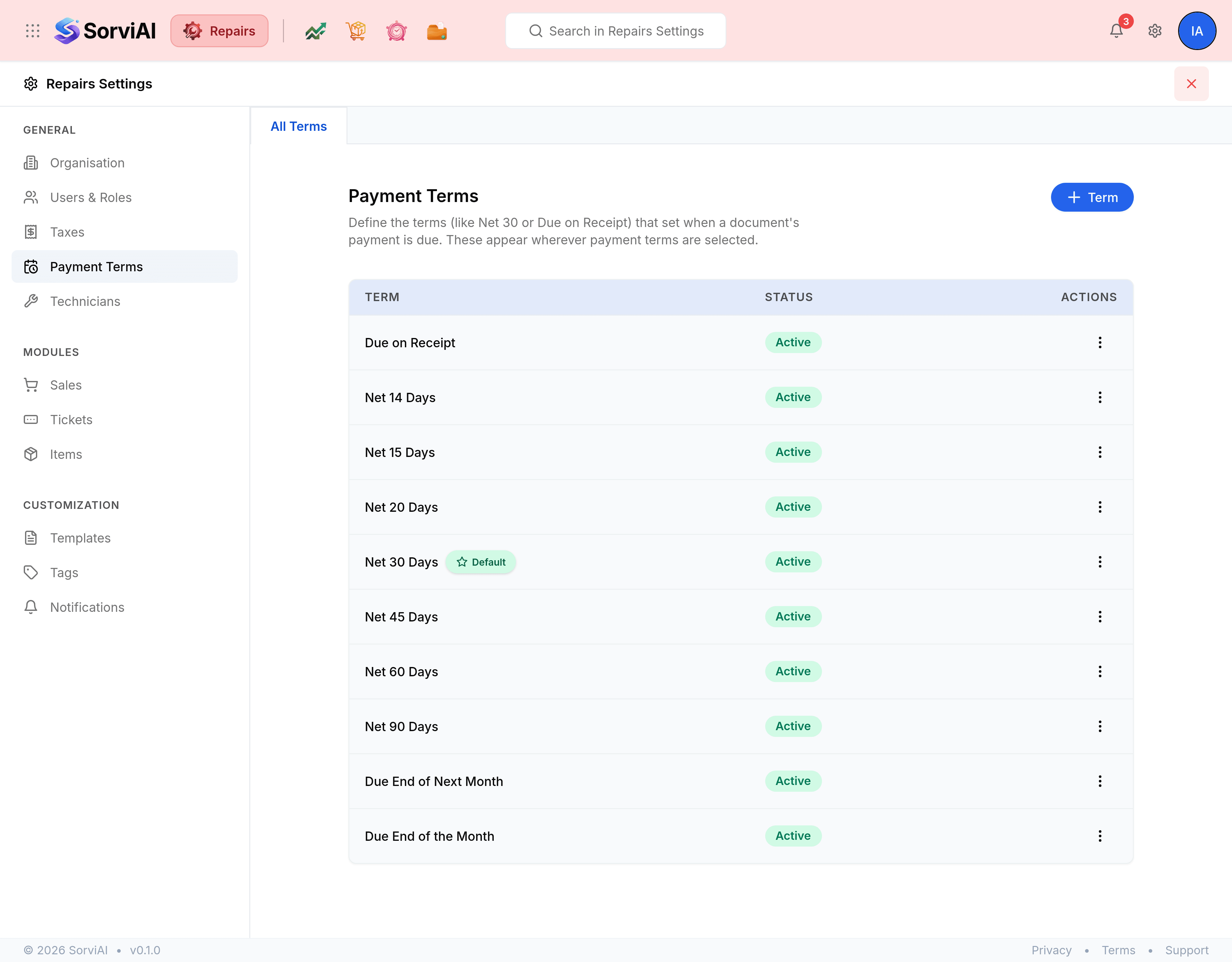
Go to SettingsPayment Terms. One tab, All Terms, holding every term with its status.
The four rules
- Net Days
- Due a fixed number of days after the document date. The day count is yours to set, so this is the only rule you can add more than one of.
- Due on Receipt
- Due the same day the document is issued.
- Due End of the Month
- Due on the last day of the document month.
- Due End of Next Month
- Due on the last day of the following month.
Add a term
Go to Settings, Payment Terms.
Select Term.
Choose a rule.
Pick Net Days and enter the number of days, or choose one of the three fixed rules.
Check the name.
It fills itself in to match the rule, such as
Net 30 Days, and keeps tracking the rule until you type over it.Select Save.
The default term, and inactive ones
One term is marked Default and is what a document falls back to when nothing else says otherwise. Set as default on the three-dot menu moves the badge. The default term is always active, so it is the one row with no deactivate option.