
What documents are
The photographs, papers and files kept beside your records, and the one screen where all of them gather.
A repair generates paper. A photograph of the damage as it arrived, the customer's own fault report, a supplier's delivery note, a warranty certificate. Documents is where every one of those files gathers, shown against the record it belongs to.
Highlights
- A file belongs to a record, and this list shows which one.
- Standalone means it belongs to nothing yet, which is a valid state.
- This screen is not filtered to repairs. It is the whole workspace's files.
- Type chips split the list into images, PDFs, documents and spreadsheets.
- Preview, download and delete live on each row.
The list
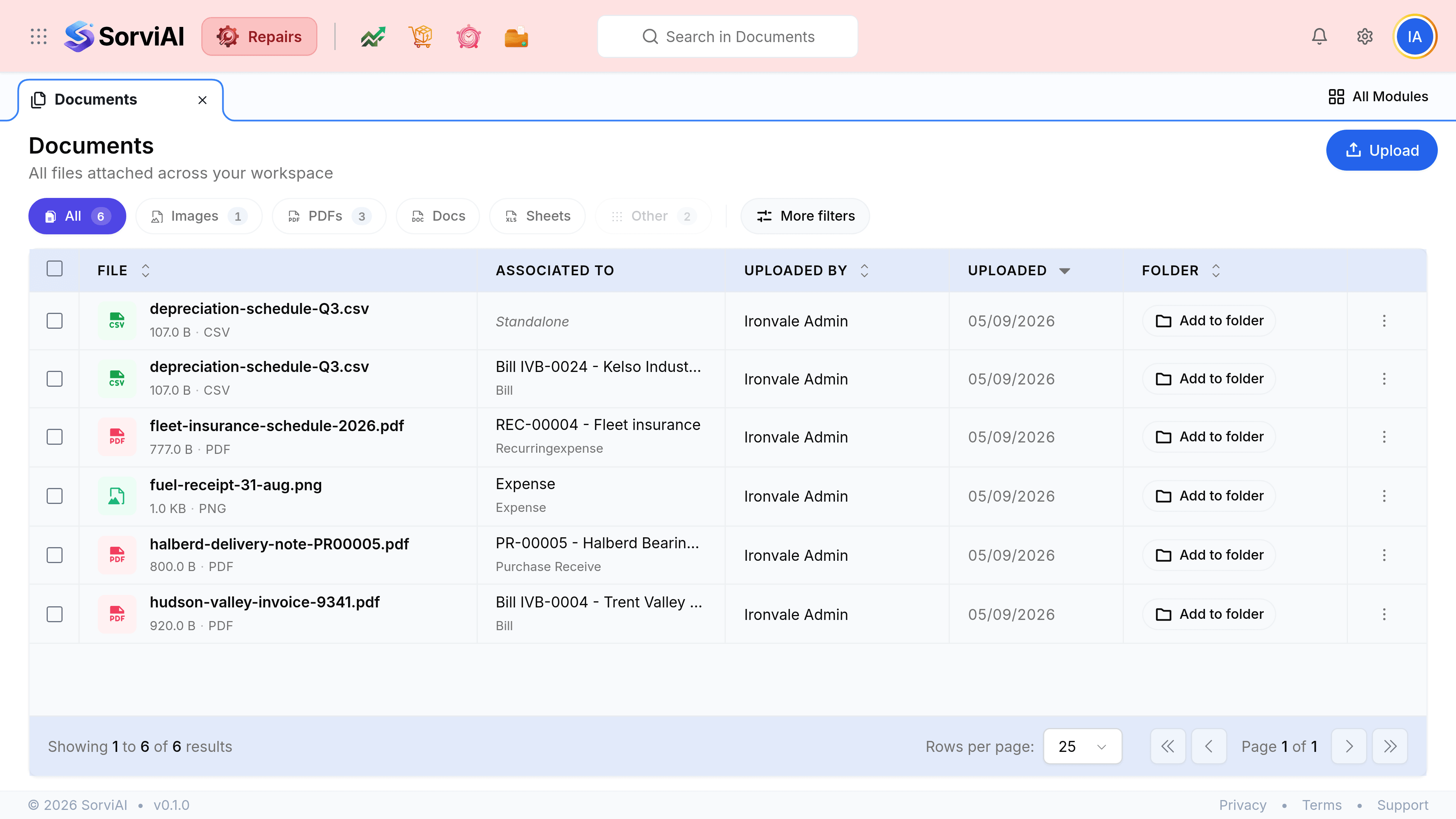
What each column tells you
| Field | What it does |
|---|---|
| File | The filename, its size and its format. The icon repeats the format so a list is scannable without reading extensions. |
| Associated To | The record the file hangs off, with the kind of record underneath it. Italic Standalone means it is attached to nothing. |
| Uploaded By | Who put it there. Useful when a photograph needs a question asking about it. |
| Uploaded | When. The list sorts by this by default, newest first. |
| Folder | Which folder it has been filed in, or an Add to folder button if it has not. |
What you can do with a file
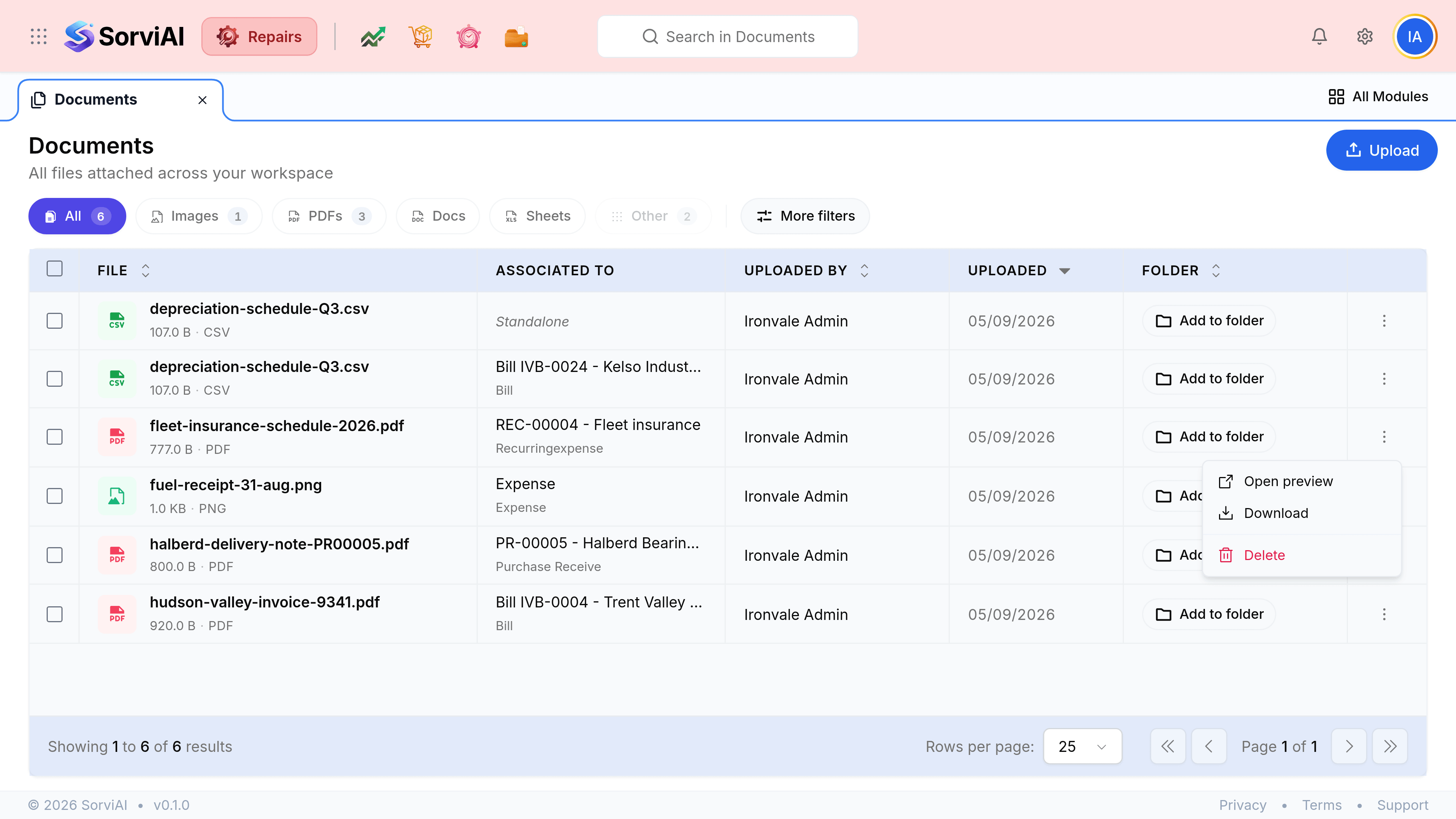
- Open preview
- Shows the file without saving it to your machine. The right choice for checking a photograph while a customer is on the phone.
- Download
- Saves a copy locally, for attaching to an email or sending to a supplier.
- Delete
- Removes the file permanently. It is not moved anywhere first.
- Add to folder
- Files it under a folder so the list can be narrowed later.