
Tickets
The four tabs that decide how a repair behaves: the statuses it moves through, the fields on it, the fields on its work report, and how reports are issued.
This is the screen that is genuinely Repairs' own. Its four tabs decide what a repair can be, what you record on it, and what the customer is handed at the end.
Go to SettingsTickets. Four tabs: Statuses, Custom Fields, Work Report Fields and Report Settings.
Statuses
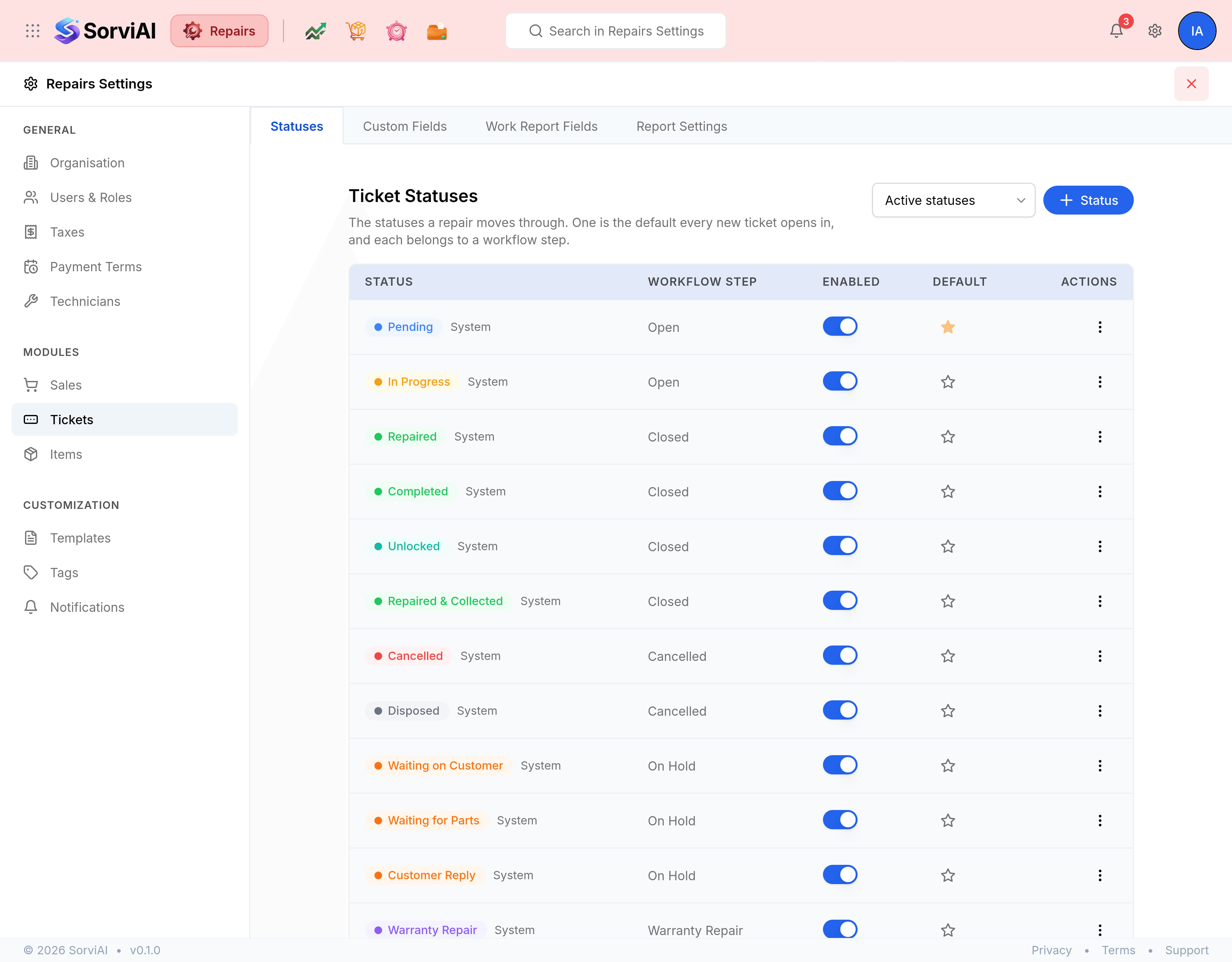
The statuses a repair moves through. One is the default every new ticket opens in, and each belongs to a workflow step.
| Field | What it does |
|---|---|
| Status | The name and colour shown on a ticket. The twelve that ship are marked System. |
| Workflow Step | Which stage the status counts as: Open, Closed, Cancelled, On Hold or Warranty Repair. This is what reports group by, so a new status needs the right one. |
| Enabled | Whether the status is offered on a ticket at all. Turning one off leaves it on the tickets that already carry it. |
| Default | The gold star. One status holds it, and it is where every new ticket opens. |
Move a ticket through its statuses covers what each of the twelve means in practice, and why the ticket and the individual repairs on it are tracked separately.
Custom Fields and Work Report Fields
Two field-customisation tabs for two different records: Custom Fields adds fields to the ticket, and Work Report Fields adds extra fields to capture on a work report. Each shows a Custom Fields Usage count against the limit for the workspace.
Report Settings
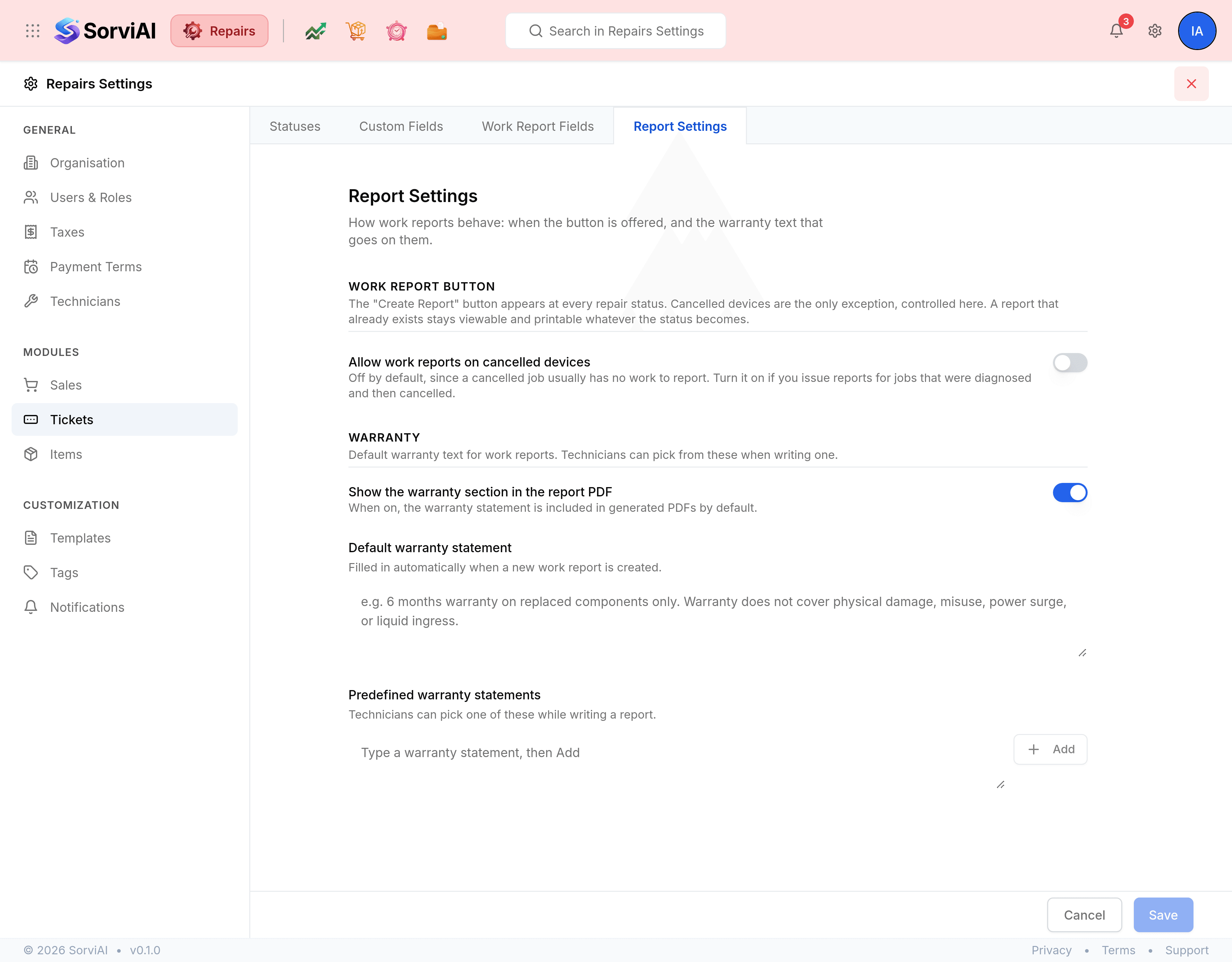
| Field | What it does |
|---|---|
| Allow work reports on cancelled devices | Off by default, since a cancelled job usually has no work to report. Turn it on if you issue reports for jobs that were diagnosed and then cancelled. |
| Show the warranty section in the report PDF | When on, the warranty statement is included in generated PDFs by default. |
| Default warranty statement | Filled in automatically when a new work report is created. |
| Predefined warranty statements | A list technicians can pick from while writing a report. Type one and select Add. |