
Other actions in invoices
Emailing an invoice, recording what was paid, crediting what should not have been, and the rest of the header menu.
Once an invoice is saved, the rest of its life happens from the invoice itself: getting it to the customer, recording what comes back, and correcting it when the figure was wrong.
Highlights
- Email, share, PDF and print are icons across the invoice header.
- The three dot menu holds credit notes, cloning, recurring and the journal.
- Create Credit Note is the correct way to reduce a bill already issued.
- Clone copies an invoice; Make Recurring turns one into a schedule.
- View Journal shows the accounting entries the invoice produced.
The header menu
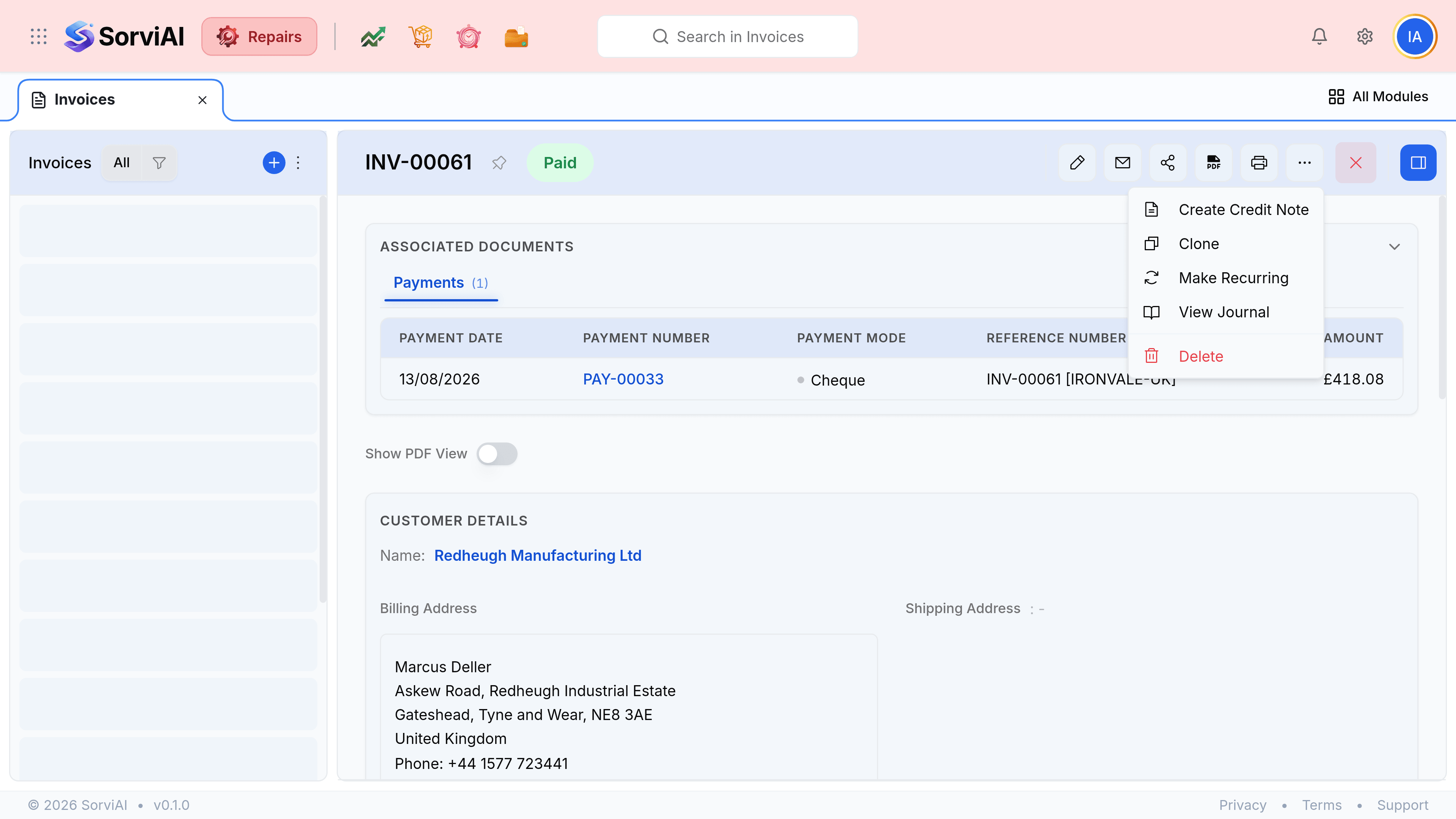
- Create Credit Note
- Raises a credit against this invoice, carrying its lines across. The right answer whenever a customer has been overcharged.
- Clone
- Copies the invoice into a new draft. Useful for a customer billed the same amount on a regular cycle.
- Make Recurring
- Turns this invoice into a schedule that raises itself. Suited to maintenance contracts rather than one-off repairs.
- View Journal
- The accounting entries this invoice created. The answer to a bookkeeper's question about which accounts moved.
- Delete
- Removes the invoice. Appropriate for a draft that was never issued, and almost never for one that was.
Recording what the customer paid
Money is not recorded on the invoice. A payment is its own record, allocated to the invoices it settles, which is what lets one cheque cover three bills.
Go to Payments Received and select the Payment button
Or open the customer and work from there.
Choose the customer and enter the amount
Their unpaid invoices load underneath once the customer is set.
Allocate the money against the invoices it settles
An unallocated payment sits as a credit rather than clearing anything.
Select Save
The invoice's badge updates, and the payment appears in its associated documents.