
Create a part or a service
Adding something new to charge for, and deciding whether the product counts it.
Parts and services are created on the same form. The decisions that matter are made early on it: whether this is one thing or a family of sizes, and whether the product should be counting what you hold.
Highlights
- Structure is decided first, and it is not a casual choice.
- Only the name is required to save, though a part with no price is not much use.
- A service simply has no stock, rather than having stock of zero on purpose.
- The SKU is how everybody else finds it, so use the convention your stores already use.
- Category and manufacturer are what make a catalogue of hundreds searchable.
Create one
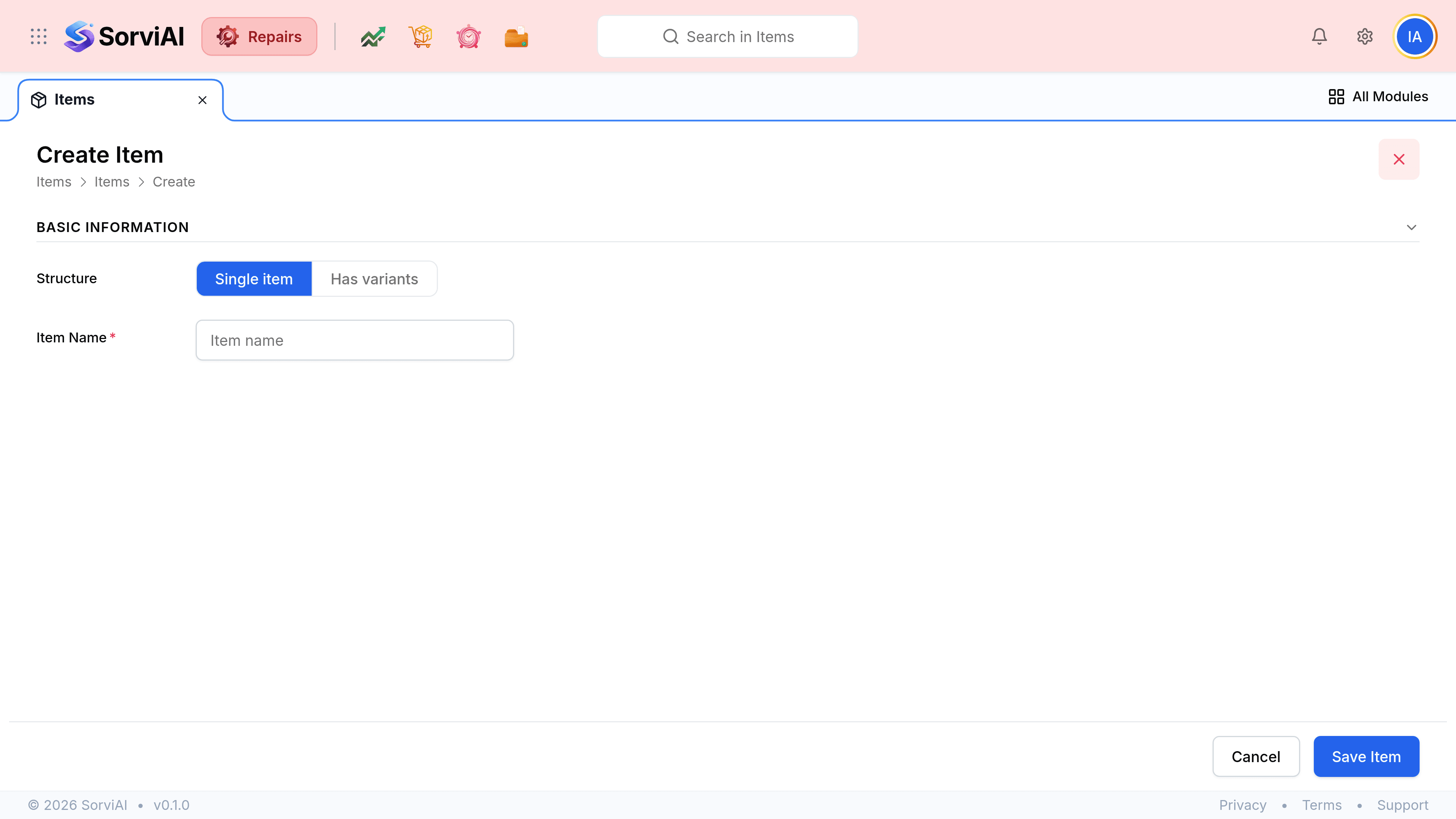
Go to Items and select the Item button
Choose the structure
Leave it on Single item for one thing at one price. Choose Has variants only when the thing genuinely comes in sizes you stock separately.
Name it the way your technicians would say it
The name is what somebody searches for at the counter with a customer waiting.
Enter the SKU and the lead time
For a part, the SKU is the code your stores use. Lead time is how long a replacement takes to arrive, which is what a ticket quotes back to the customer.
Set the category and manufacturer
Both are what stop a catalogue of hundreds becoming unsearchable, and the manufacturer is what tells two identical-looking valves apart.
Enter what you charge and what it costs
The selling amount and its account, then the cost price and its account further down. The gap between them is what the profitability report reads.
Set the usage
Choose the inventory usage for anything you hold on a shelf, and the sales and purchase usage for a service. This is the switch that decides whether quantities are tracked.
Select Save Item
Choosing the structure
Single item
most things
- YesOne code, one price, one stock figure
- YesRight for every service
- YesRight for a part that comes one way
- NoSizes or lengths held separately
Has variants
- YesA family of sizes under one name
- YesEach size priced and counted on its own
- YesUp to three variant types, such as bore and length
- NoAnything you would never stock two versions of