
Write a work report
The technician's account of one repair: what came in, what was found, what was done, and what it is warranted for.
A work report is what the customer keeps. It records the equipment as it arrived, what the technician found once it was open, what they did about it, and how long that work is guaranteed for. One repair gets one report, which is why reports are opened from a list of the ticket's rows rather than from the ticket itself.
Highlights
- One report per repair, never one per ticket.
- The equipment details are already filled in from the row you are reporting on.
- A warranty statement can be chosen from your presets rather than retyped.
- Signatures and warranty text can each be kept off the PDF with a checkbox.
- Reports can be reopened and edited after they are saved.
Open the report for the right repair
Work Reports in the ticket header lists the ticket's service rows and what each one has. A row with no report yet offers Create; a row that already has one offers the controls to view or edit it.
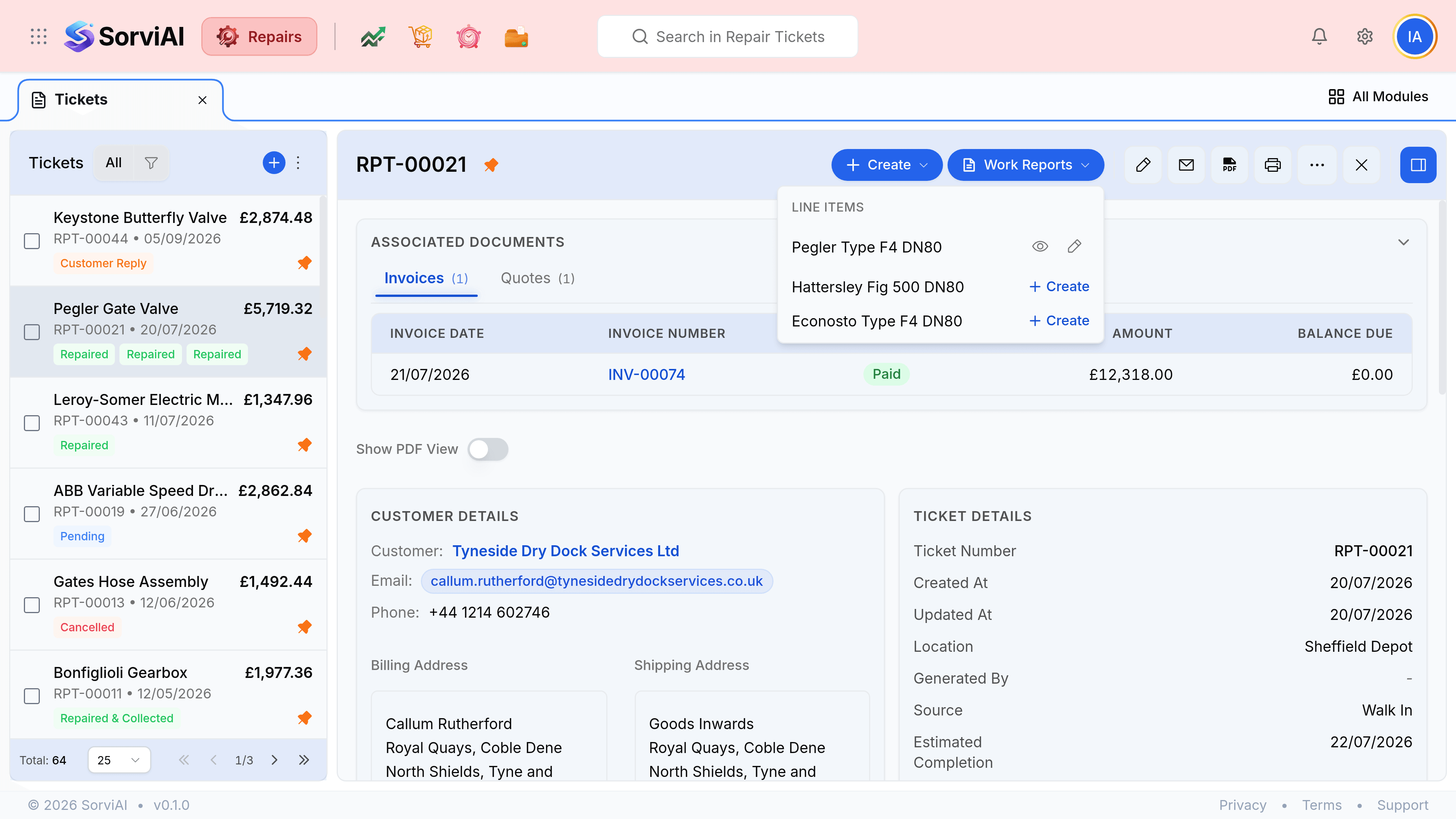
Open the ticket and select Work Reports
The menu lists every service row on the ticket.
Select Create beside the repair you are writing up
The report opens as a panel over the ticket, with the equipment already described.
Check the equipment details
Type, model, manufacturer and serial number come across from the service row. Condition Received carries the fault as it was booked in, so correct it only if the description was wrong.
Set the report date and the technician
The date defaults to today and the technician to whoever the row is assigned to.
Record what you found and what you did
This is the part nothing can prefill, and it is the part the customer actually reads.
Add the warranty statement
Choose one of your presets or write one. Clear Show warranty in report PDF if this particular job carries none.
Select Save Report
What the form prefills
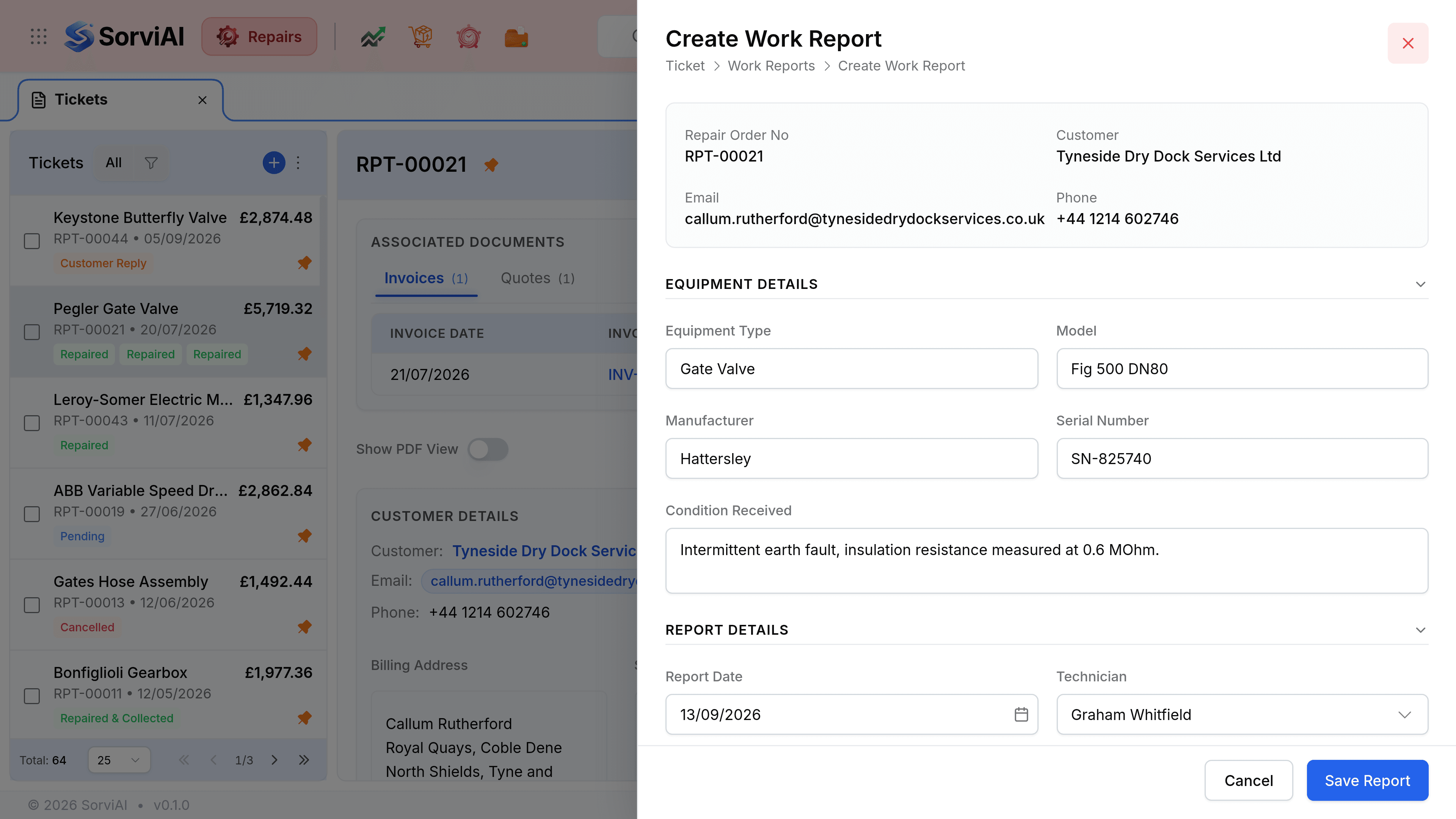
| Field | What it does |
|---|---|
| Equipment Type, Model, Manufacturer | The device columns of the service row you selected. |
| Serial Number | The serial recorded when the equipment was booked in. This is why the intake matters. |
| Condition Received | The device issue as it was written on the row, so the report opens with the customer's own complaint. |
| Technician | Whoever the service row is assigned to. |
| Report Date | Today, and editable if you are writing up yesterday's work. |