
Export and share a report
Getting a report out of Repairs and in front of somebody who does not use it.
A report is more useful once it has left the screen. Four formats are offered, and which one is right depends entirely on what the person receiving it is going to do with it.
Highlights
- Four options: Excel, PDF, CSV and print.
- The export takes what is on screen, filters, columns and period included.
- Set the report up first, then export. Not the other way round.
- PDF is for reading; Excel and CSV are for working on.
- Nothing here schedules or emails a report.
Export it
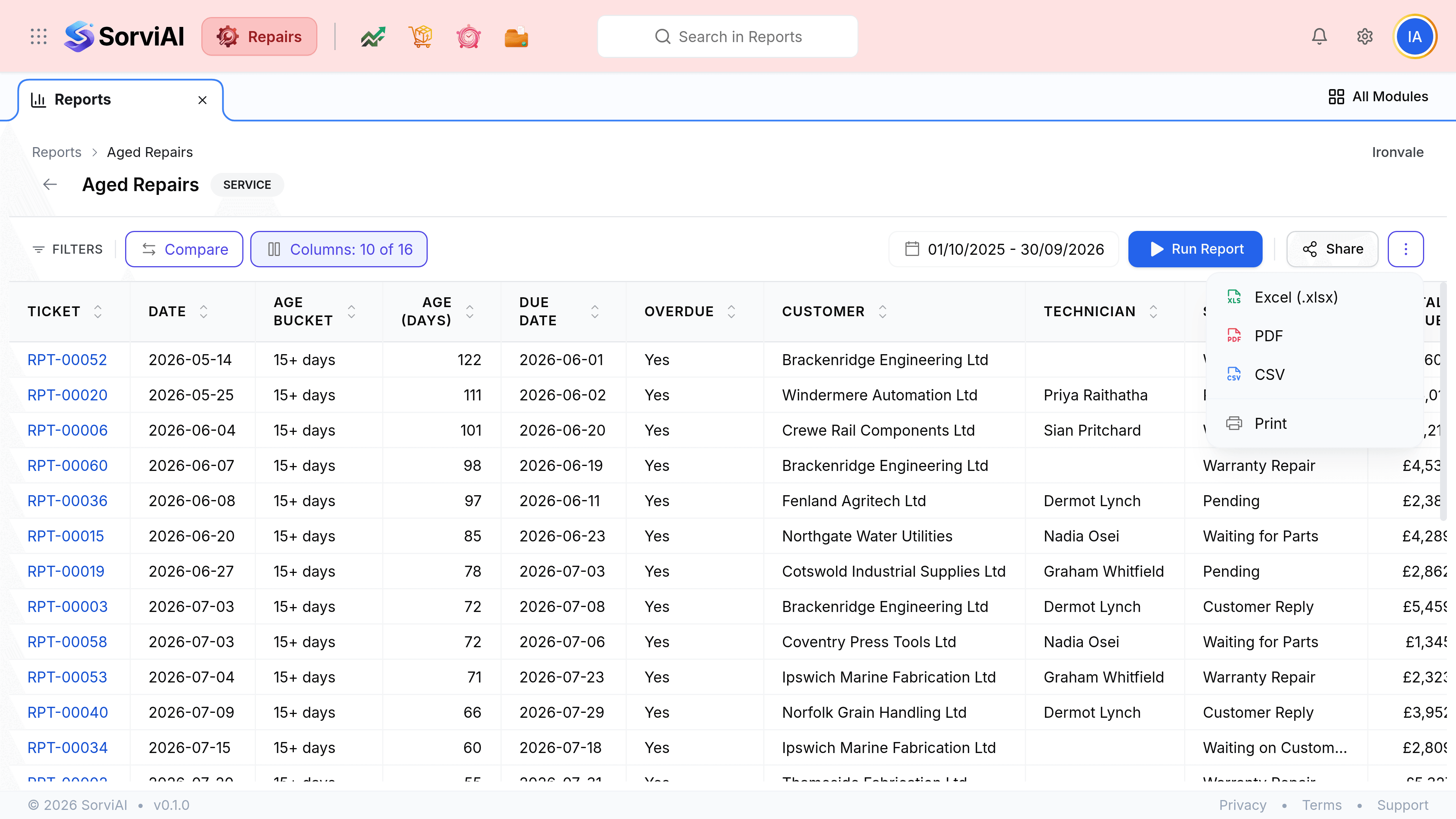
Set the report up the way you want it read
The period, the columns and any grouping. The export copies what is on screen, so anything you have not set now will be wrong in the file.
Select Run Report
Export what you can see, not what you have asked for and not yet run.
Select the three-dot control beside Run Report
The menu offers the three file formats and print.
Choose a format
The file downloads through your browser.
Choosing a format
| Format | Best for | Why |
|---|---|---|
| Excel (.xlsx) | An accountant or anyone who will sort and total it | Keeps the columns as columns and the numbers as numbers |
| A customer, a manager, or anything attached to an email | Looks like the report and cannot be edited by accident | |
| CSV | Another system, or a spreadsheet you already have | The plainest possible format, with no styling to get in the way |
| A wall, a clipboard, or a morning meeting | Produces no file at all |