Other actions in tickets
Rush jobs, duplicating, deleting, and what the list can do to several tickets at once.
The actions on this page sit around the edges of a repair rather than in the middle of it. None of them changes what the work is; they change how a ticket is flagged, copied, removed, or handled alongside a hundred others.
Highlights
- Rush jobs are pinned to the top of the list and flagged for everyone.
- A rush job cannot be deleted, which is deliberate.
- Duplicating opens a new ticket prefilled from an existing one.
- The bulk menu restatuses, quotes and deletes many tickets at once.
- Several bulk entries are not yet live and appear greyed out.
The header controls
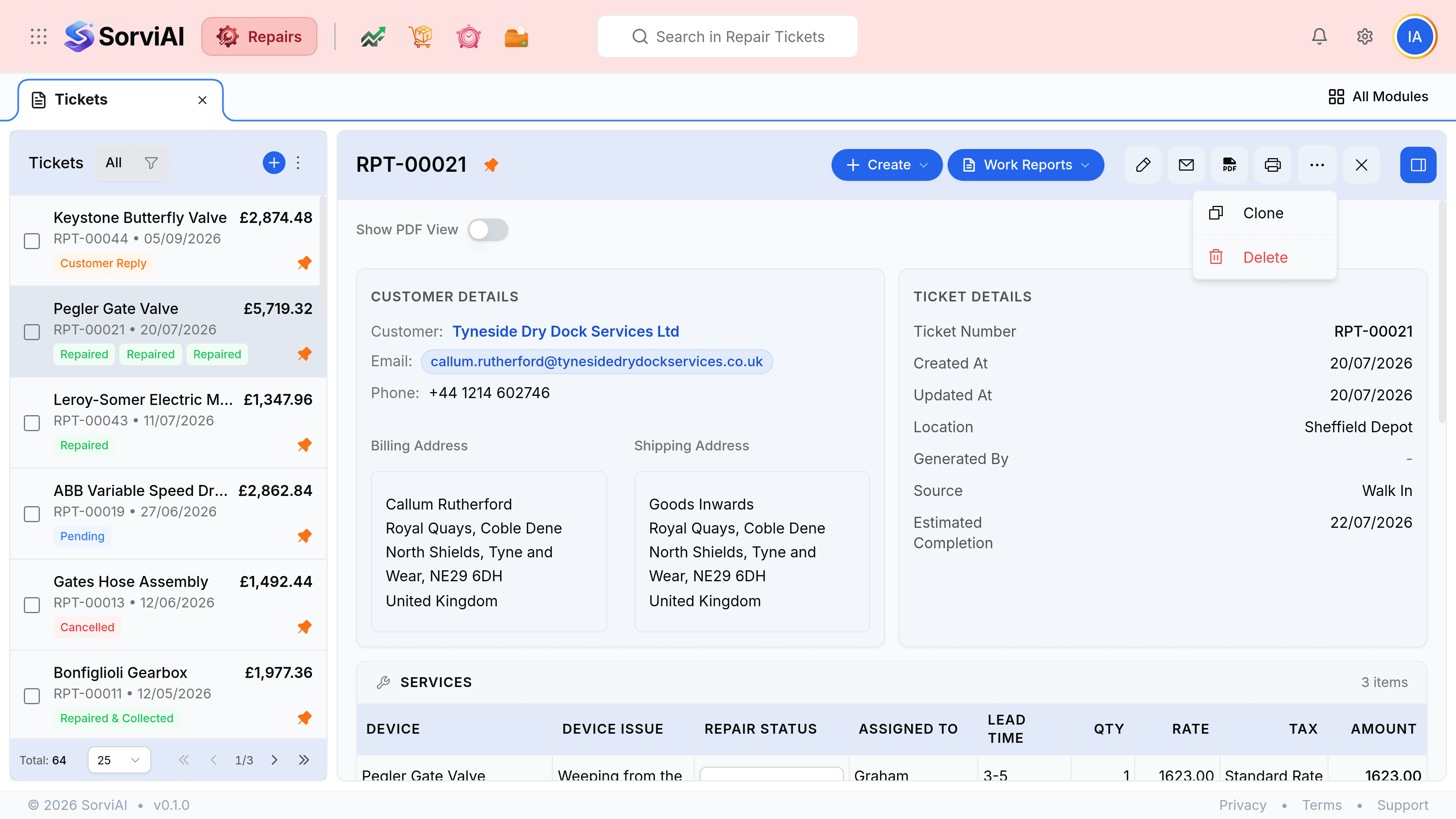
- The pin beside the ticket number
- Marks the job as a rush. It moves to the top of the list and shows an orange pin to everybody.
- Duplicate Ticket
- Opens the create form filled in from this ticket. Useful for a customer who sends the same equipment in every quarter.
- Delete Ticket
- Removes the ticket after a confirmation. A rush job is refused, so unpin it first if you genuinely mean to delete it.
- The PDF and print icons
- Produce the ticket as a document, for a customer copy or for the job bag.
Working on several tickets at once
Selecting rows on the list turns on Bulk Actions, which is how a morning's finished jobs get closed in one go.
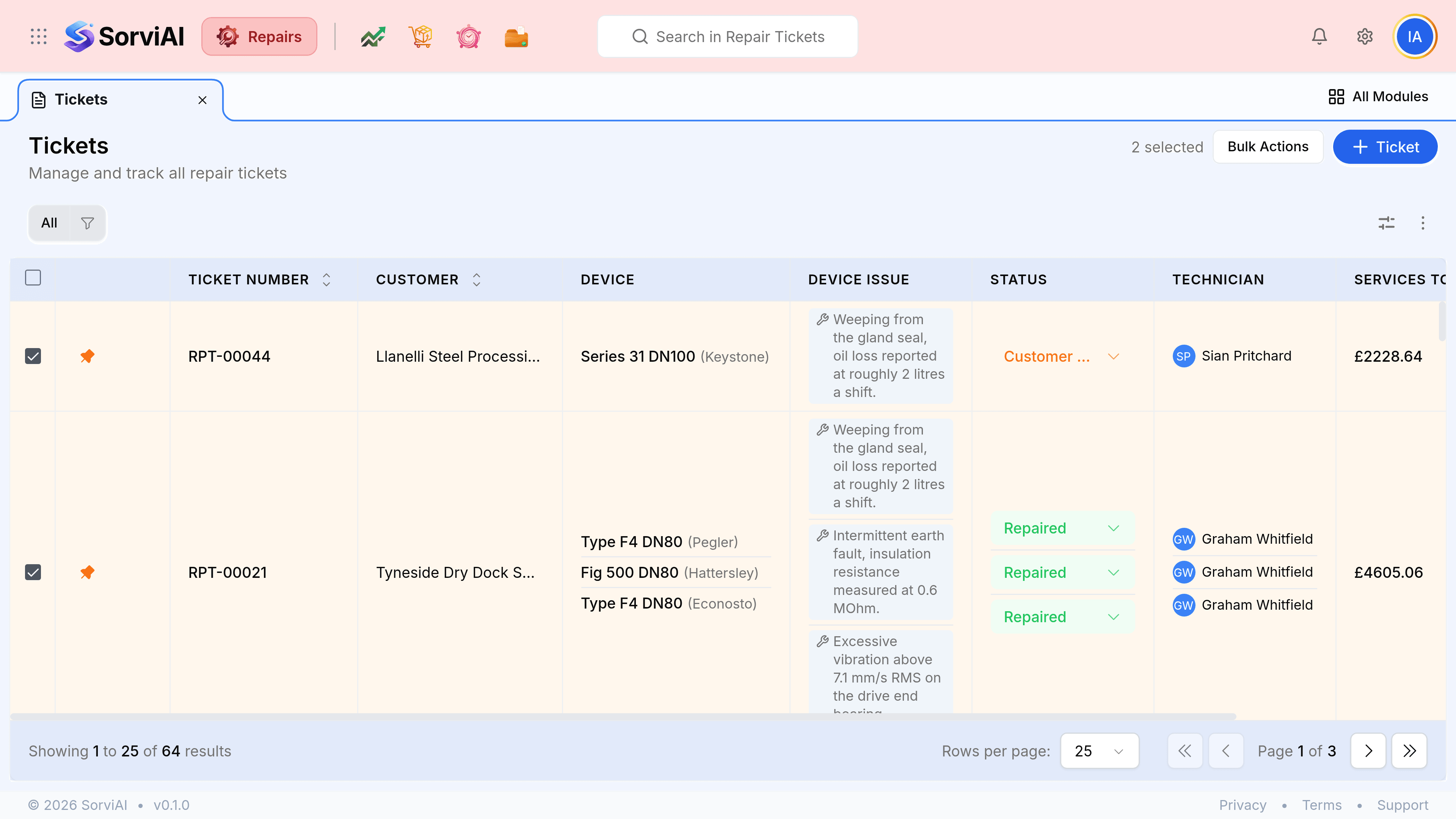
Select the tickets you want to change
Use the checkbox at the left of each row. The header checkbox takes the whole page.
Select Bulk Actions
The count of selected tickets shows beside the button.
Choose what to do
Create Quote merges the selection into one estimate. A Mark as entry sets that status on every selected ticket. Delete removes them.
| Action | Available |
|---|---|
| Create Quote from the selection | Yes |
| Mark as, for any of the twelve statuses | Yes |
| Delete the selection | Yes, and rush jobs in the selection are skipped |
| Bulk Update, Export as PDF, Print, Send Email | Not yet. The entries are listed but cannot be chosen |
| Convert to Invoice, Create Package in bulk | Not yet. Both work from a single ticket's Create menu |
Reading a ticket's history
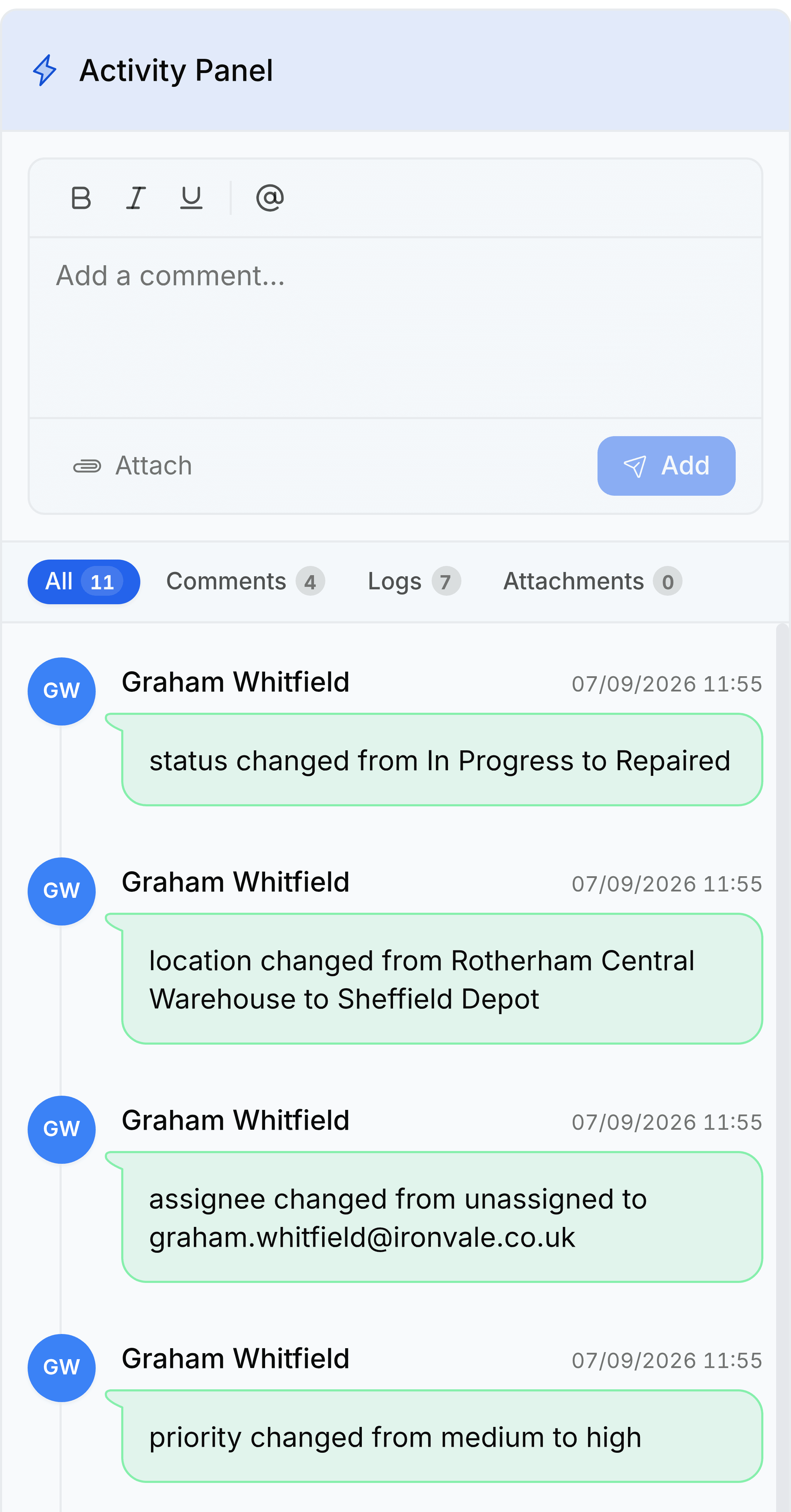
The activity panel down the right of a ticket carries two things: comments your team has written, and an automatic log of every field that changed.