
Set the brand and colours
Enter the store name and logo in Brand, then set the two colours in Colors that the rest of the design is built from.
Two of the five groups on the Theme screen carry the brand: Brand at the top, and Colors further down. They are not next to each other, so this is two trips rather than one.
Name the store and point at the logo
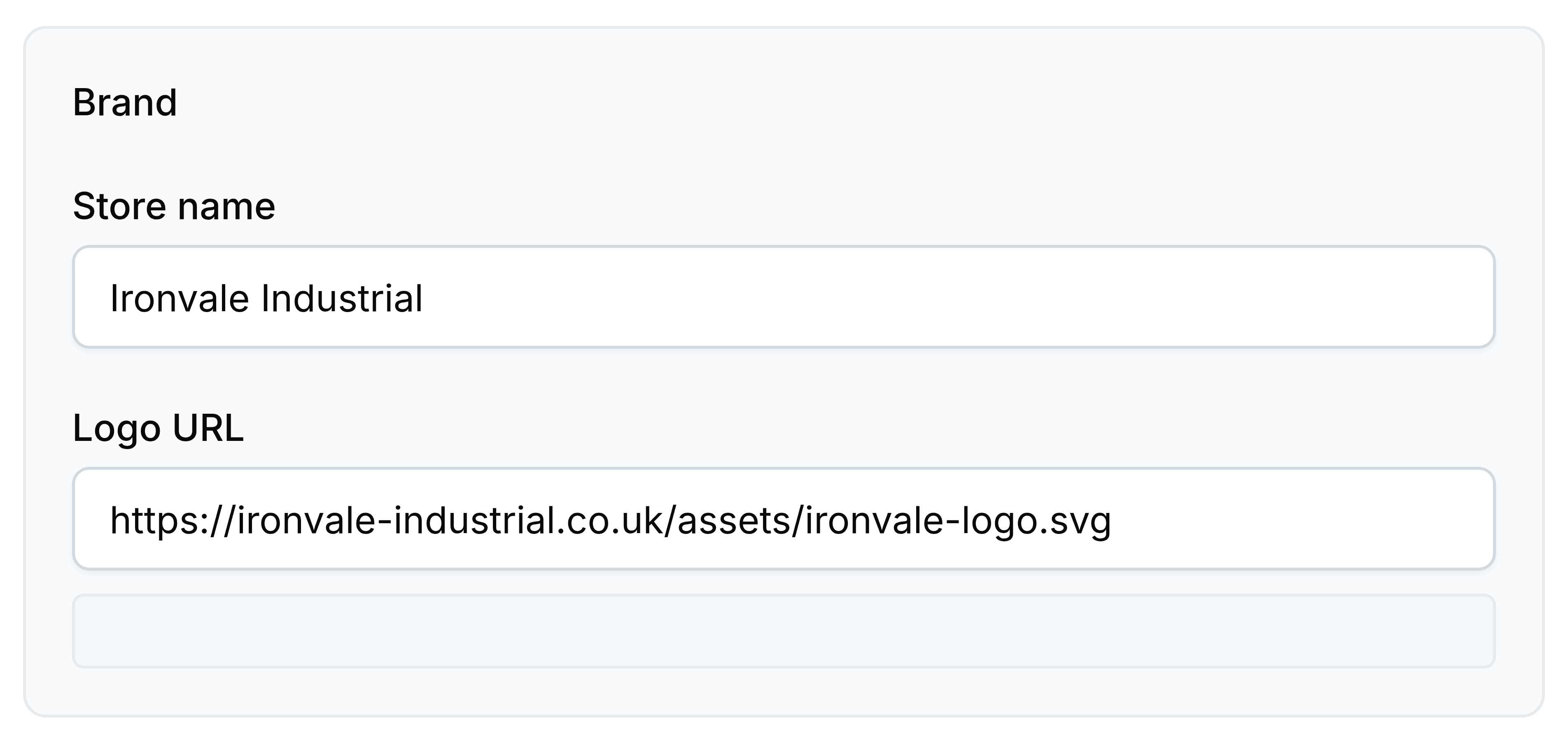
Go to Theme.
In Store name, enter the name that stands for the shop.
In Logo URL, enter the address of your logo file.
Select Save.
Set the two colours
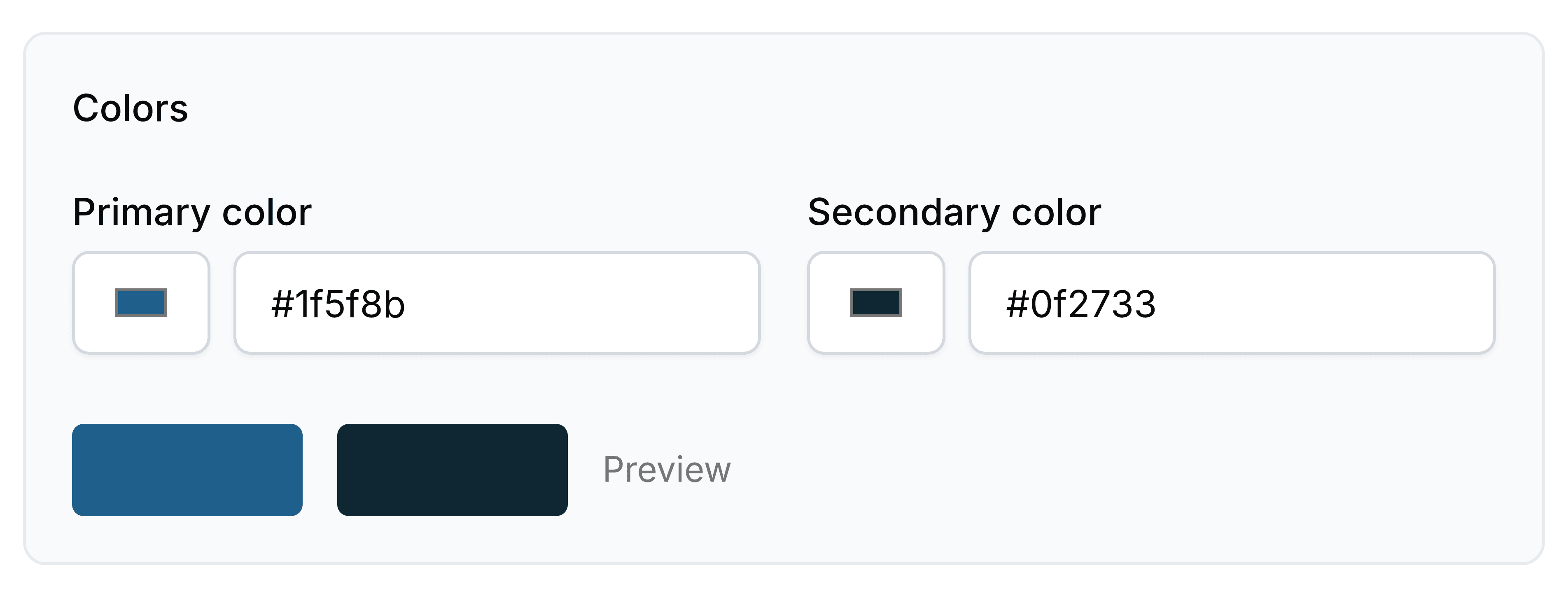
Scroll to Colors, which sits below Header button and Footer.
Set Primary color, either by choosing from the swatch or by entering a hex value.
Set Secondary color the same way, then select Save.
| Field | What it does |
|---|---|
| Store name | The name shown wherever the shop is named rather than pictured. |
| Logo URL | The address of an image you host. The theme points at the file rather than storing it. |
| Primary color | Buttons, links and anything the design draws a visitor towards. |
| Secondary color | The darker supporting tone that sits behind and around the primary. |