Add product images
Upload images to a product, choose which one leads, and write the alt text a screen reader and a search engine both read.
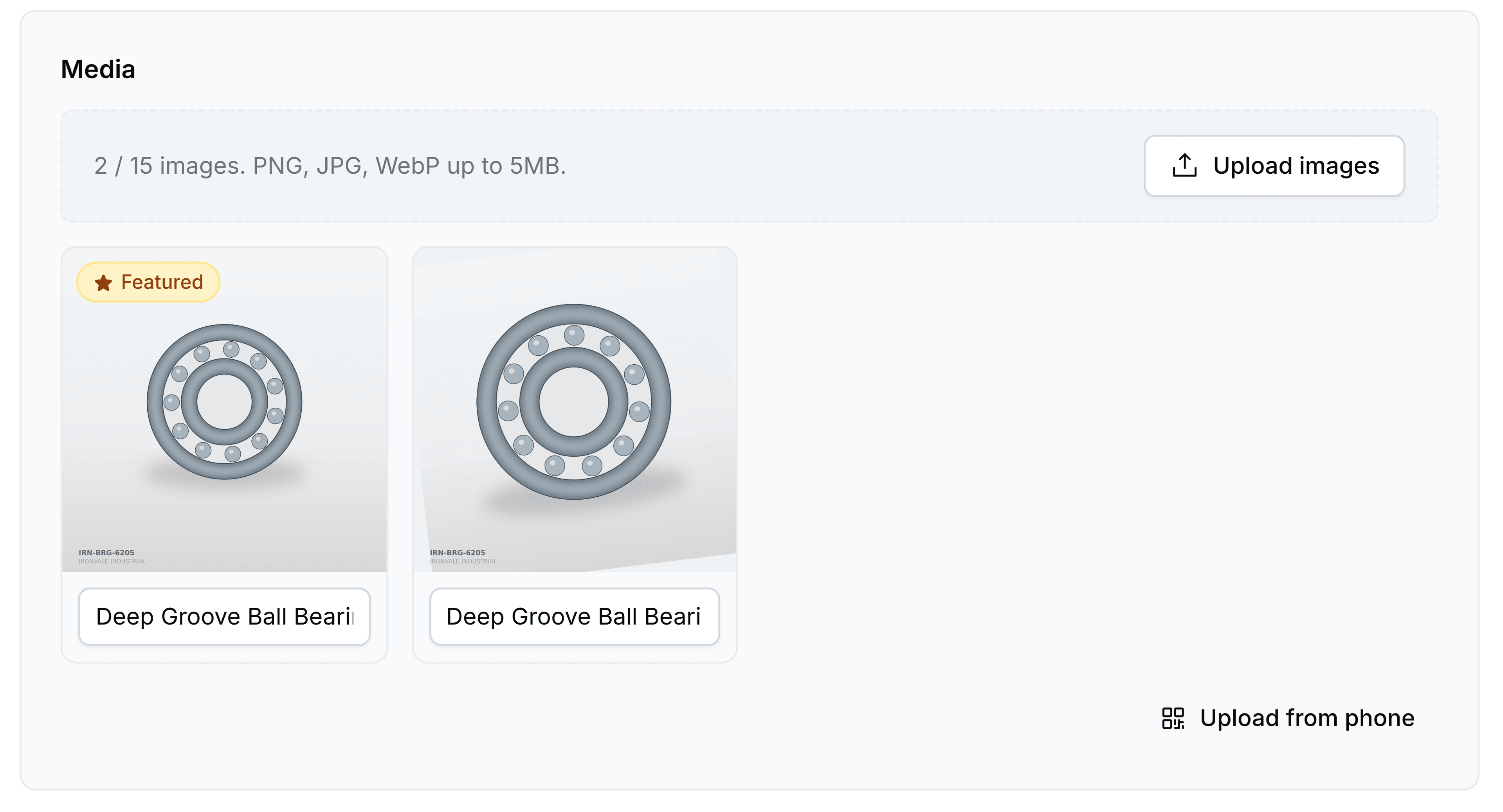
Images live in the Media card on a product. The line above the gallery tells you where you stand: how many images the product has out of fifteen, which file types are accepted, and the size limit each one has to meet.
Upload images
Go to Products and select the product.
In Media, select Upload images.
Choose one or more files. They appear in the gallery as they finish uploading.
Choose the featured image
The first image carries a Featured badge, and it is the one used wherever a single picture stands for the product: the Products list, a collection, a search result. There is no separate button for it. Drag another image into first place and it becomes the featured one.
Write alt text
Each image has a text box under it for its alt text. It is what a screen reader announces and what a search engine reads, so describe the thing rather than the file.
Images on a product with variants
A variant has an image of its own, set on the variant rather than on the parent. The parent's gallery is the shared set a shopper sees first; the variant's image is what appears once they have chosen a combination.