
Add a payment term
Create a term from one of the four due date rules, then make it the default, turn it off, or delete it.
Adding a term is choosing a rule and, for Net Days, a number. The name fills itself in from those two, so most terms take one field of actual typing.
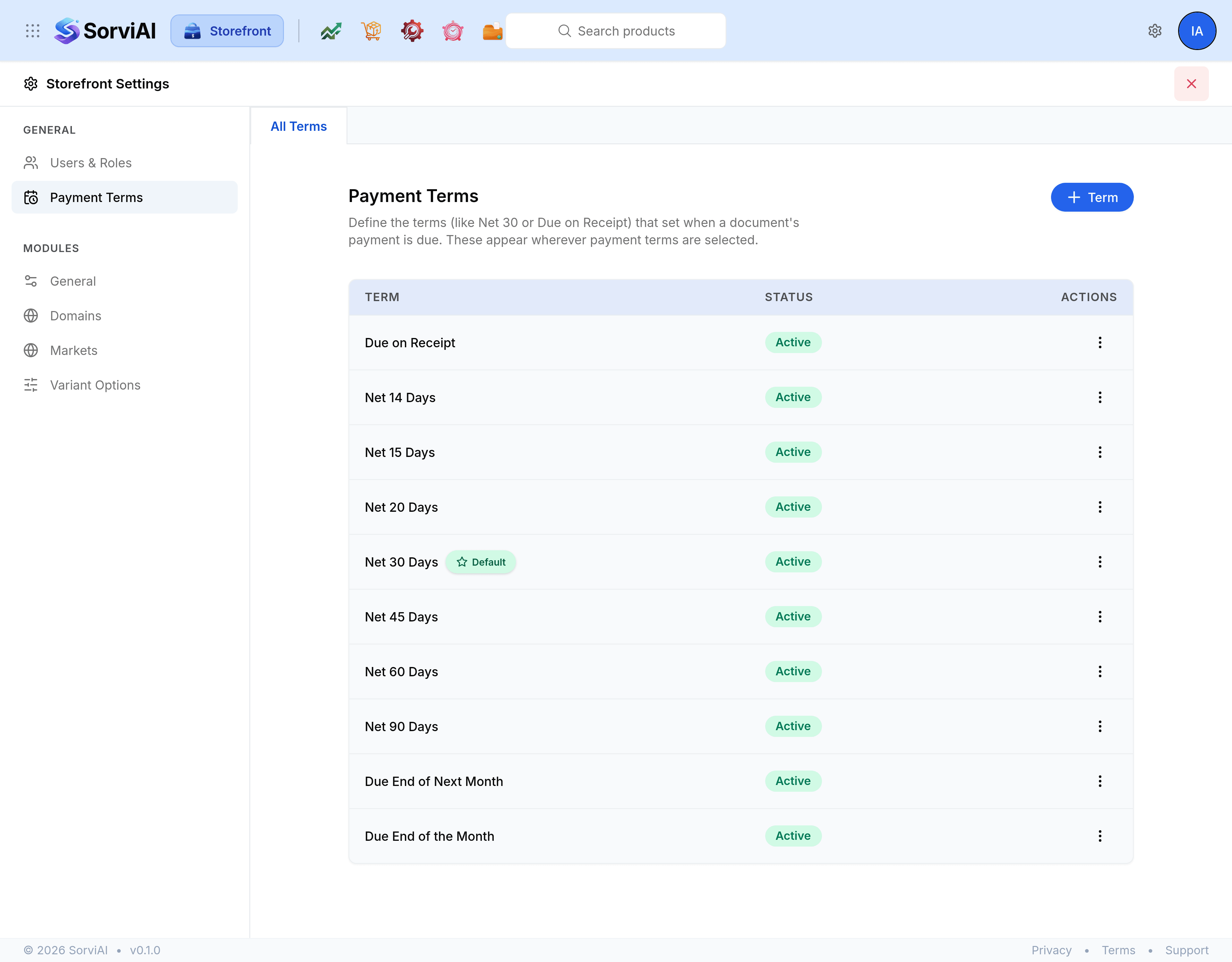
Open Storefront Settings and select Payment Terms.
Select Term.
Choose a Due date rule. The hint beside each says when it falls due.
For a Net Days rule, enter the number of days.
Check the Name, which is suggested from the rule and the day count, and change it if your customers call it something else.
Save the term.
A rule that is already taken
Due on Receipt, Due End of the Month and Due End of Next Month can each exist only once, so a rule already in use is not offered again. Net Days is always available, because the day count makes each one distinct.
Make a term the default
Open the actions menu on an active term and select Set as default. The star moves to it, and new documents start on it.
Turn a term off
Select Deactivate in the actions menu. The term stays in the list and stops being offered on new documents; anything already using it is untouched. Activate puts it back.
Edit or delete a term
Edit reopens the form. Delete removes the term and asks you to confirm.