
Build variants
Add option axes such as bore or colour to a product, let Storefront build a variant for each combination, then price and stock them one by one.
A product a shopper chooses between needs option axes: the questions they answer, such as bore and length, and the values each one offers. Storefront builds a variant for every combination, and each of those variants is a full product with its own SKU, price and stock.
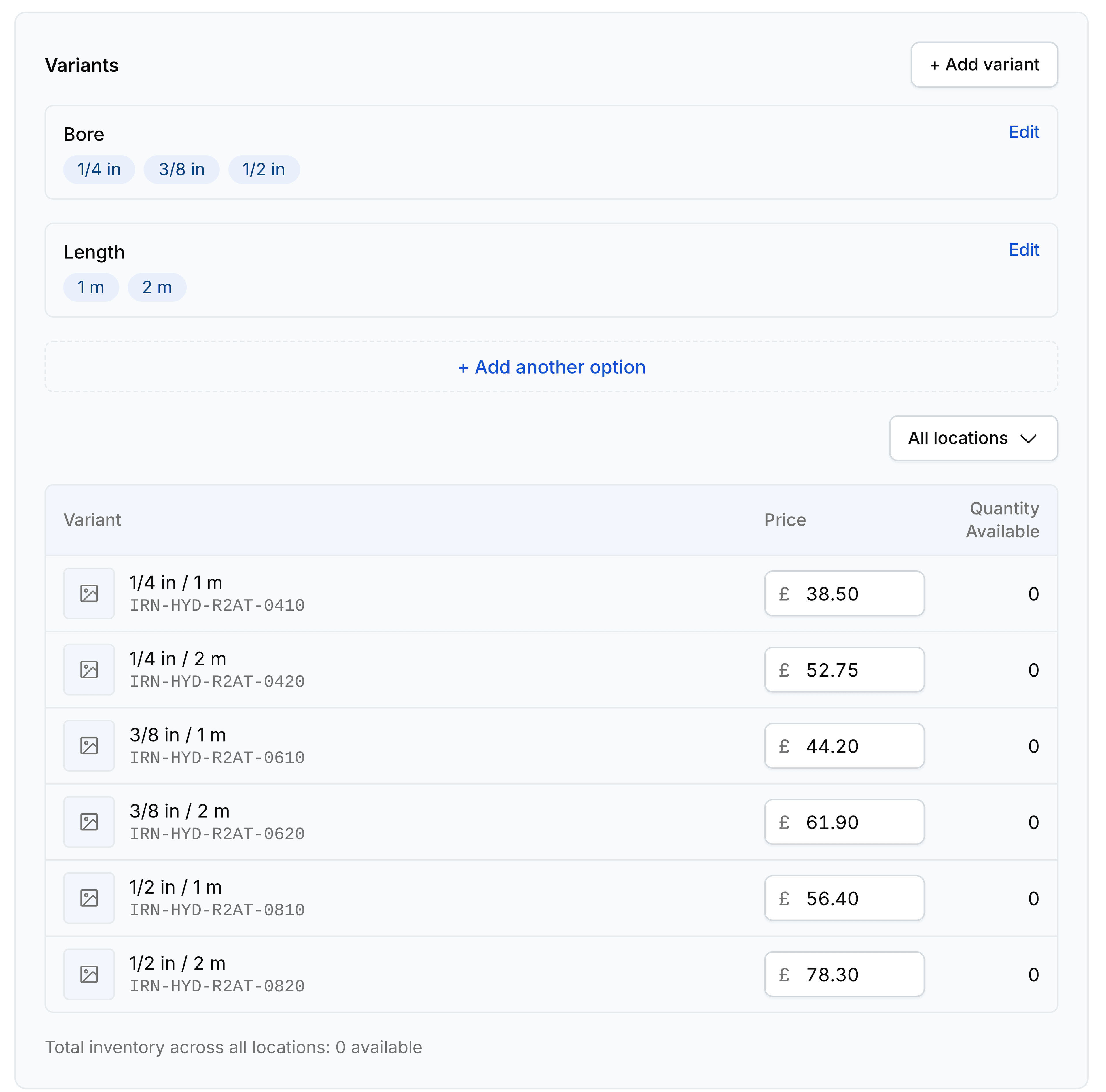
Add options to a product
Go to Products and select a product that has no options yet, or select Add product to start a new one.
Scroll to Variants and select Add options like size or color.
In Option name, enter the axis, such as
Bore. Select one of the chips under Saved options to take a name your organisation already uses.Under Option values, enter each value, using Add another value for the next one.
Select Add another option for a second axis, and repeat.
Select Done. A row appears for every combination, each with a SKU, Price and Cost.
Fill in the SKU for each row, adjust any price that differs, then select Save.
Two axes of three and two values make six variants, so the count grows quickly. Add only the axes a shopper genuinely picks between.
Add a variant later
Once a product has variants, its Variants section lists the axes and the combinations rather than the builder.
Select Add variant.
Enter a value for each axis, along with the SKU, Price and Cost.
Select the control that adds it. The new variant joins the table.
Edit or rename an axis
Select an axis to expand it. The editor takes a new Option name and one input per value, and renames commit together when you select Done. Adding a value here creates the variants that value implies.
Work on one variant
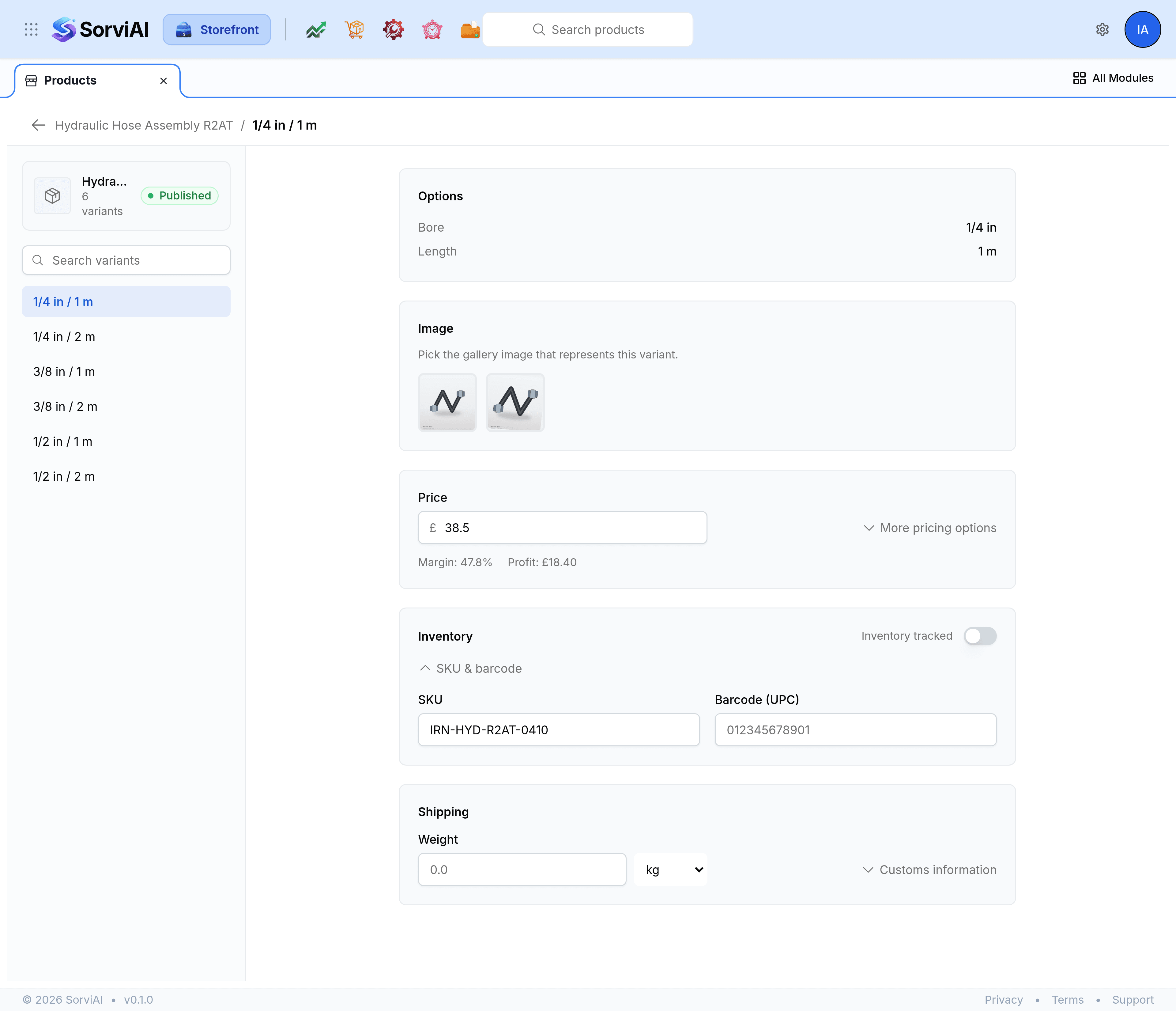
Select a variant to open its own page. It carries an Image, its Options, its price and cost, Inventory with stock per location, and Shipping. The description, the tags and the search listing stay on the parent, because they describe the whole family.