
Publish a product
Turn on Online storefront to give a product a public page, and turn it off again to withdraw the page without deleting anything.
Publishing is one switch. Everything else about a product can be improved later, so the shortest honest path to a live page is to write a title, add one image and turn the switch on.
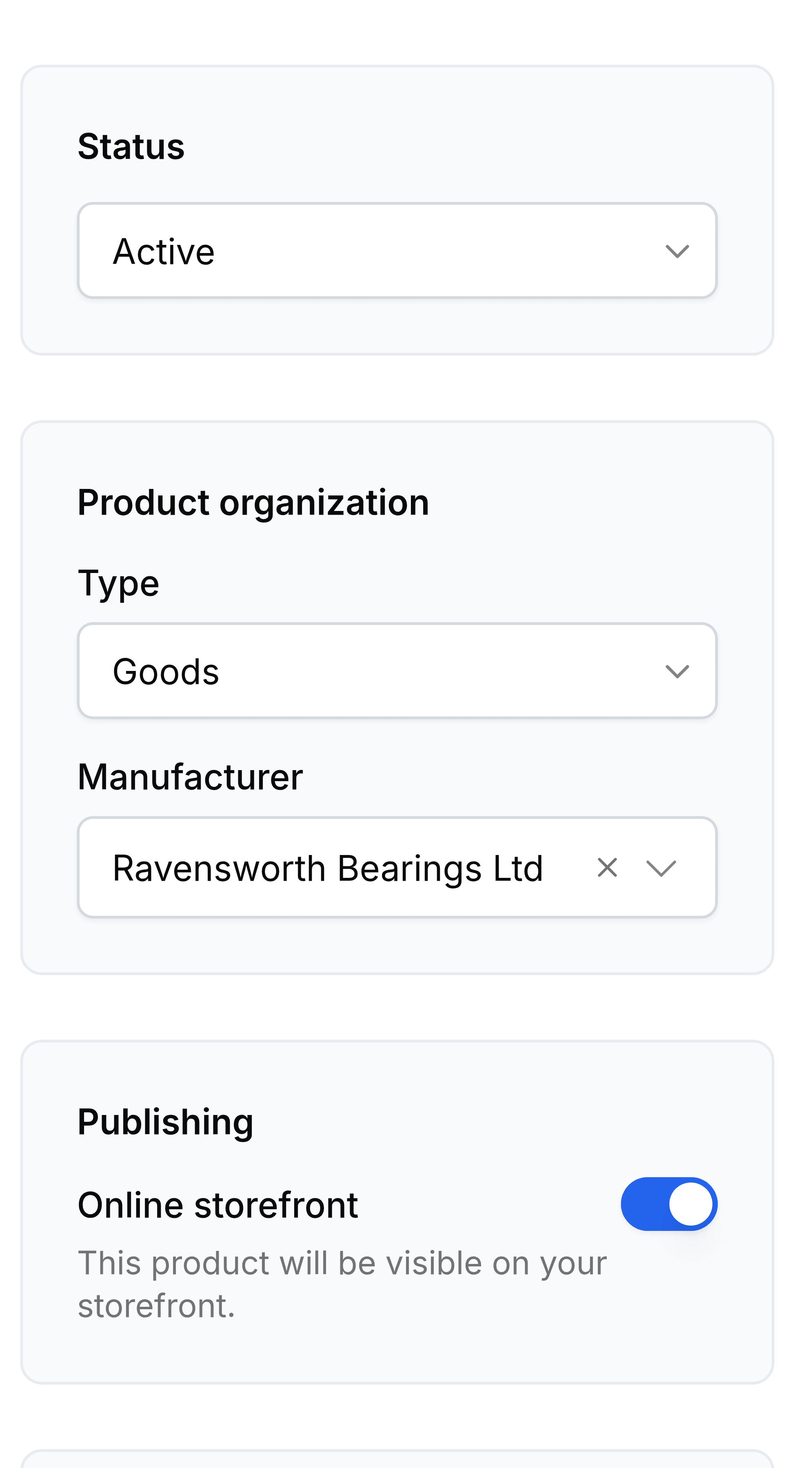
Publish one product
Go to Products and select the product.
Check that Title reads the way a shopper should see it, and that Description says what the thing is.
On the right, under Publishing, turn on Online storefront. The note under it confirms the product will be visible on your storefront.
Select Save.
The Status column in the Products list changes from Draft to Published.
Publish several at once
Go to Products and select the checkbox on each product you want.
Select Publish to storefront on the bar that appears.
Unpublish on the same bar takes them back to draft. Select the cross at the end of the bar, or press Esc, to clear the selection without doing anything.
Withdraw a product
Turn Online storefront off and save. The page stops being served, the product leaves every collection it was in, and nothing else about it changes: the stock, the price and the history stay exactly as they were.