
Build a smart collection
Write conditions that decide which products belong, combine them with all or any, and check the live preview before saving.
A smart collection describes its members instead of listing them. You write the conditions, Storefront finds everything that matches, and it keeps matching as the catalogue changes.
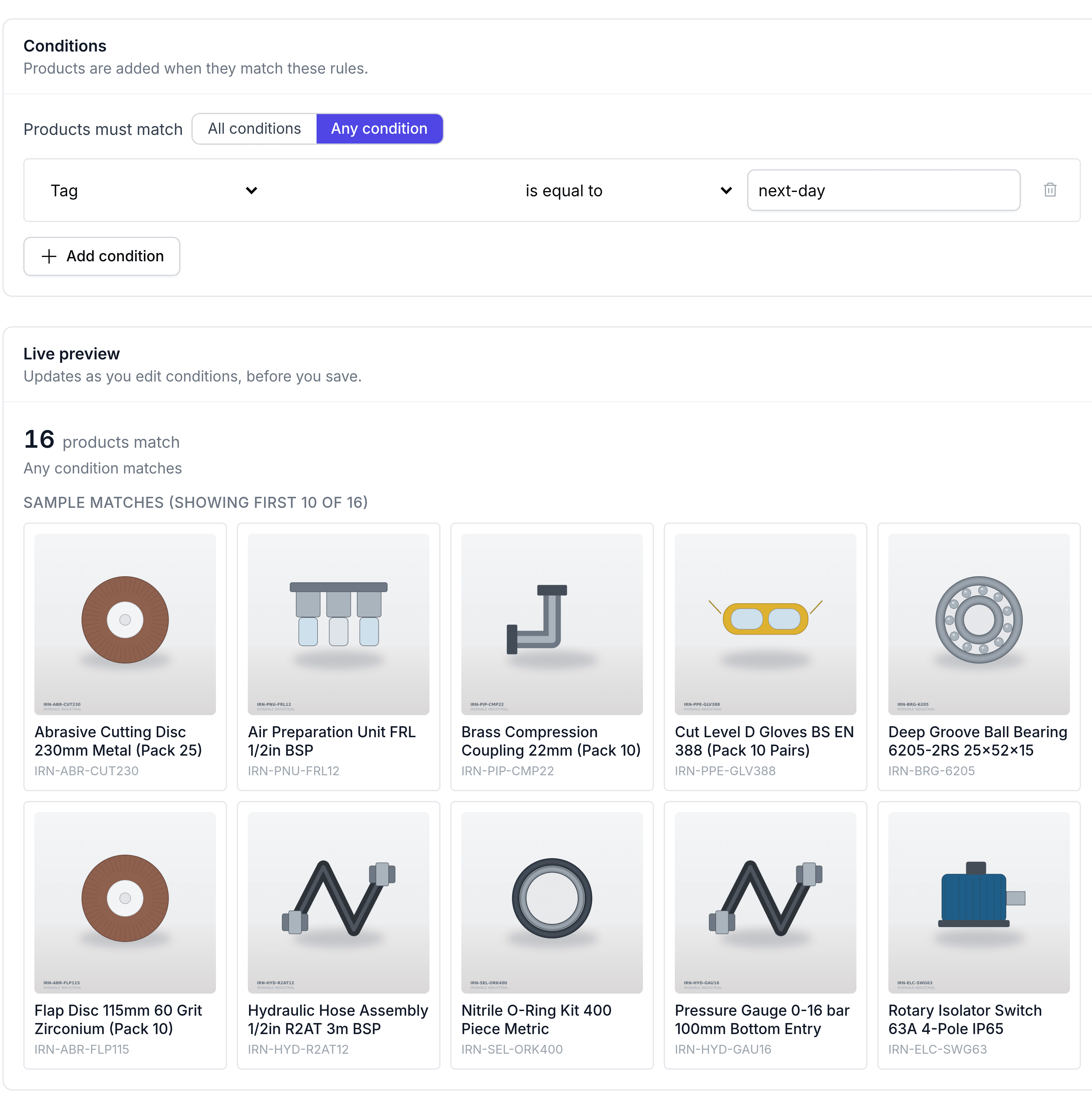
Write the conditions
Open the collection and find Conditions.
Beside Products must match, choose All conditions or Any condition.
Choose what to test in the first list, such as Tag or Price.
Choose how to compare it in the second, such as is equal to or is greater than.
Enter the value to compare against.
Select Add condition for another, then select Save.
All conditions narrows: a product has to satisfy every row. Any condition widens: one row is enough. Two rows under All asking for a price under fifty and a type of goods is a different collection from the same two rows under Any.
What you can test
| Field | What it does |
|---|---|
| Product title | The name a shopper reads. |
| SKU | The stock code, which suits starts with for a family of codes. |
| MPN | The manufacturer's part number. |
| Vendor | The supplier on the product. |
| Manufacturer | Who makes it. |
| Brand | The brand it is sold under. |
| Product type | Goods or service. |
| Condition | The condition recorded on the product. |
| Variant label | The wording that names a variant within its family. |
| Inventory status | The product's own status. |
| Tag | One of the tags on the product. The most useful condition of the lot. |
| Price | The selling price, compared as a number. |
| Weight | The weight, compared as a number. |
| Inventory stock | How many are on hand, compared as a number. |
| Spec attribute | A metafield. Name the key, then compare its value. |
The comparisons on offer change with what you are testing. A number offers is greater than and is less than; text offers contains, starts with and ends with; everything offers is set and is not set, which take no value at all.
Check the preview before saving
Live preview sits beside the conditions and updates as you type, saying how many products match and listing them. A product still in draft is marked, so you can tell the difference between a rule that matches nothing and a rule that matches things no shopper can see yet.
What happens after you save
Membership recomputes when you save, and again whenever a product changes in a way that affects it. Nobody has to revisit the collection to keep it current, which is the whole point of a smart one.