
Create a page
Add a content page, give it an address, decide whether it is visible and whether search engines should index it.
Pages hold the writing that is not about one product: delivery terms, an about page, how to open a trade account. Each gets an address of its own under /pages/.
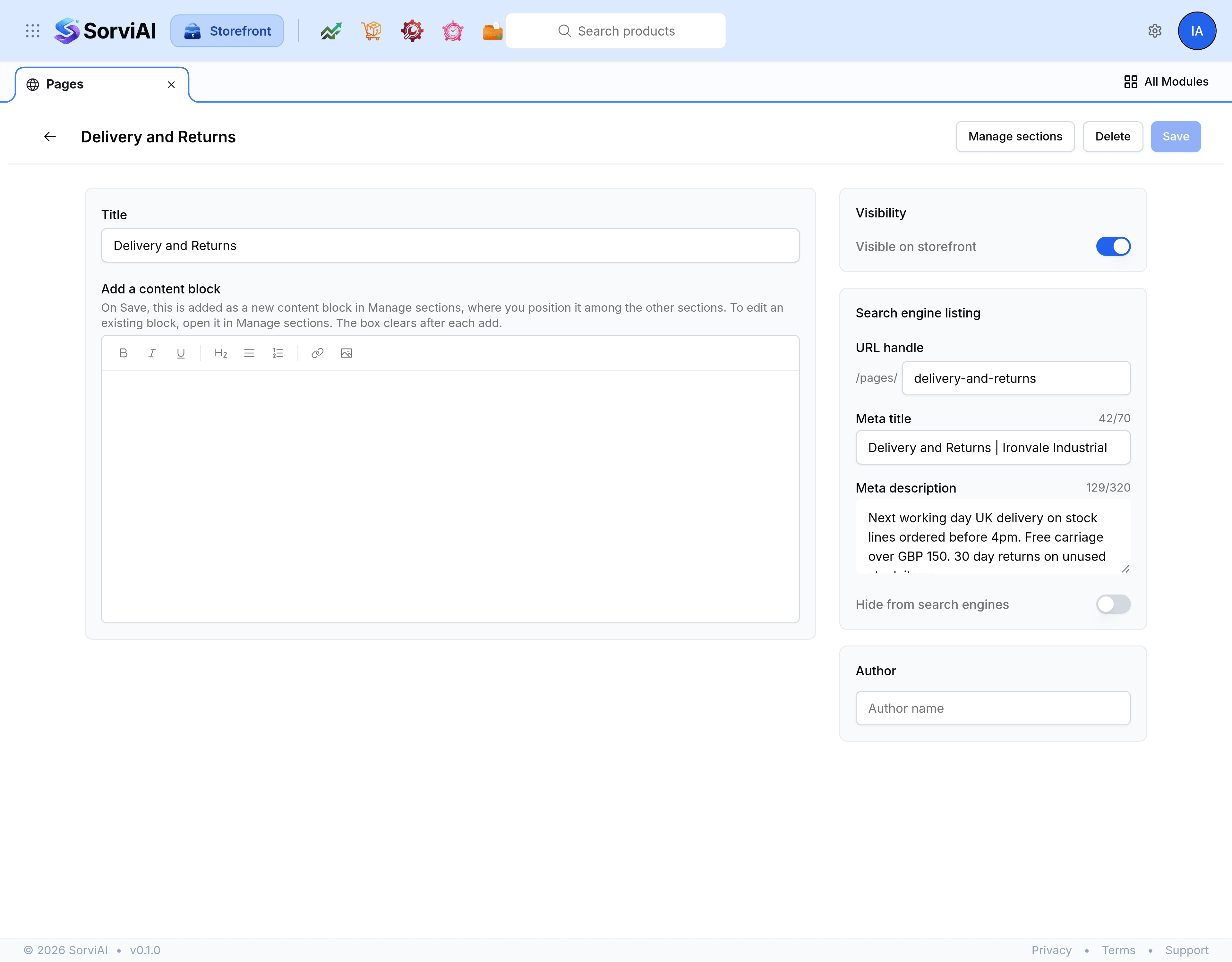
Add a page
Go to Pages and select Add page.
In Title, enter the page's name, such as
Delivery and Returns.Check URL handle. It is generated from the title, and the address it will sit at is shown beside it.
Enter an Author if you want the page to carry a byline. Leave it empty otherwise.
Under Search engine listing, enter a Meta title and Meta description.
Select Save.
The page appears in the list with its visibility, its author and when it last changed.
Decide who sees it
Two switches sit under Visibility, and they answer different questions.
- Visible on storefront
- Whether the page is served at all. Turn it off while a page is being written, and on when it is ready.
- Hide from search engines
- Whether search engines are asked to leave it out of their results. The page still works for anyone with the address.
Terms, privacy notices and anything legal are usually visible and hidden from search: customers should be able to read them, and they are not what you want a search result to open on.
Write the content
The Add a content block box at the foot of the editor takes writing and adds it to the page as a new block when you save. It only ever adds, so use Manage sections to change something already on the page.
Delete a page
Open the page and select Delete. Storefront asks you to confirm.