
Add a homepage section
Add a band to the front page, fill in its fields, move it up or down the stack, and turn it off or remove it.
Building the front page is adding sections and putting them in order. Each one is configured on its own and saved on its own, so there is no single save for the whole page.
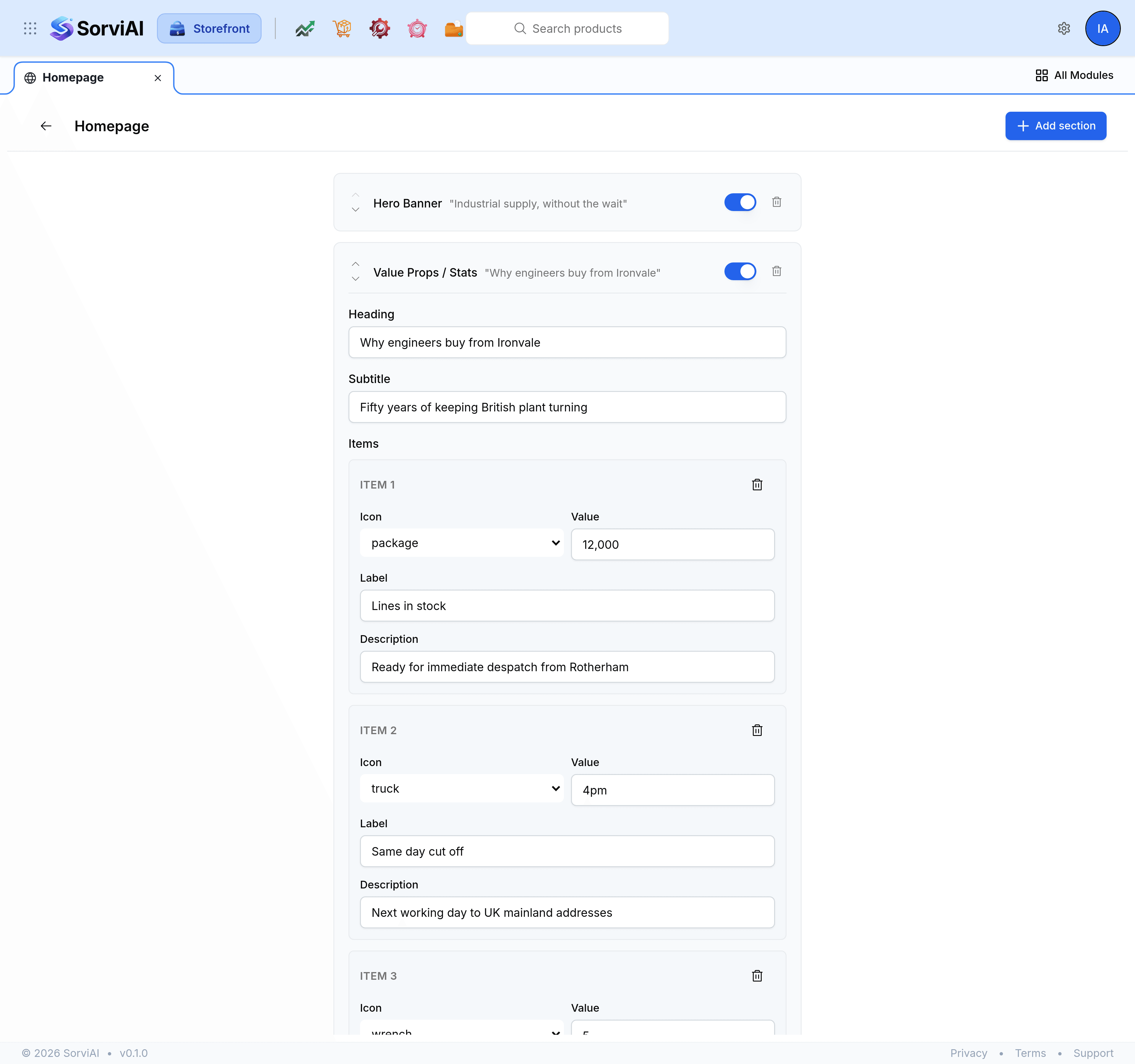
Add a section
Go to Homepage.
Select Add section.
Choose a type from the list. Each carries a line saying what it does.
Expand the new section and fill in its fields.
Select Save config.
Move, turn off and remove
- The carets
- Move the section one place up or down the stack.
- The switch
- Turns the section off without losing what you put in it, so it can come back unchanged.
- The delete control
- Removes the section and its settings for good.
Prefer the switch to the delete control whenever the band might return. A section rebuilt from memory in six months is never the one you had.
Point a section at your catalogue
Two of the types read from the catalogue rather than from what you type into them.
For a Featured Products section, enter one collection handle and a limit. It shows that collection's first few products.
For a Collection Grid section, enter a comma-separated list of collection handles. It shows a card for each.
Sections on a content page
A page's sections are built exactly this way. Open the page, select Manage sections, and the screen is this one scoped to that page.