
Pin products by hand
Add named products to a manual collection and drag them into the order a shopper should see them in.
A manual collection holds exactly what you put in it, in exactly the order you leave it. That order is the reason to use one: the first few products in a hand-picked collection are the ones a shopper sees first.
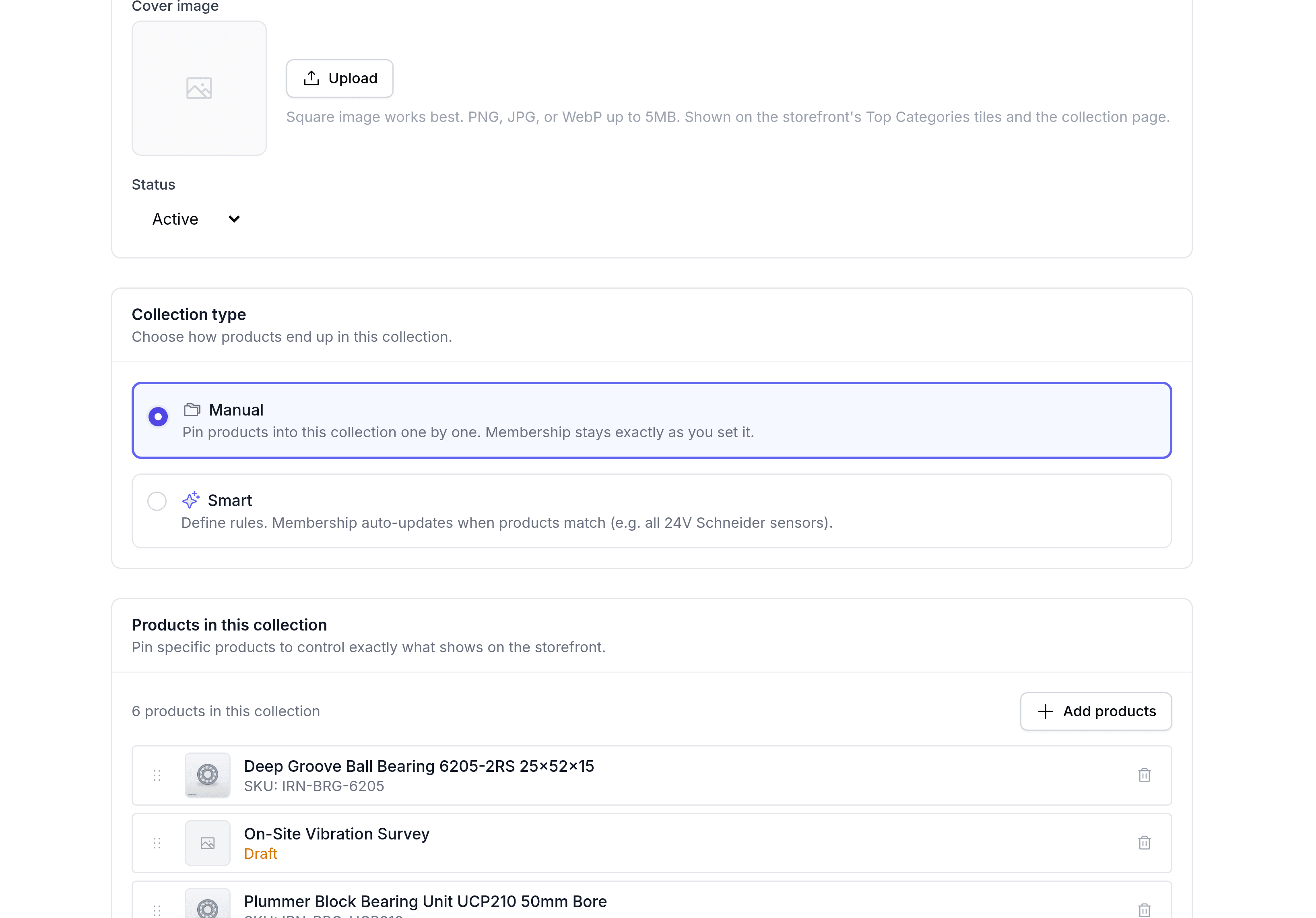
Add products
Open the collection and find Products in this collection.
Select Add products. On an empty collection, select the button in the middle instead.
Search for a product by name or SKU and select it. Products already in the collection are left out of the results.
Select as many as you need, then close the picker.
The count above the list keeps track of how many products are in the collection.
Put them in order
Drag a product by its handle to move it. The order you leave is the order a shopper meets them in, so lead with what you want bought.
Remove a product
Use the remove control on the product's row. It leaves the collection and nothing else about it changes: it stays in the catalogue, stays published, and stays in every other collection it belongs to.