
Create a role
Name a role, describe it, and set each module to view, standard or full access, or build the permissions row by row.
A role is a name, a description and a set of permissions. The permissions are the work, and presets do most of it: set a whole module at once, then adjust the handful of rows that need something different.
Create one
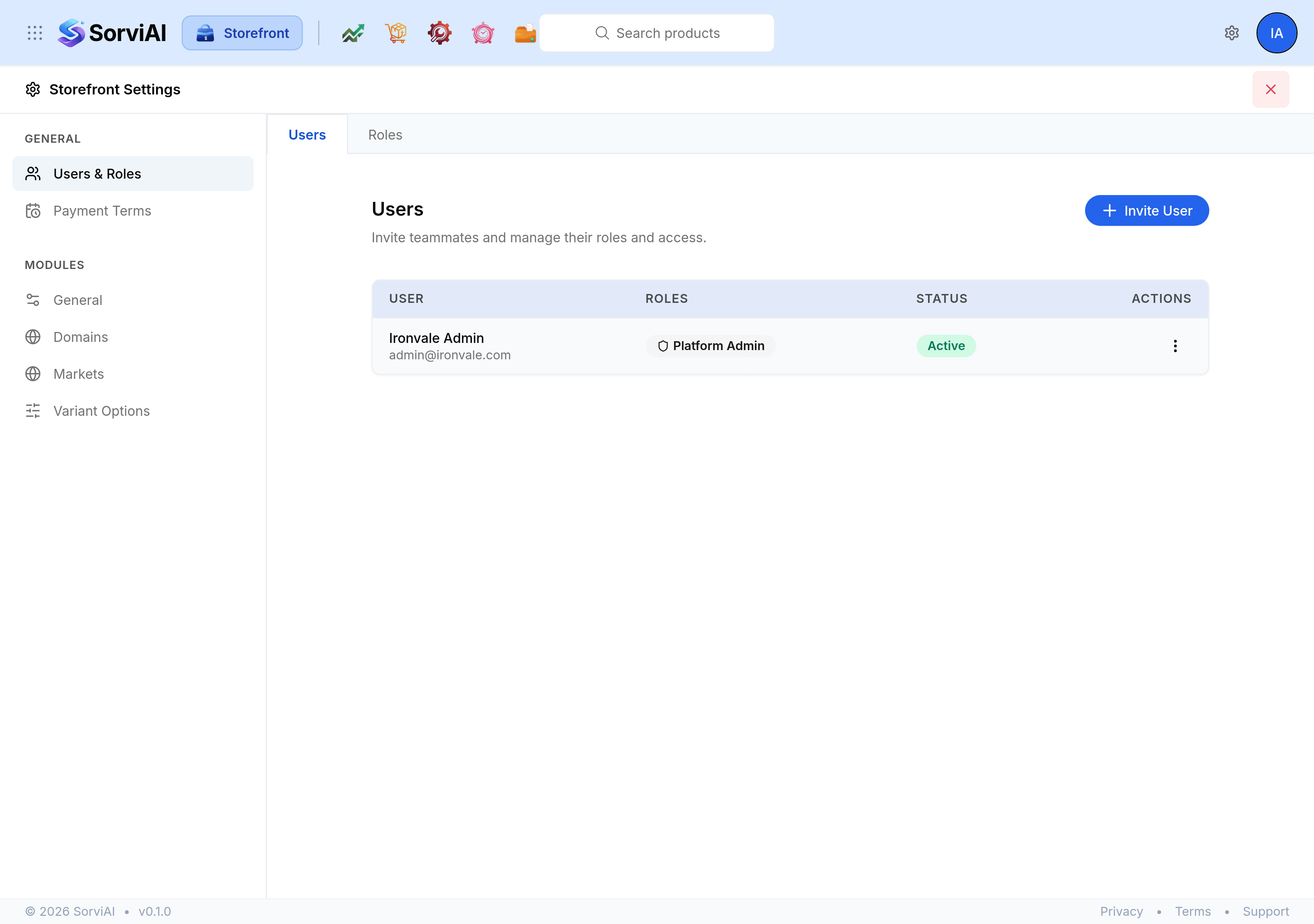
Open Storefront Settings, select Users & Roles, then the Roles tab.
Select Role.
Enter a name that says what the person does, such as
Catalogue Editor.Write a description answering what this role can do.
Under Permissions, set each module to the level it needs.
Save the role. It appears in the list, ready to be assigned.
The four presets
Each module carries a chip you can set in one go, rather than ticking every row underneath it.
- View Only
- Read the records and change nothing.
- Standard Access
- Read, create and edit, but not delete.
- Full Access
- Read, create, edit and delete.
- Reset
- No access at all. The module disappears for anybody on this role.
A module whose rows do not all sit on one preset reads Custom, which is how you can tell at a glance that somebody has adjusted it by hand rather than taken a preset.
Settings permissions are their own rows
The Settings group in the permission list is what decides which entries appear in somebody's settings rail. Granting Markets and withholding Domains is a supported thing to do, and it is how you let a colleague manage pricing regions without handing them your DNS.
Edit or delete a role
Select a role's name to open it, or use Edit in its actions menu. Delete removes it and asks you to confirm first.