
Connect a domain
Add your own domain to the storefront, point its DNS at us, verify it, and choose whether it serves, redirects or aliases.
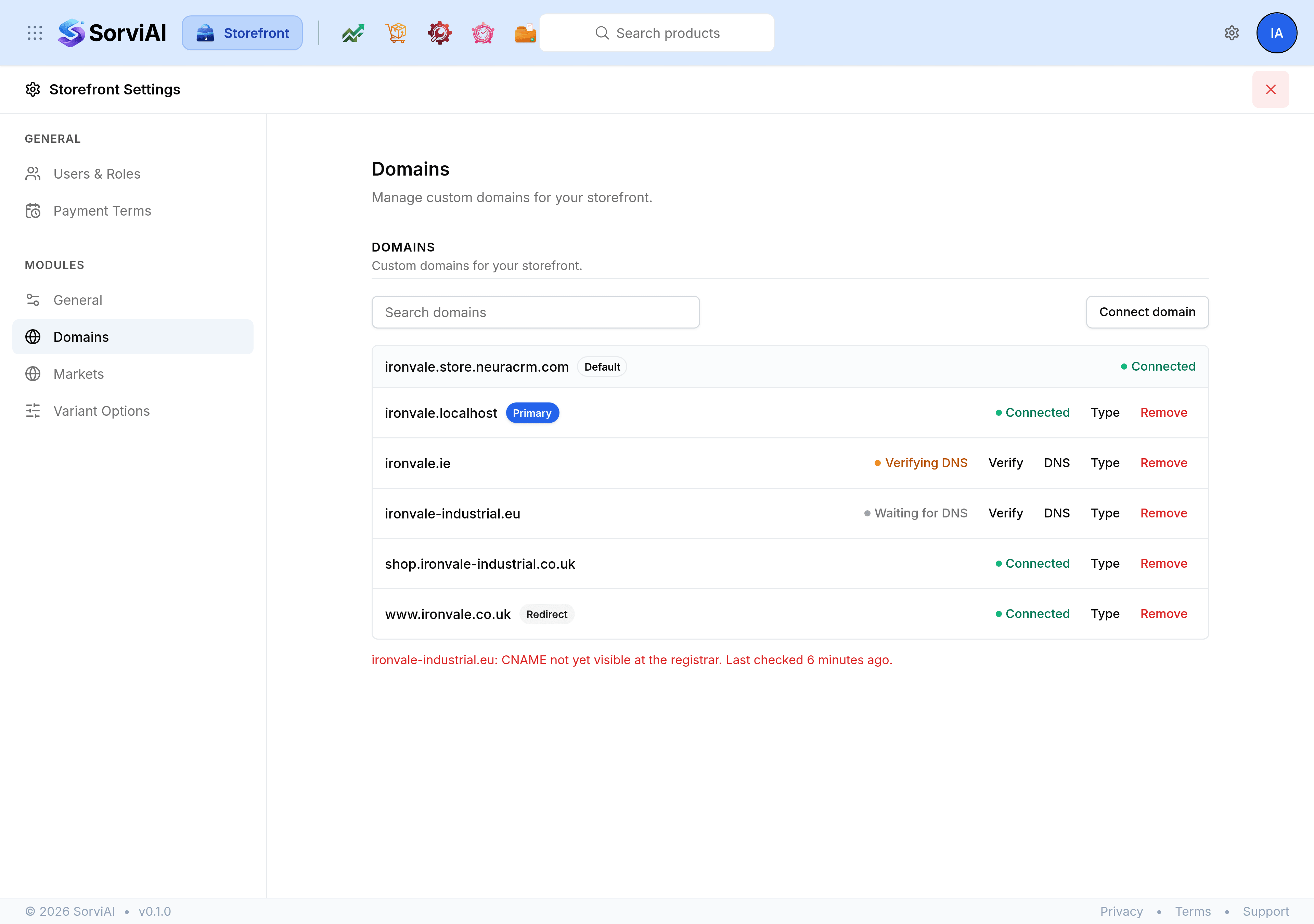
Every storefront has a default address to begin with, marked Default in the list and always available. Connecting your own domain adds to that rather than replacing it.
Add the domain
Open Storefront Settings and select Domains.
Select Connect domain.
In Domain name, enter the hostname, such as
shop.example.com.Choose a Domain type.
Select the control that connects it. The domain joins the list, waiting for DNS.
The three domain types
- Primary domain
- Displayed in the address bar. Everything else redirects or aliases to it.
- Redirecting domain
- Sends visitors on to the primary domain.
- Alias domain
- Serves the storefront while keeping its own name in the address bar.
An alias is what you want for a second country's domain, because the visitor stays on the address they typed. A redirect is for an old name or a spelling you bought defensively.
Point the DNS and verify
Select DNS on the domain's row to see the record it needs, with its Type, Name and Value.
Add that record at your registrar.
Come back and select Verify.
DNS changes take their own time to spread, so a verification that fails straight after a change is usually early rather than wrong. Leave it and try again.
Reading the status
- Waiting for DNS
- The record has not been seen yet. Add it, or give it time to propagate.
- Verifying DNS
- The check is under way.
- Connected
- The domain is live and serving.
- Error
- Something is wrong with the record. The message under the list names the domain and says what was found.
Change or remove a domain
Select Type on a row to change what the domain does. Remove takes it off the storefront and asks you to confirm first.