
Templates
Create saved replies for the team or for yourself, insert them while you write, and use placeholders that fill in customer details.
Last reviewed
A template is text you'd otherwise write again and again: a quote follow-up, a "your job is booked in", a request for a remittance. Save it once, then insert it into any email or reply.
Settings > Templates (the screen is headed Message Templates) is where templates are made. Shared templates are for the whole team and are set up by an administrator. Private templates are yours alone.
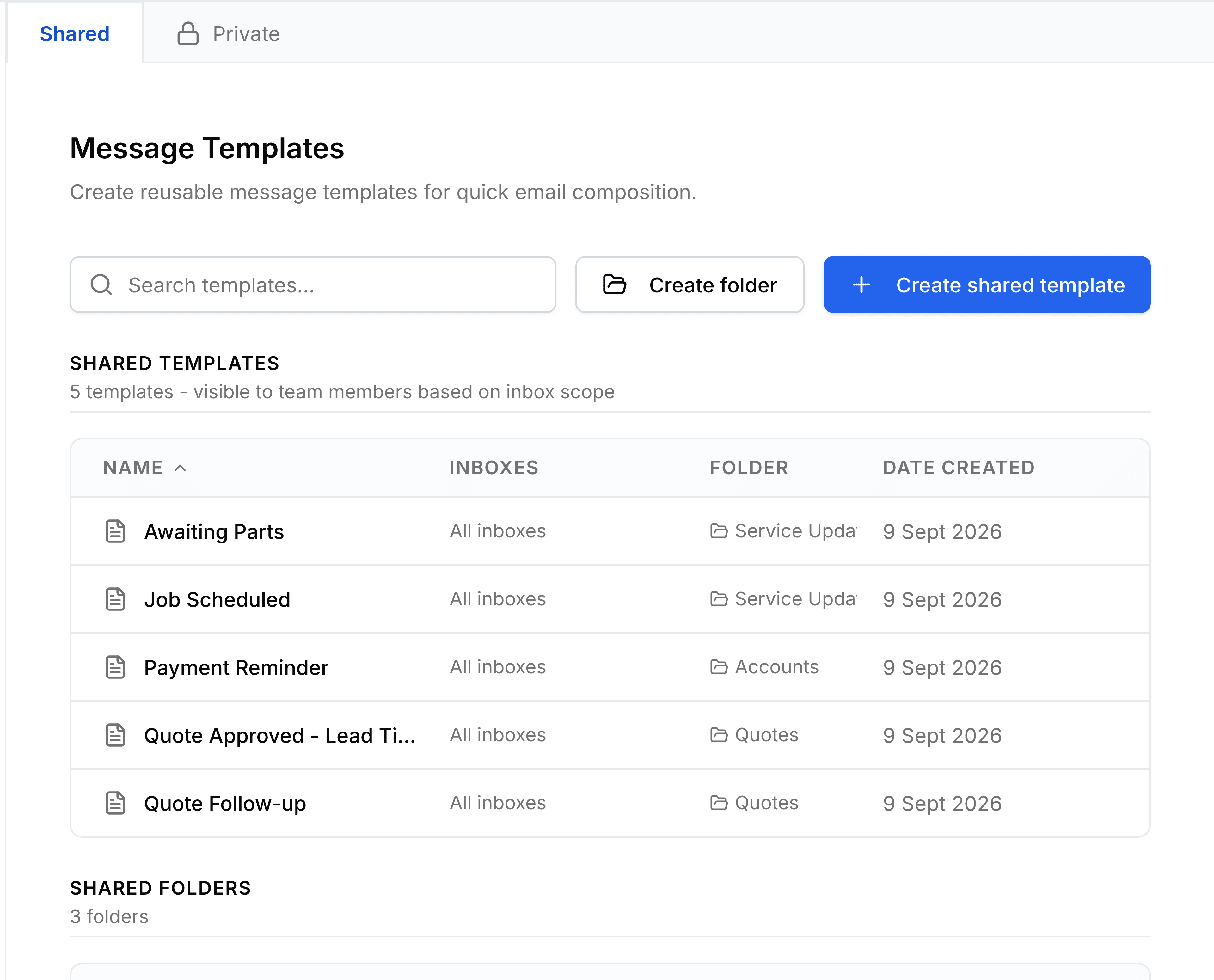
Create a template
Go to Settings > Templates, and select the Shared or Private tab.
Select Create shared template or Create private template.
Enter a Name you'll recognise in the list, such as
Quote follow-up.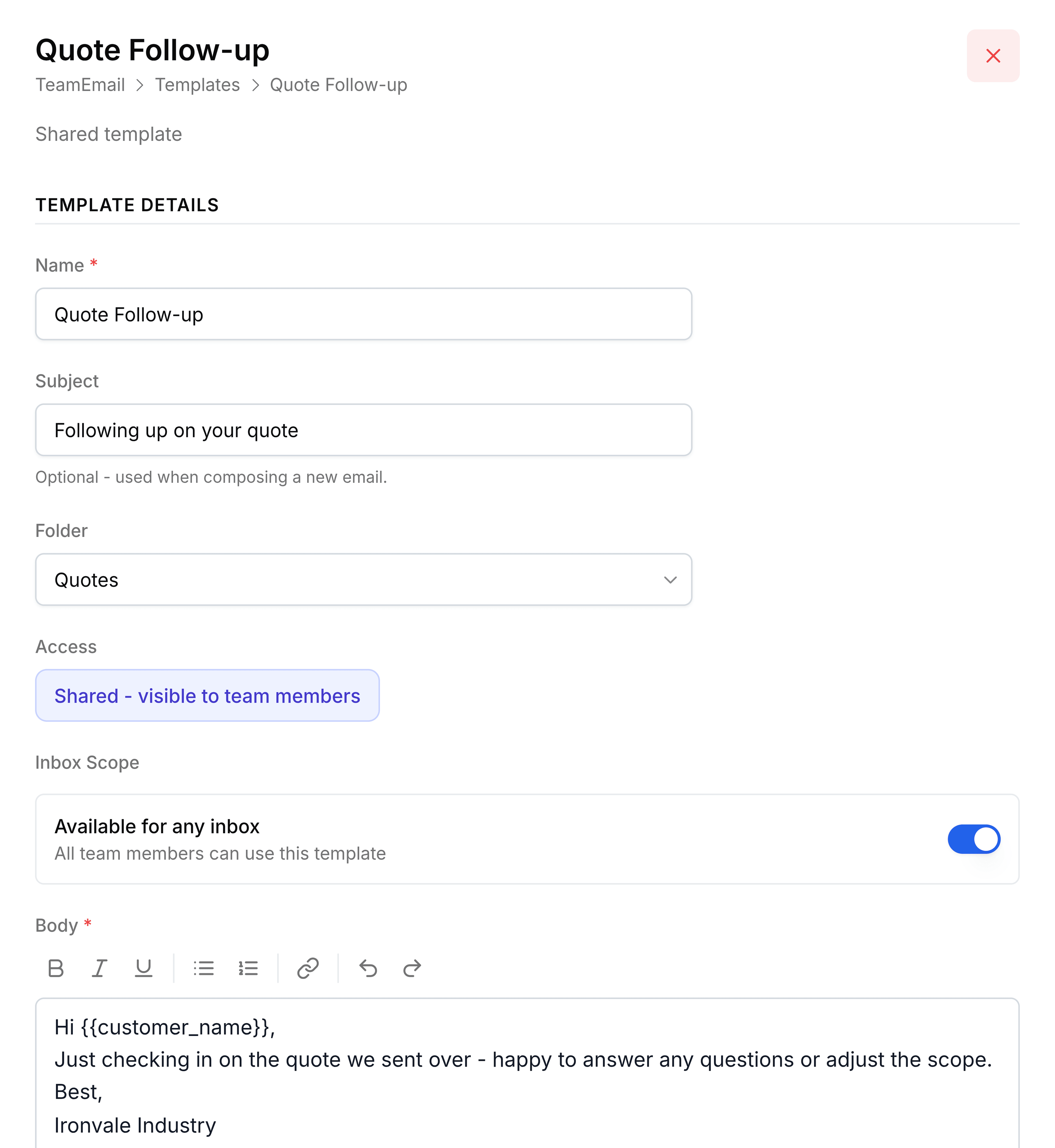
Optionally enter a Subject, and choose a Folder.
For a shared template, decide who can use it under Inbox Scope. Leave Available for any inbox on for everyone, or turn it off and tick the inboxes it belongs to.
Write the Body, using placeholders where the details change (see below). Select Create.
A message confirms Template created, and it appears in the template list whenever someone composes or replies.
You're done when the template is in the list, and it shows up under Message templates in the composer.
Organise templates in folders
Select Create folder, enter a Folder Name such as Quotes, and select Create. Folders belong to the tab you're on. Deleting a folder doesn't delete its templates: they simply stop being in a folder.
Insert a template while you write
In an email or reply, put the cursor where the text should go.
Select the template button in the toolbar along the bottom of the composer. The Message templates panel opens, with shared templates in their folders and your private ones underneath.
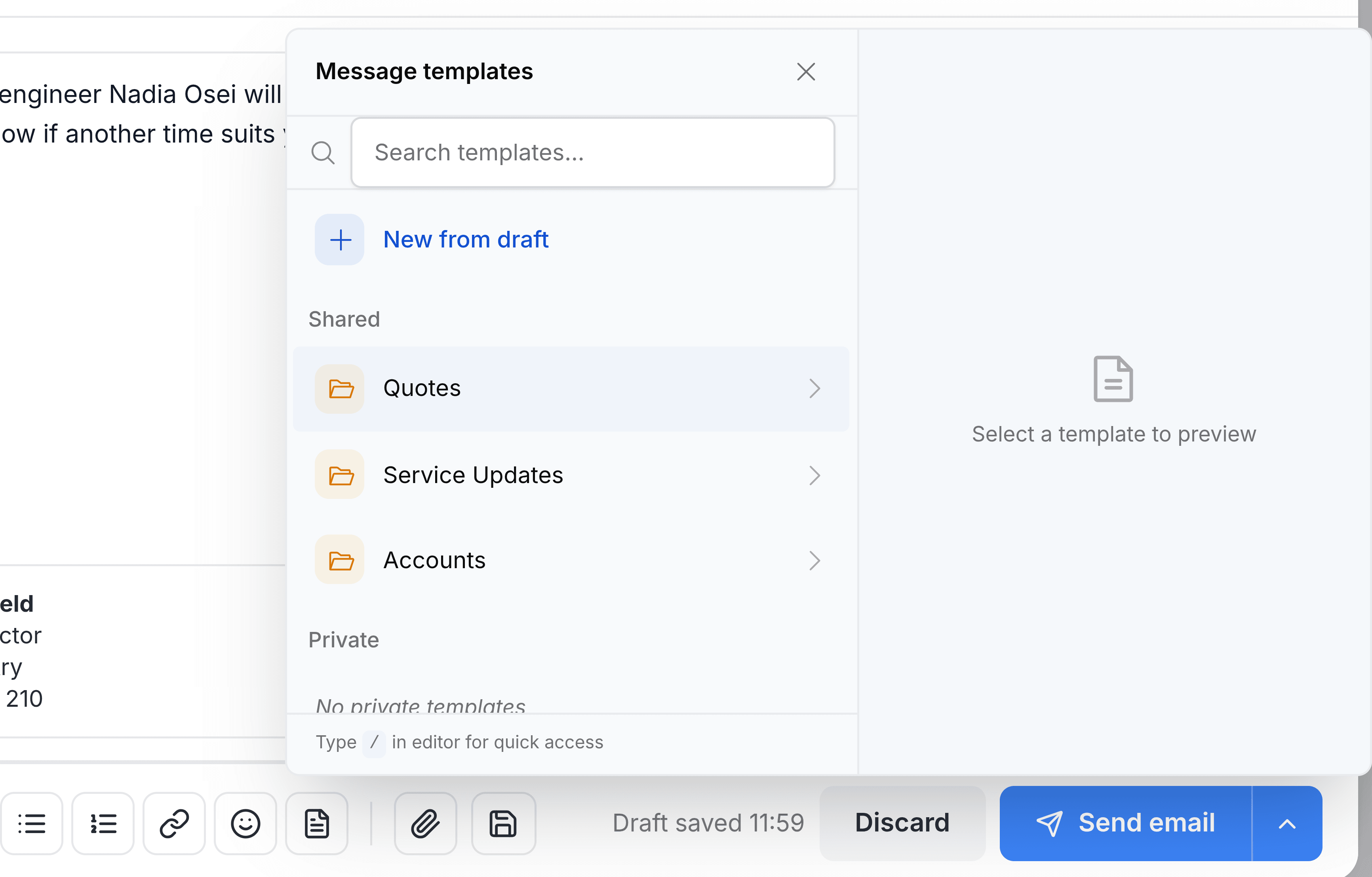
Open a folder, or enter a word in Search templates. Point to a template to preview it.
Select the template. Its text is added at the cursor.
Read it through, change anything specific to this customer, and send as usual.
Faster: enter / in the message and start typing a template's name. Matches appear straight away; select one to insert it.
In a new email, inserting a template from the panel also fills in the Subject, if the template has one, replacing anything already there. Templates inserted with /, and templates in a reply, leave the subject as it is.
You're done when the template's text is in your message, with its placeholders filled in.
Placeholders
Enter these in a template's subject or body exactly as shown. When someone inserts the template into a reply, TeamEmail swaps each one for the real value from the conversation.
| Field | What it does |
|---|---|
| {{customer_name}} | The name of whoever sent the latest message in the conversation, usually the customer. |
| {{customer_email}} | The address of whoever sent the latest message in the conversation. |
| {{my_name}} | Your name, from your connected Microsoft account. |
| {{my_email}} | The sender's email address. |
| {{inbox_name}} | The inbox the conversation is in, such as Service Desk. |
| {{subject}} | The conversation's subject line. |
| {{company_name}} | Your company's name. |
| {{conversation_id}} | The conversation's internal ID. This isn't its ticket ID. |
| {{current_date}}, {{current_time}}, {{current_day}} | Today's date, the time now, and the day of the week. |
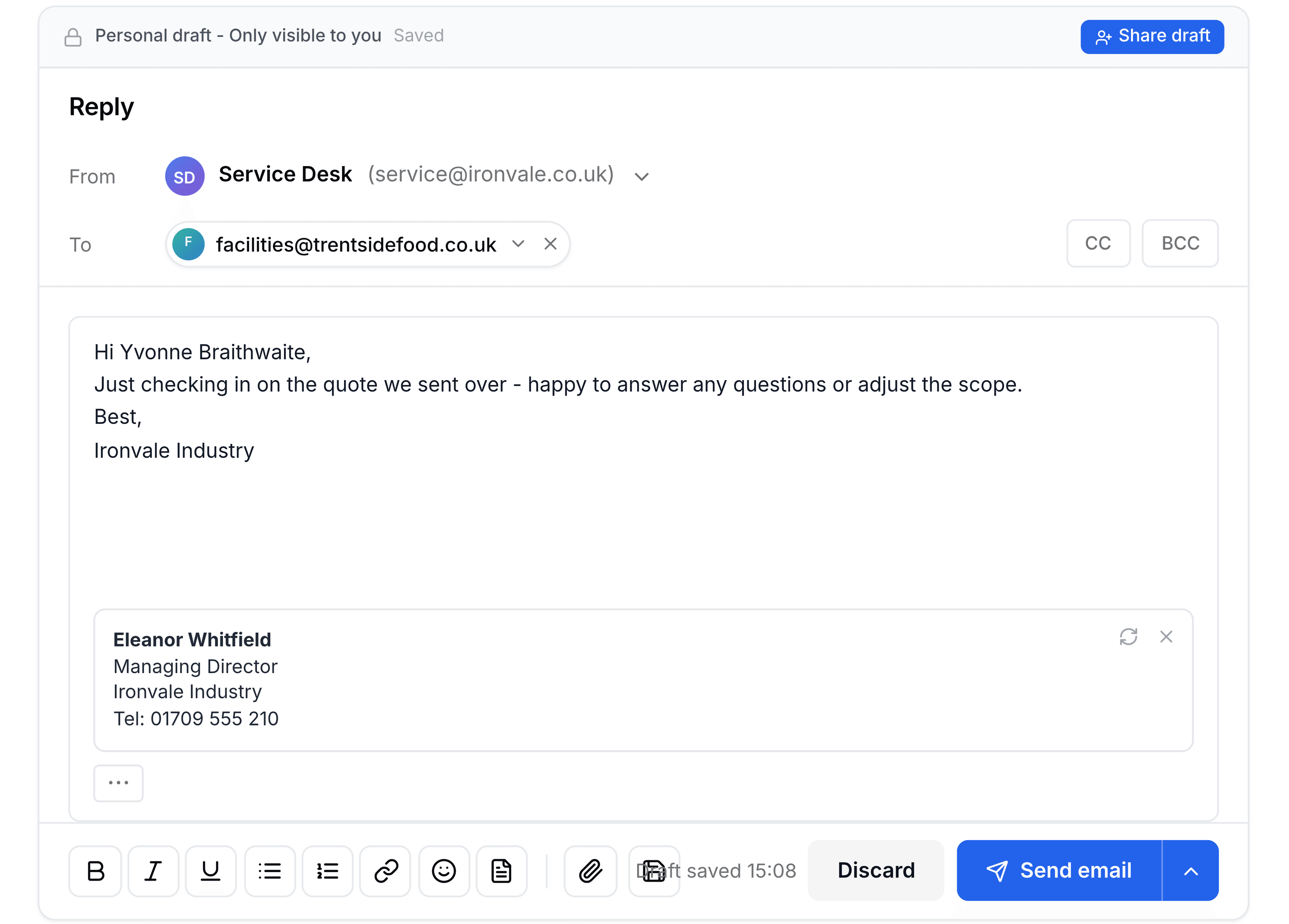
A placeholder that can't be filled stays exactly as written, braces and all. That usually happens in a brand-new email, which has no conversation to take details from. Always read an inserted template before you send it.
Save a template from something you've written
Written something you'll need again? With the text in the composer, open Message templates and select New from draft. Give it a name, keep Private, and select Save. To make a template the whole team can use, create it here in Settings > Templates instead.
Change or delete a template
Select a template to open it, make your changes, and select Save. To delete it, select Delete in the same panel and confirm.
If something doesn't look right
A template your colleague uses isn't in your list. Shared templates can be limited to certain inboxes. You'll only see it if you're a member of one of them.
The email says {{customer_name}} instead of a name. The placeholder couldn't be filled. Replace it by hand before sending.