
Connections
Connect an Outlook mailbox to TeamEmail, choose how much history to bring in, and reconnect or remove it later.
Last reviewed
Every mailbox in TeamEmail is a real Outlook mailbox, connected through Microsoft. Connecting it is what lets TeamEmail read its mail and send from its address. TeamEmail calls each connected mailbox a channel.
Connect your own mailbox
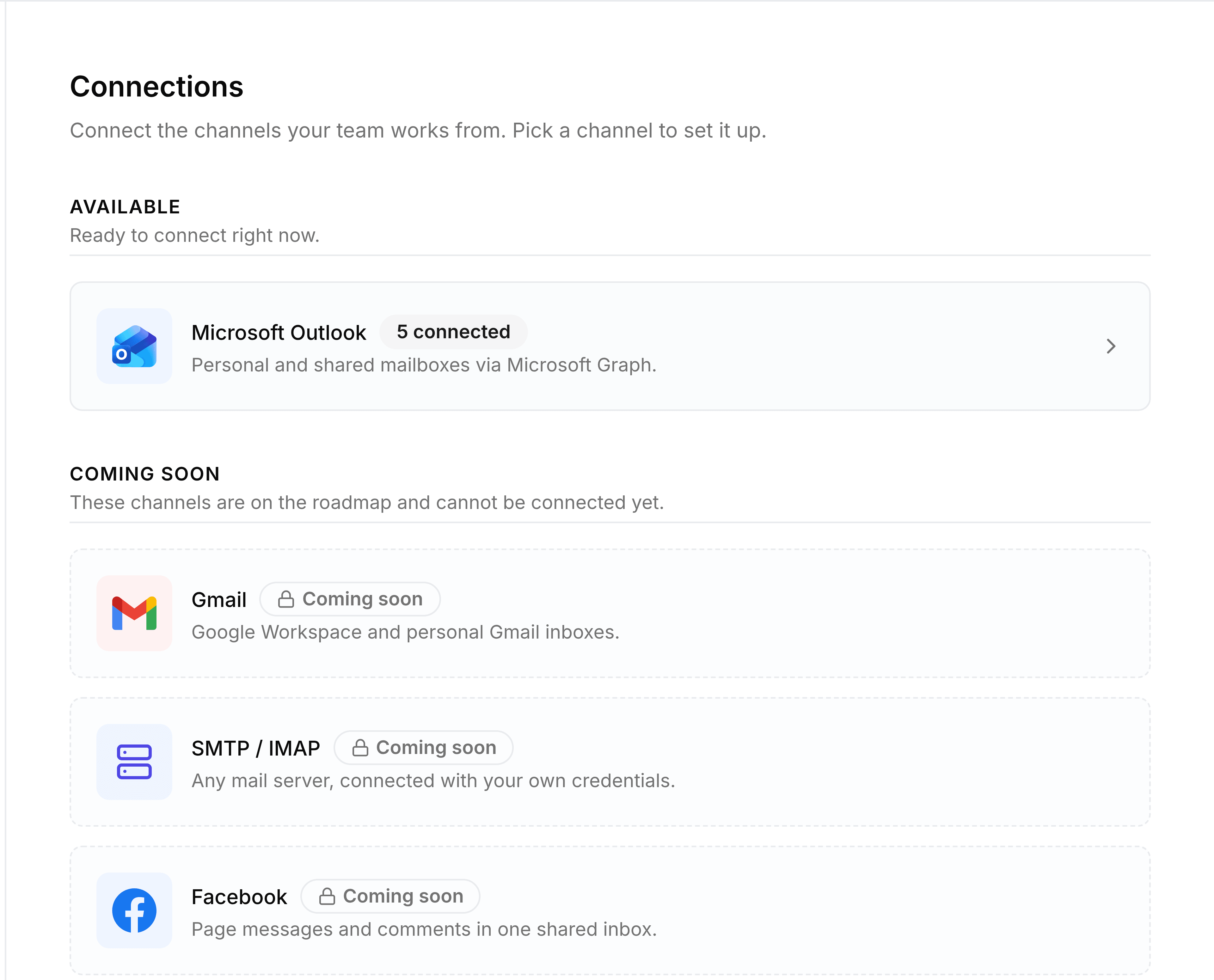
Go to Settings > Connections and select Microsoft Outlook. If the screen says No channels, select Connect channel first.
Select Add User Mailbox.
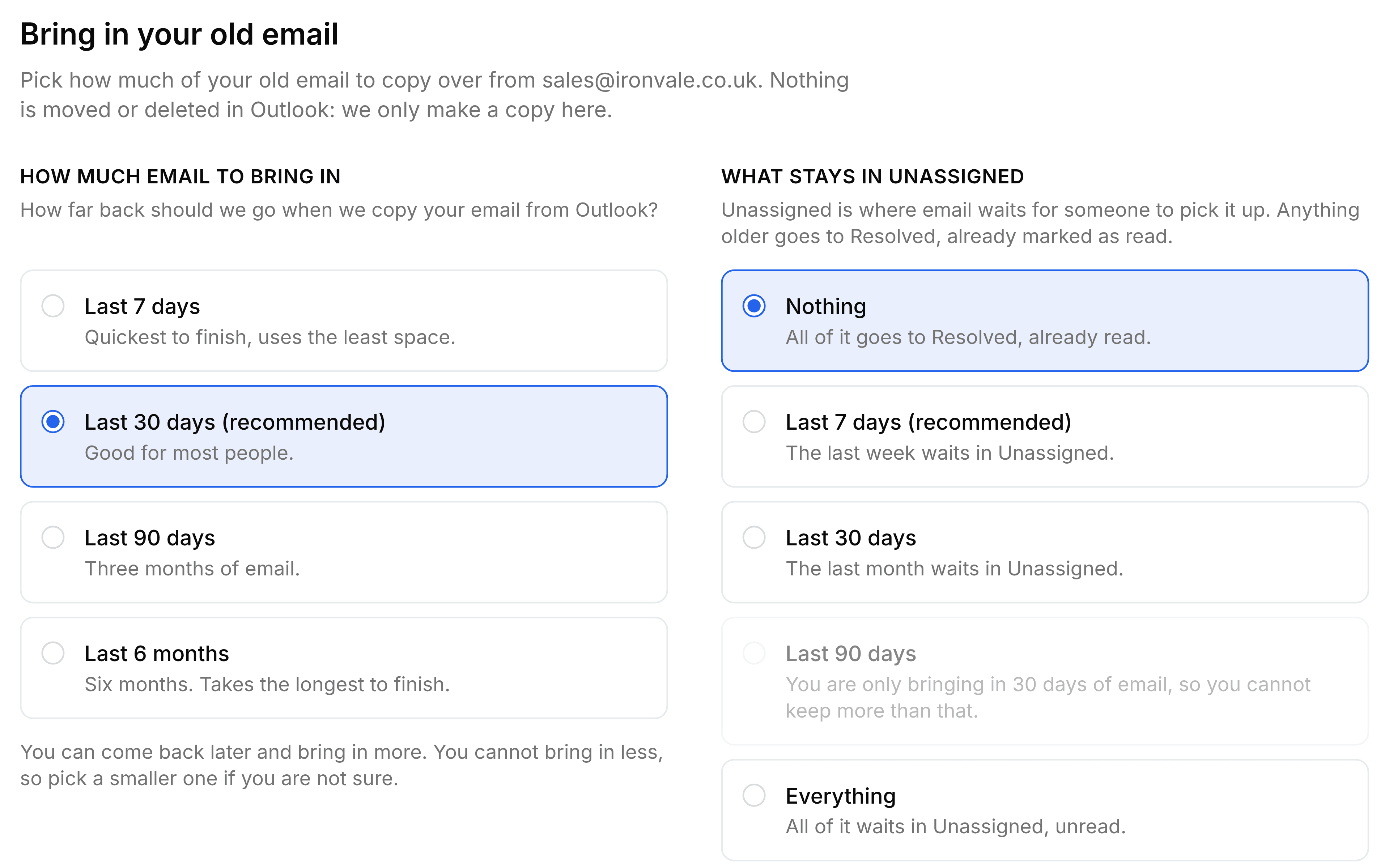
On Bring in your old email, choose how much past email to copy in: Last 7 days, Last 30 days (recommended), Last 90 days or Last 6 months. Beside it, under What stays unread, choose how much of that email stays unread; the rest arrives already read. Then select Continue to Microsoft.
Sign in to Microsoft in the window that opens, and accept the permissions it asks for.
The window closes by itself and a message confirms Channel connected successfully!. The mailbox is listed as Connected, and a card at the foot of the sidebar shows the import progress. A long history can take several minutes.
You're done when the mailbox shows Connected on the Microsoft Outlook screen.
To see its mail in the sidebar, add it to an inbox: your individual inbox, or a shared one. See Inboxes.
Connect a shared mailbox
On the Microsoft Outlook screen, select Add Shared Mailbox.
Enter its Email Address, such as
[email protected], and a Display Name, such asSales. Select Add.On Bring in your old email, choose how much past email to copy in. Under What stays in Unassigned, choose how much of it waits for someone to pick up: anything older goes to Resolved, already read. Nothing is selected at first.
Select Continue to Microsoft and sign in with a Microsoft account that has access to that mailbox.
Look after a connection
Each mailbox's row has buttons for the jobs you'll need later:
- Test
- Checks TeamEmail can still reach the mailbox, and tells you the result.
- Import more
- Brings in older mail than you chose at first. Administrators only.
- Reconnect
- Signs in to Microsoft again. Use it when a mailbox shows Error, or TeamEmail says its connection has expired.
- Disconnect
- Stops TeamEmail using the mailbox until you select Connect again. Nothing is deleted.
- Remove channel
- The bin. Deletes the mailbox from TeamEmail, with its drafts and scheduled emails. Its conversations are kept but leave the inbox. Administrators only: you confirm twice, the second time by entering the address.
If something doesn't look right
The sign-in window didn't open. Your browser blocked it. Select Open Microsoft sign-in in the message that appears, or allow pop-ups for TeamEmail.
The mailbox shows Error. Select Reconnect and sign in again. The reason is shown in red on the row.
It connected, but its mail isn't in the sidebar. A new connection isn't in any inbox yet. Add it to one on the Inboxes screen.